Cryptocurrency Exchange Rate Setup
Overview
The Currency Rates Import app now supports automatic import of cryptocurrency exchange rates from three major providers. This enables businesses to track cryptocurrency holdings, payments, and transactions with accurate, real-time exchange rates.
Supported Cryptocurrency Services
CoinGecko (Free)
-
19,000+ cryptocurrencies supported
-
Free API access (works without a key on the public tier; free Demo API key strongly recommended for higher rate limits — see API Keys & Rate Limits below)
-
Manual asset mapping required
-
Built-in lookup for coin IDs
-
Best for: Small to medium businesses
CoinMarketCap (Professional)
-
Professional-grade crypto data
-
API key required (free tier available)
-
Automatic currency code mapping
-
No manual setup for standard coins
-
Best for: Professional crypto trading
CryptoCompare (Flexible)
-
Real-time cryptocurrency data
-
API key optional (free tier)
-
Automatic currency code mapping
-
Enhanced features with API key
-
Best for: General cryptocurrency tracking
Setup Process
1. Mark Currencies as Cryptocurrency
Before configuring crypto exchange services, you must mark which currencies in Business Central are cryptocurrencies:
-
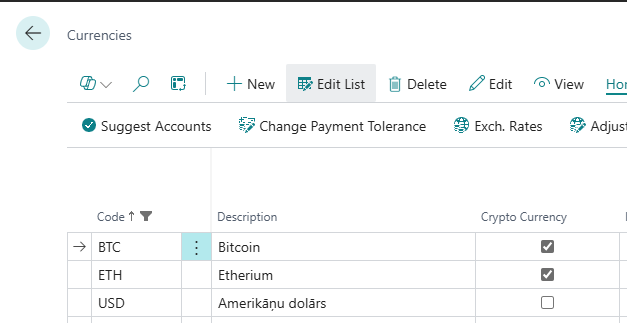
Open Currencies page
-
Select or create a currency (e.g., BTC, ETH, LTC)
-
Check the "Crypto Currency" field
2. Configure Exchange Rate Service
-
Run Assisted Setup > Currencies Exchange Rate Services Setup
-
Select desired cryptocurrency service:
-
CoinGecko (Crypto)
-
CoinMarketCap (Crypto)
-
CryptoCompare (Crypto)
-
-
Complete the wizard
-
On the service card, configure:
-
Interface Type: Select crypto service
-
Currency Filter: Optionally filter specific cryptos (e.g., BTC|ETH)
-
Password / Key: Enter API key — required for CoinMarketCap; optional but strongly recommended for CoinGecko and CryptoCompare (see API Keys & Rate Limits section)
-
-
Set the base fiat currency for rate conversion (see Base Fiat Currency section below). By default this is your General Ledger LCY — no action needed unless you want a different base.
3. Service-Specific Setup
CoinGecko Setup
CoinGecko requires manual mapping because it uses full coin names (e.g., "bitcoin" for BTC):
-
Optional but strongly recommended: obtain a free Demo API key from https://www.coingecko.com/en/developers/dashboard and enter it in the Password / Key field on the service card. This raises the rate limit from ~5-15 calls/min (public) to ~30 calls/min and grants a 10,000-call/month quota. Without a key, larger historic imports will be slow and may be partially blocked by the public tier limit (see Troubleshooting below).
-
On CoinGecko service card, click "Crypto Asset Mapping"
-
Create new mapping entries:
-
Service Code: Auto-filled
-
BC Currency Code: Your BC currency (e.g., BTC)
-
Provider Asset ID: Click lookup arrow to browse CoinGecko coins
-
Description: Optional description
-
Enabled: Check to activate
-
-
Using the Coin Lookup:
-
Click the dropdown arrow on Provider Asset ID field
-
System fetches all coins from CoinGecko (19,000+)
-
Search or browse for your cryptocurrency
-
Select coin (e.g., "Bitcoin (BTC)" → "bitcoin")
-
Value auto-fills in the field

-
Common CoinGecko Mappings:
| BC Currency | Provider Asset ID | Description |
|---|---|---|
| BTC | bitcoin | Bitcoin |
| ETH | ethereum | Ethereum |
| USDT | tether | Tether |
| BNB | binancecoin | BNB |
| XRP | ripple | XRP |
| ADA | cardano | Cardano |
| SOL | solana | Solana |
| DOT | polkadot | Polkadot |
| LTC | litecoin | Litecoin |
| BCH | bitcoin-cash | Bitcoin Cash |
CoinMarketCap Setup
-
Obtain API key from https://coinmarketcap.com/api/
-
On service card, enter API key in PassKey field
-
No manual mapping required - uses currency codes directly
-
BTC automatically maps to BTC
-
ETH automatically maps to ETH
-
Works for all standard cryptocurrency symbols
-
CryptoCompare Setup
-
Optional but recommended for bulk historic imports: Obtain a free API key from https://www.cryptocompare.com/ (sign in → API Keys). The key raises your monthly quota and reduces the chance of being throttled during large date-range backfills.
-
If using an API key, enter it in the Password / Key field on the service card.
-
No manual mapping required - uses currency codes directly
-
BTC automatically maps to BTC
-
ETH automatically maps to ETH
-
Free tier works without API key (slower for historic imports)
-
Configuration Options
Base Fiat Currency
The base fiat currency for crypto rate conversion is configured via the service's Data Exchange Definition, not on the service card itself. The same setting drives two things at once:
-
The rate values fetched from the provider are quoted in this currency (e.g., CoinGecko receives
?vs_currencies=USD). -
The imported
Currency Exchange Raterecords get this code in their Relational Currency Code field.
This guarantees the stored rates and their relational currency are always consistent.
How to change the base fiat currency
-
Open the Currency Exchange Rate Service card for your crypto service.
-
Open the linked Data Exchange Definition (via Navigation → Data Exch. Def. or the related action).
-
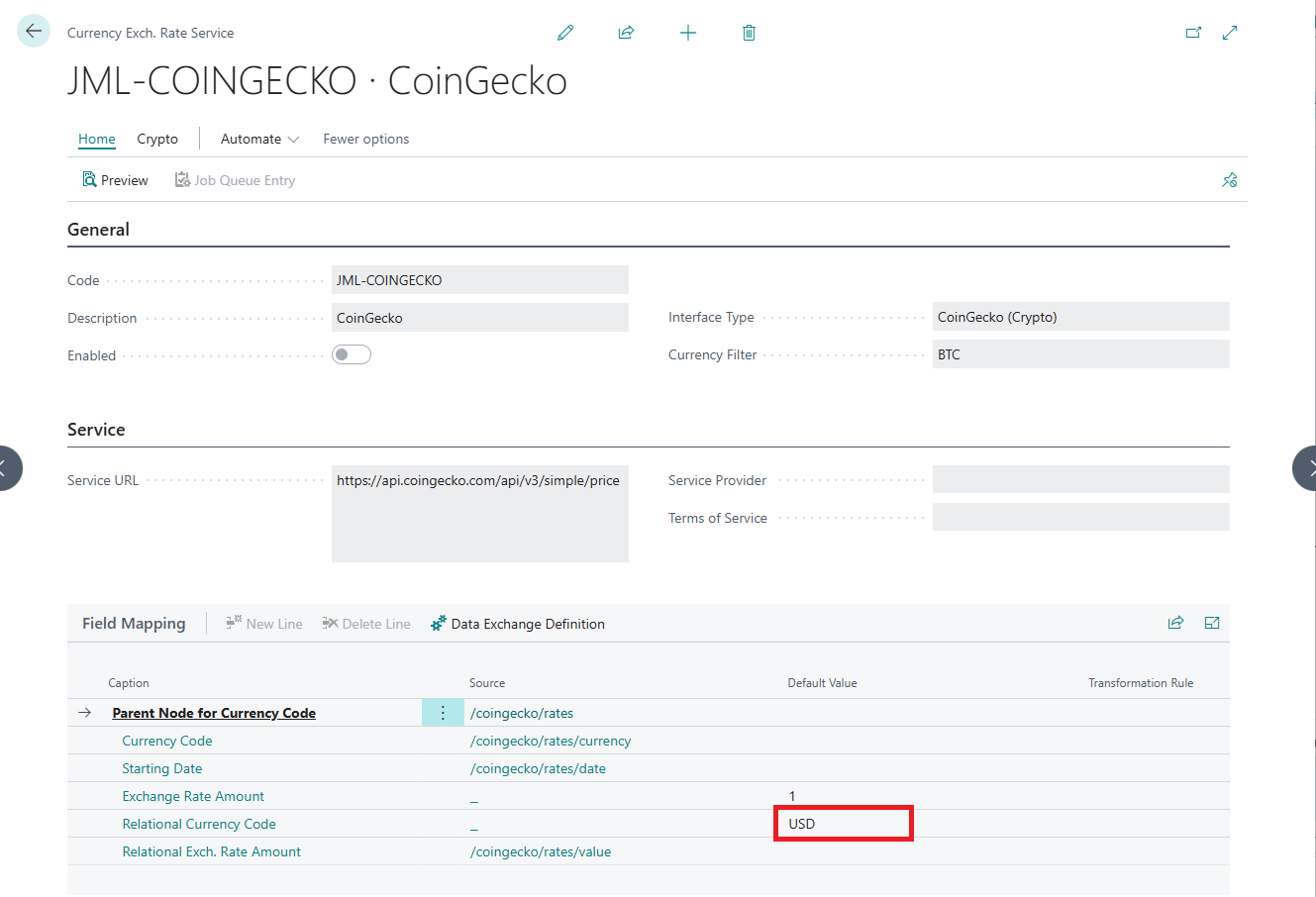
Drill into the Line Definitions → Field Mapping for line
CURREXCHANGE. -
Locate the Relational Currency Code row.
-
Set its Default Value to the desired ISO currency code (e.g.,
USD,GBP,EUR).
Fallback behavior
If the Default Value is blank, or references a currency that does not exist in the Currencies list, the system falls back in this order:
-
General Ledger Setup → LCY Code is used.
-
If LCY is also blank, EUR is used as the final fallback.
The Default Value must reference an existing entry in the Currencies list. If you enter a code that doesn't exist (typo or unregistered currency), the system silently falls back to LCY for the URL request — but BC's standard Data Exchange engine will still try to store the invalid code on the imported rate, which then fails its foreign-key check during import. Always pick a currency that already exists.
For most companies, leaving the Default Value blank is correct — rates will be denominated in your LCY, which matches how all other rate providers (ECB, Open Exchange Rates, etc.) behave.
Exchange rates are imported as: 1 Crypto = X Base Fiat Currency
Rate Multiplier
Some cryptocurrencies trade at very low prices — typically any token priced below $0.0001 USD. Business Central's Currency Exchange Rate table displays rate values with up to 6 decimal places, so a stored rate like 0.0000057 shows as 0.000006 on the page — losing visible precision. Even worse, for any token priced below ~$0.0001 the upstream JSON response uses scientific notation, which prevents the rate from being imported at all.
The Rate Multiplier instructs the import engine to scale rate values by a factor so they fall within Business Central's display precision while preserving correct math. With multiplier 1000:
-
A token priced at
0.0000057 USDis stored as1000 [token] = 0.0057 USD— mathematically identical, fully visible. -
1 BTC = 77000 USDis stored as1000 BTC = 77,000,000 USD— also mathematically identical.
Because the math is equivalent, all postings, conversions and reports produce the same result regardless of the multiplier value.
Default behavior
-
New crypto services (CoinGecko, CoinMarketCap, CryptoCompare) are created with multiplier
1000. Low-priced tokens import correctly out of the box. -
Existing crypto services keep their previous multiplier of
1until you change it manually. Imports continue to work; the display rounding behavior on the Currency Exchange Rates page is unchanged from before. -
Fiat services (ECB, Bank of England, Open Exchange Rates, Riksbank, Danmark) default to multiplier
1. You can opt-in to a higher multiplier if you import a hyperinflation currency or another fiat with very small rates.
Where to set the multiplier
The multiplier is part of the standard Business Central Data Exchange configuration on the service card.
-
Open the Currency Exchange Rate Service card for your service.
-
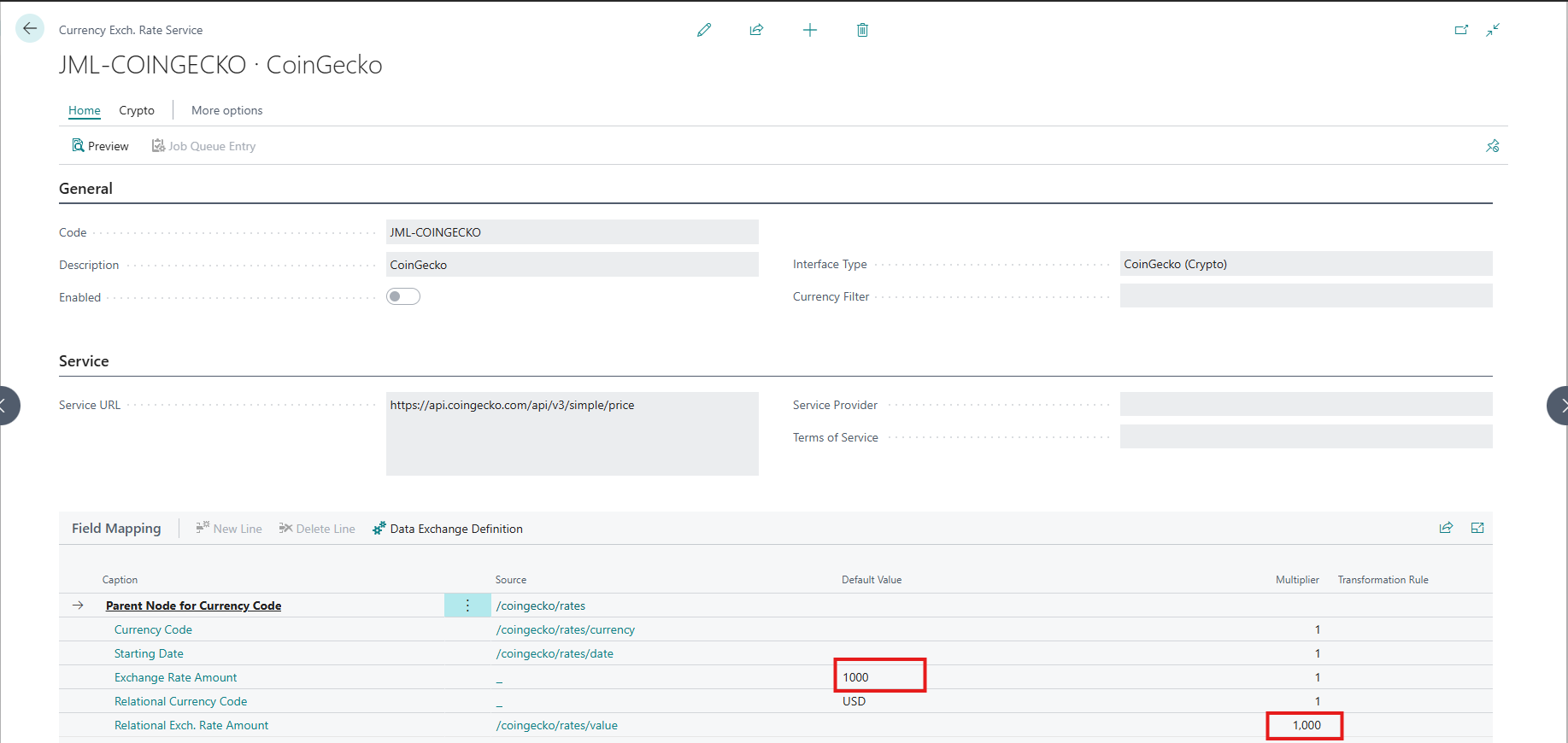
In the Field Mapping subpage (lower part of the card), locate the row for Relational Exch. Rate Amount (this is the field that holds the rate value from the provider).
-
Set the Multiplier column to the desired value (e.g.,
1000). -
On the same subpage, locate the row for Exchange Rate Amount (the unit-side field).
-
Set its Default Value column to the same number as the Multiplier.
The Multiplier on the rate-value row and the Default Value on the unit-side row must always match. If they don't, the math of stored rates is off by their ratio, and amount conversions through the affected currency will be wrong by the same factor. The system does not enforce the match — set both fields whenever you change one.
When to change the multiplier
Situation | Recommended multiplier |
|---|---|
Only mainstream cryptos (BTC, ETH, LTC, etc.) |
|
Includes tokens priced below |
|
Includes microcap tokens priced below |
|
Fiat currencies only |
|
Hyperinflation currencies |
|
Currency Filter
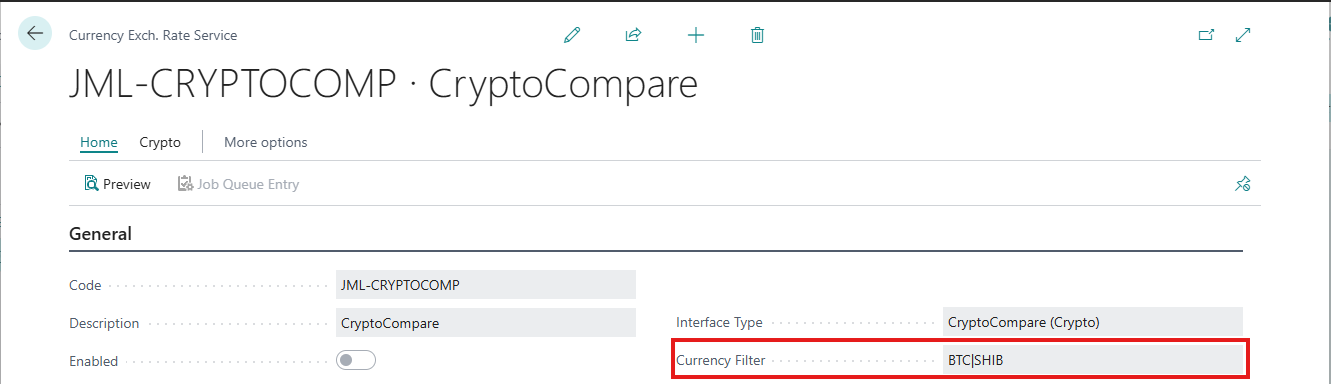
Use filters to limit which cryptocurrencies to import:
-
Empty: Import all mapped/marked cryptos
-
BTC: Import only Bitcoin
-
BTC|ETH: Import Bitcoin and Ethereum
-
BTC..ETH: Import range of currencies
API Keys & Rate Limits
All three crypto providers enforce per-minute and per-month call limits. For real-time imports (a handful of coins, once or a few times per day) the free public tier is sufficient. For bulk historic imports — backfilling weeks or months of rates across multiple coins — an API key is strongly recommended.
Provider rate limits
| Provider | Without key (public tier) | With free key (Demo / Free tier) |
|---|---|---|
| CoinGecko | ~5-15 calls/min (varies with global traffic) | ~30 calls/min, 10,000 calls/month |
| CryptoCompare | Lower per-second cap, shared monthly pool | Higher monthly cap, dedicated quota |
| CoinMarketCap | Not usable — key is required | Varies by tier |
When the limit is exceeded, the provider returns HTTP 429 Too Many Requests. The import engine automatically:
-
Reads the Retry-After header from the 429 response (typically 30-60 seconds).
-
Waits that long (capped at 120 seconds to avoid blocking the session indefinitely).
-
Retries the call once.
If the retry also fails, that single coin/date is skipped silently and the import moves on. To reduce skipped entries during bulk backfills, configure an API key as described in the provider-specific sections above.
Throttling behavior
To stay below the public rate limit even without a key, the import engine waits 2 seconds between successive per-coin calls during historic import. For a 30-day backfill of 5 coins, this adds up to ~5 minutes of total wait time; for a full-year backfill of 5 coins, ~30 minutes. With a configured Demo API key the same calls succeed without proactive throttling adjustments — the 2-second delay is conservative enough for both tiers.
If your bulk historic import is too slow without a key, configure a free Demo key first. Your imports will proceed within the higher rate cap and the monthly quota covers very large backfills (10,000 calls/month with a CoinGecko Demo key is enough for ~30 coins × full year of daily history).
CoinGecko Pro plan note
CoinGecko offers paid Pro plans ($129+/month) with much higher limits (500+ calls/min). However, Pro plans use a different base URL (pro-api.coingecko.com) and a different authentication header (x-cg-pro-api-key) than the free Demo plan, and the current version of this extension only supports the Demo plan endpoint and header. If you have a Pro subscription and would benefit from native Pro plan support, please open a feature request.
For most use cases the Demo plan is sufficient — its 30 calls/min and 10,000 calls/month quota cover typical Business Central exchange rate workloads with comfortable margin.
Testing the Setup
-
On Currency Exchange Rate Service card, click "Preview"
-
System fetches current rates from the crypto service
-
Review the exchange rates before importing
-
If rates look correct, proceed with import
Importing Cryptocurrency Rates
Manual Import
-
Open Currencies page
-
Click "Update Exchange Rates"
-
Select the crypto service
-
Rates are imported and applied
Automatic Import
-
On service card, click "Job Queue Entry"
-
Set frequency (hourly, daily, etc.)
-
Set start date/time
-
Enable the job queue entry
Crypto markets operate 24/7. Consider setting up more frequent updates (hourly or every 4 hours) compared to fiat currency updates.
Troubleshooting
"No crypto asset mappings configured" Error
Service: CoinGecko only
Solution: You must create asset mappings for CoinGecko:
-
Go to service card
-
Click "Crypto Asset Mapping"
-
Add mappings using the lookup feature
Empty Result Set
Possible causes:
-
No currencies marked as "Crypto Currency"
-
Currency Filter excludes all crypto currencies
-
API key missing (CoinMarketCap)
-
Network/connectivity issues
Solution:
-
Check currencies are marked as crypto
-
Review currency filter
-
Verify API key if required
-
Test internet connectivity
Rate Not Updating
Possible causes:
-
Mapping disabled in CoinGecko
-
Currency not supported by service
-
API rate limits exceeded (very common when running multiple imports in quick succession)
Solution:
-
Check "Enabled" flag in mappings
-
Verify currency exists on the service website
-
Configure a free Demo API key on the service card (see API Keys & Rate Limits section) — this is the most common fix for "rate not updating" when multiple jobs run close together
Historic Import Only Fetches Some of the Requested Dates
Symptom: You ran Import Historic Rates for a multi-week or multi-month date range against CoinGecko or CryptoCompare, but only the first few days were imported. The rest of the date range is missing from the Currency Exchange Rates list. No error is shown — the import summary may even claim "Imported: N" with a high number.
Cause: The provider's public (no-key) API rate limit was exceeded mid-import. CoinGecko's public tier allows only ~5-15 calls per minute, which is consumed within the first 1-3 days of a multi-coin historic import. After the limit is hit, the provider returns HTTP 429 and subsequent calls are silently skipped.
Solution: Configure a free Demo API key:
-
CoinGecko: register at https://www.coingecko.com/en/developers/dashboard and copy your Demo API key. CryptoCompare: register at https://www.cryptocompare.com/ and copy your API key.
-
On the corresponding service card, paste the key into the Password / Key field.
-
Re-run Import Historic Rates for the missing date range.
With the Demo key the rate cap rises to ~30 calls/min and the monthly quota lifts to 10,000 calls — sufficient for most realistic backfills.
Built-in 429-retry logic also helps recover from short rate-limit bursts even without a key. However, for any backfill larger than a few days across multiple coins, the API key is the primary remedy.
Low-Priced Cryptocurrency Missing From Imported Rates
Symptom: Major cryptocurrencies (BTC, ETH) import correctly, but a low-priced token (any token priced below ~$0.0001 USD) does not appear in the Currency Exchange Rates list after import, with no error shown.
Cause: The token's rate is below 0.0001 and is being returned by the provider's API in scientific notation. Without a Rate Multiplier configured, the import engine's value parser rejects the row silently, leaving you with the wrong impression of "no rate available".
Solution:
-
On the service card's Field Mapping subpage, set the Multiplier on the Relational Exch. Rate Amount row to
1000(or higher for very-low-priced tokens — see the Rate Multiplier section above). -
On the same subpage, set the Default Value on the Exchange Rate Amount row to the same number.
-
Re-run the import.
The stored rate will be the multiplier-scaled value (e.g. 0.0057 instead of 0.0000057), but all postings and conversions through the currency will still produce the correct results.
Best Practices
-
Use Multiple Services: Configure multiple crypto services for redundancy
-
Regular Updates: Set up automatic updates for 24/7 crypto markets
-
Filter Appropriately: Only import cryptos you actively use
-
Monitor API Limits: Track usage if using free API tiers
-
Validate Rates: Always preview before first import
-
Document Mappings: Keep track of which service provides which crypto
-
Backup Configuration: Export/document your mappings
Supported Cryptocurrencies
The number of supported cryptocurrencies depends on the service:
-
CoinGecko: 19,000+ coins (any with CoinGecko ID)
-
CoinMarketCap: 9,000+ coins (standard symbols)
-
CryptoCompare: 6,000+ coins (standard symbols)
All major cryptocurrencies (Bitcoin, Ethereum, Litecoin, XRP, etc.) are supported by all three services.