Exchange Rate Service Setup
Overview
Currency Exchange Rate Services can be configured for both traditional fiat currencies and cryptocurrencies. This guide covers the general setup process applicable to all service types.
For cryptocurrency-specific setup details, see Cryptocurrency Exchange Rate Setup
Initial Setup Wizard
-
After installation, open the Assisted Setup list and select "Currencies Exchange Rate Services Setup.".
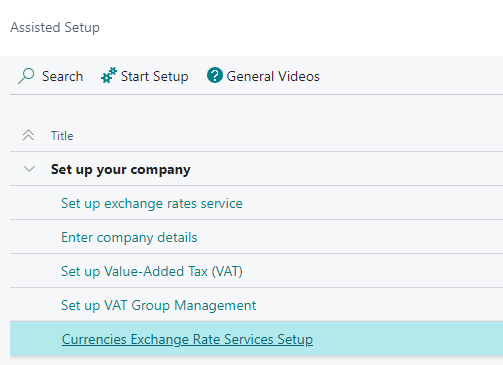
-
Follow the setup wizard instructions to choose the desired service from the provided list:
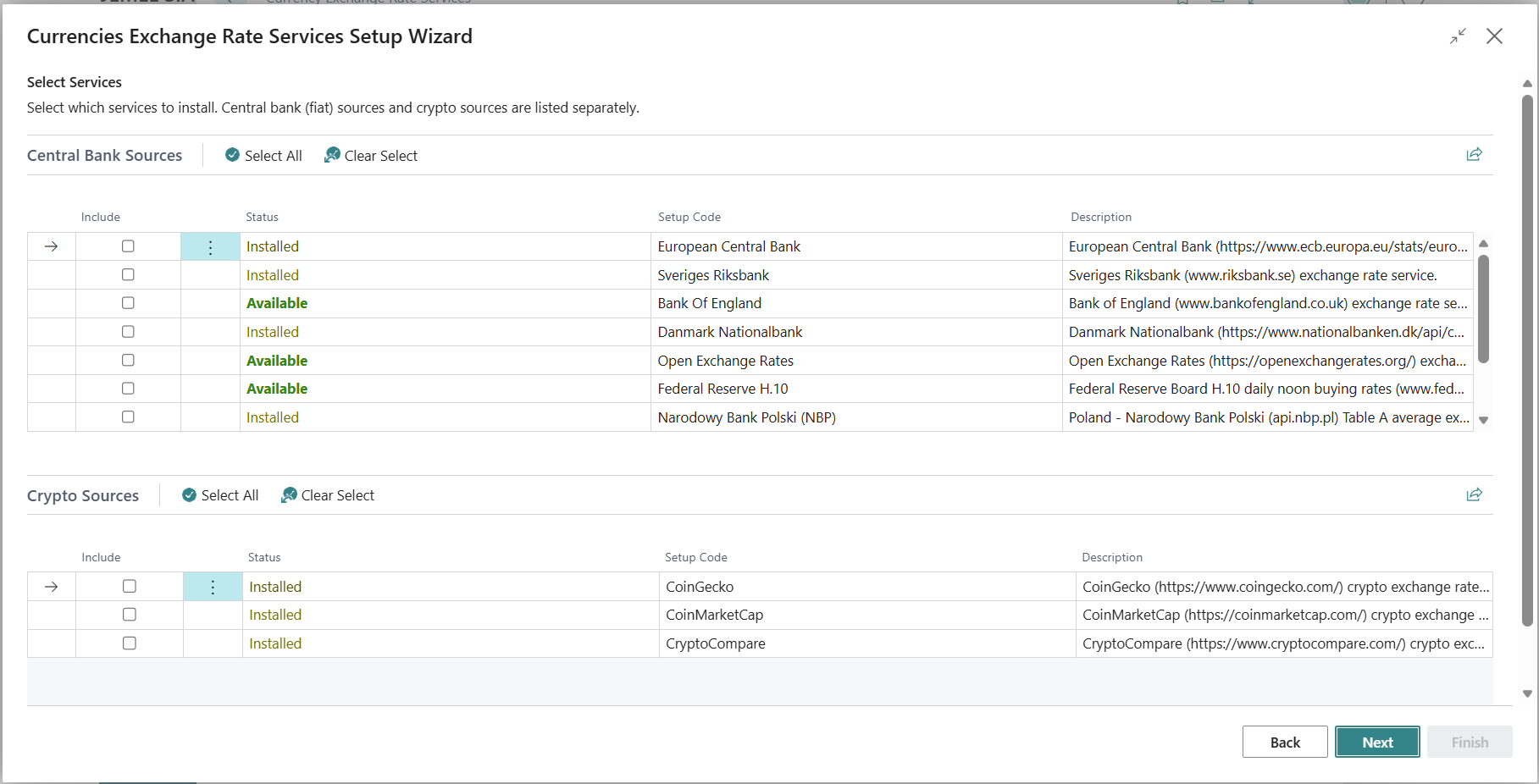
The selection step groups sources into two separate lists — Central Bank Sources (traditional fiat providers) and Crypto Sources — so you can quickly find the provider you need. Tick Include on any combination across both lists; each list has its own Select All / Clear Select actions.
Available Services:
- European Central Bank
- Sveriges Riksbank
- Bank of England
- Danmarks Nationalbank
- Federal Reserve (H.10) 🆕
- Narodowy Bank Polski (NBP) 🆕
- Česká národní banka (CNB) 🆕
- Banca Națională a României (BNR) 🆕
- Magyar Nemzeti Bank (MNB) 🆕
- Open Exchange Rates
- CoinGecko (Crypto) 🆕
- CoinMarketCap (Crypto) 🆕
- CryptoCompare (Crypto) 🆕
-
Upon completion, the system will display a list of created Currency Exchange Rate services. Enable the service for automatic import by switching the "Enable" field and accepting the terms and conditions when prompted.
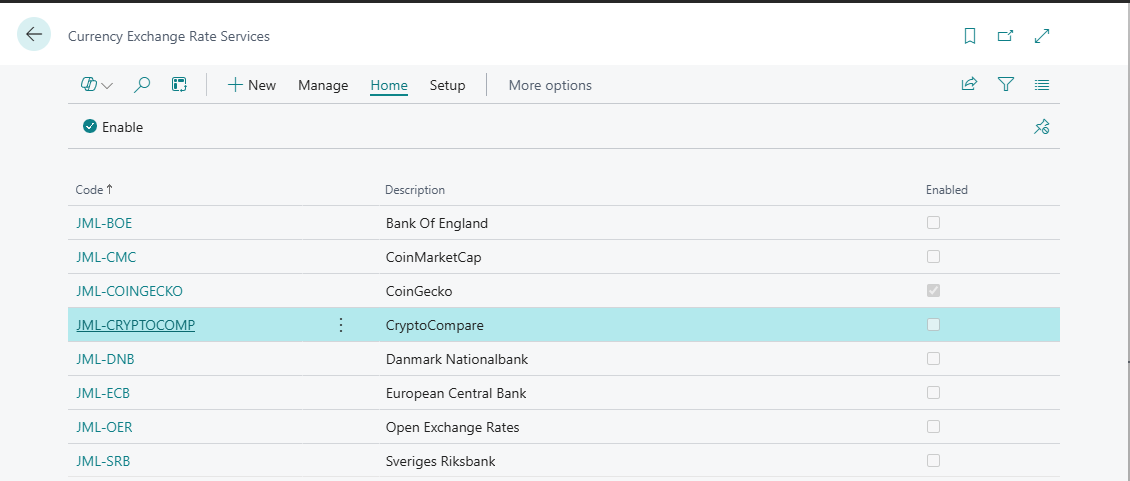
Service Configuration
Currency Filter
User can set "Currency filter" field - that filter specifies which currency rates user wants to import from current source.
Examples:
-
Empty - Import all available currencies
-
USD - Import only US Dollar
-
USD|GBP - Import US Dollar and British Pound
-
USD..GBP - Import range of currencies
-
BTC|ETH|LTC - Import specific cryptocurrencies (crypto services only)
For cryptocurrency services, only currencies marked as "Crypto Currency" will be imported, regardless of the filter.
Authentication
For some services user may need to specify Authentication information - user and/or Password/Key:
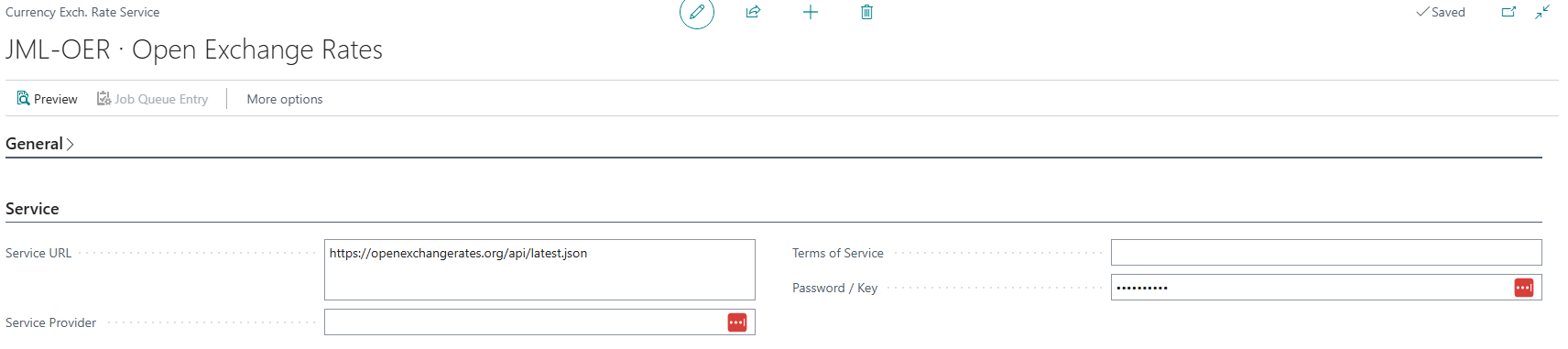
Services requiring authentication:
-
Open Exchange Rates - API key in PassKey field
-
CoinMarketCap - API key in PassKey field (required)
-
CryptoCompare - API key in PassKey field (optional)
Cryptocurrency-Specific Settings
When configuring cryptocurrency services, additional fields are available:
Base Fiat Currency
Specifies the fiat currency for crypto conversion (e.g., EUR, USD, GBP).
Example: If Base Fiat Currency = EUR, Bitcoin rate will be imported as "1 BTC = X EUR"
Crypto Asset Mapping (CoinGecko only)
CoinGecko requires manual mapping between Business Central currency codes and CoinGecko asset IDs:
-
Click "Crypto Asset Mapping" action
-
Create new mapping entries
-
Use the built-in lookup to find correct asset IDs
-
Enable the mappings
Quick Access: The "Crypto Asset Mapping" action appears in the ribbon when a crypto service is selected.
Service-Specific Notes
Traditional Fiat Services
| Service | Authentication | Rates published (source local time) | Notes |
|---|---|---|---|
| ECB | None | ~16:00 CET, each TARGET working day | Snapshot taken at the 14:15 CET concertation |
| Riksbank | None | 16:15 CET, each Swedish banking day | Derived from ECB rates (since 27 Nov 2023) and converted to SEK |
| Bank of England | None | ~09:30 London (by 10:00), next working day | Indicative ~16:00 (4 pm) London rate from the previous working day |
| Danmarks Nationalbank | None | ~16:00 CET, shortly after the ECB | DKK crosses derived from the ECB reference rates |
| Federal Reserve (H.10) | None | Weekly, Mondays ~16:15 ET | Noon (12:00 ET) buying rates; one release covers through the prior Friday. Best when LCY = USD |
| Narodowy Bank Polski (NBP) | None | ~12:15 CET, each Polish working day | Table A reference rates (PLN-based). Rates published today are effective the next working day — the imported rate carries tomorrow's date by design |
| Česká národní banka (CNB) | None | ~14:30 CET, each Czech working day | CZK-based reference rates, valid the same working day. Currencies quoted per unit (e.g. 100 JPY) are converted automatically |
| Banca Națională a României (BNR) | None | ~13:00 EET, each Romanian banking day | RON-based reference rates, valid the same day. Some currencies quoted per 100 are converted automatically |
| Magyar Nemzeti Bank (MNB) | None | ~11:00 CET, each Hungarian working day | HUF-based reference rates, valid the same working day. Some currencies quoted per 100 (e.g. JPY) are converted automatically |
| Open Exchange Rates | API Key | Hourly (USD-based) | Free tier available |
When each source publishes (and how to schedule)
Each provider publishes on its own clock, so a rate for "today" is only available after that source's publication time in the source's own time zone. Two consequences for scheduling the Job Queue import (see Using Currency Rate Import):
-
Schedule the import after the source has published, in your server's time zone. For the European sources that means running after ~16:15 CET; if your BC environment runs on UTC, that is ~15:15 UTC in winter (CET = UTC+1) and ~14:15 UTC in summer (CEST = UTC+2). Run too early and you re-import yesterday's rate.
-
Mind the lag built into some sources:
-
Bank of England is always a day behind — the rate published this morning is the previous working day's 4 pm London fixing. Date your expectations accordingly.
-
Federal Reserve (H.10) publishes only weekly (Mondays), not daily. A mid-week import returns the most recent Friday's noon rates, not today's. Schedule it weekly (Monday/Tuesday), and use Fill Gaps or a real-time provider if you need a rate dated on every calendar day.
-
Riksbank and Danmarks Nationalbank trail the ECB because they are computed from the ECB reference rates — they cannot publish before the ECB does.
-
Narodowy Bank Polski (NBP) dates its rates one day forward — a table published today is the official rate effective the next working day, so an imported NBP rate carries tomorrow's date. This is NBP's own convention, not an import artefact. (CNB, BNR and MNB are same-day: the published rate is dated the day it is published.)
-
All of these are indicative central-bank reference rates published for information, not tradeable/transactional rates. Times are approximate and can shift slightly; holidays in each market mean no new rate that day (handled by Fill Gaps).
Cryptocurrency Services 🆕
| Service | Authentication | Mapping Required | Coins Supported |
|---|---|---|---|
| CoinGecko | None | Yes (manual) | 19,000+ |
| CoinMarketCap | API Key (required) | No (automatic) | 9,000+ |
| CryptoCompare | API Key (optional) | No (automatic) | 6,000+ |
CoinMarketCap and CryptoCompare automatically use your Business Central currency codes (BTC, ETH, etc.), requiring no manual mapping. CoinGecko requires manual mapping but includes a convenient lookup feature.
Enabling Multiple Services
You can enable multiple exchange rate services simultaneously:
-
Different services for different currencies
-
ECB for European currencies
-
CoinGecko for cryptocurrencies
-
Open Exchange Rates for global currencies
-
-
Redundancy and backup
-
Primary and secondary services
-
Automatic fallback if one service fails
-
-
Comparison and validation
-
Compare rates from multiple sources
-
Identify discrepancies
-
Testing Your Configuration
Preview Rates
Before enabling automatic import:
-
Open the service card
-
Click "Preview" action
-
Review the fetched exchange rates
-
Verify all expected currencies are present
-
Check rate values are reasonable

Test Import
Perform a manual test import:
-
Go to Currencies page
-
Click "Update Exchange Rates"
-
Select your configured service
-
Verify rates are imported correctly