Auto-Restart Rules
Auto-Restart Rules enable automatic recovery from transient job failures. Configure pattern-based rules to restart jobs automatically when specific errors occur, with built-in protection against restart loops.
Overview
Why Auto-Restart?
Many job failures are transient and resolve themselves:
-
Network timeouts: Temporary connectivity issues
-
Deadlocks: Database contention that clears
-
Service unavailability: External services temporarily down
-
Resource constraints: Temporary memory or CPU pressure
Auto-restart rules automatically recover from these failures without manual intervention.
How It Works
-
Job fails with error message
-
Error message matched against rule patterns
-
If match found, restart scheduled with configured delay
-
Process repeats until success or max attempts reached
-
Cooldown activates if max attempts exceeded
Creating Restart Rules
Step 1: Open Restart Rules
-
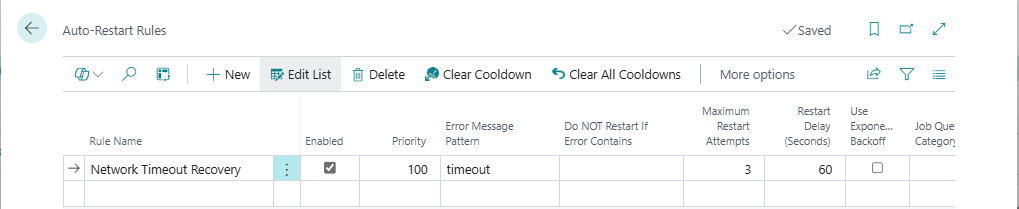
Search for Auto-Restart Rules
-
Or from Job Queue Admin Setup: Actions > Navigate > Auto-Restart Rules
Step 2: Create New Rule
-
Click New to create a new rule
-
Fill in the required fields:
| Field | Value | Example |
|---|---|---|
| Rule Name | Descriptive name | "Network Timeout Recovery" |
| Error Message Pattern | Pattern to match | timeout |
| Enabled | Yes | Yes |
| Priority | Processing order | 100 |
Step 3: Configure Restart Behavior
Set how restarts should behave:
| Field | Description | Recommended |
|---|---|---|
| Maximum Restart Attempts | Maximum restarts before cooldown | 3 |
| Restart Delay (Seconds) | Initial delay before restart | 60 |
| Use Exponential Backoff | Increase delay each attempt | Yes |
Step 4: Configure Cooldown
Set cooldown behavior after max attempts:
| Field | Description | Recommended |
|---|---|---|
| Enable Cooldown After Repeated Failures | Enable cooldown protection | Yes |
| Cooldown Duration (Minutes) | How long to pause restarts | 30 |
Step 5: Set Active Schedule (Optional)
Limit when rule is active:
| Field | Description |
|---|---|
| Active On Weekdays | Rule active Monday-Friday |
| Active On Weekends | Rule active Saturday-Sunday |
| Active From Time | Start of active window |
| Active To Time | End of active window |
Rule Fields Reference
Identification
| Field | Description | Required |
|---|---|---|
| Entry No. | Auto-assigned unique ID | Auto |
| Rule Name | Unique rule name | Yes |
| Enabled | Active/inactive toggle | Yes |
| Priority | Processing order (lower = first) | Yes |
Pattern Matching
| Field | Description | Required |
|---|---|---|
| Error Message Pattern | Pattern to match in error message | No |
| Do NOT Restart If Error Contains | Pattern to exclude from matching | No |
| Job Queue Category Code | Limit to specific job category | No |
| Company Filter | Limit to specific companies (comma-separated) | No |
Restart Settings
| Field | Description | Default |
|---|---|---|
| Maximum Restart Attempts | Maximum restart tries | 3 |
| Restart Delay (Seconds) | Initial delay in seconds | 60 |
| Use Exponential Backoff | Double delay each attempt | No |
Cooldown Settings
| Field | Description | Default |
|---|---|---|
| Enable Cooldown After Repeated Failures | Enable cooldown after max attempts | No |
| Cooldown Duration (Minutes) | Cooldown period length | 60 |
| Cooldown Active Until | Current cooldown end time (read-only) | System |
Schedule Settings
| Field | Description | Default |
|---|---|---|
| Active On Weekdays | Monday-Friday | Yes |
| Active On Weekends | Saturday-Sunday | Yes |
| Active From Time | Daily start time | 00:00 |
| Active To Time | Daily end time | 00:00 |
Pattern Matching
Wildcard Support
Error patterns support wildcards:
Pattern | Matches |
|---|---|
| Any error containing "timeout" |
| Any error containing "connection" |
| Errors containing "deadlock" |
| All errors (use with caution) |
Case Sensitivity
-
Pattern matching is case-insensitive
-
*Timeout*matches "timeout", "TIMEOUT", "TimeOut"
Exclude Patterns
Use exclude patterns to prevent matching specific errors:
Error Message Pattern | Do NOT Restart If Error Contains | Result |
|---|---|---|
|
| Matches "connection timeout" but not "permanent timeout" |
|
| Matches "recoverable error" but not "fatal error" |
Example Patterns
Use Case | Error Message Pattern | Do NOT Restart If Error Contains |
|---|---|---|
Network issues |
| |
Database locks |
| |
Service unavailable |
| |
All except critical |
|
|
Connection drops |
|
Exponential Backoff
How It Works
With exponential backoff enabled, each restart attempt waits longer:
| Attempt | Base Delay | Multiplier | Actual Delay |
|---|---|---|---|
| 1 | 60s | 2^0 = 1 | 60 seconds |
| 2 | 60s | 2^1 = 2 | 120 seconds |
| 3 | 60s | 2^2 = 4 | 240 seconds |
When to Use
Enable for:
-
External service calls (give service time to recover)
-
Database operations (let contention clear)
-
Resource-intensive jobs (let system recover)
Disable for:
-
Quick retries needed
-
Time-sensitive jobs
-
Known short-duration issues
Cooldown Protection
Purpose
Cooldown prevents restart loops when errors persist:
-
Stops wasting resources on unrecoverable errors
-
Prevents notification storms
-
Gives time for manual investigation
Triggering Cooldown
Cooldown activates when max restart attempts is reached for a job.
Cooldown Period
During cooldown:
-
No automatic restarts for matching errors
-
Notifications are still sent when jobs fail
-
Manual restart still possible
-
Cooldown ends automatically after duration
Clearing Cooldown
Automatic: Cooldown expires after configured duration
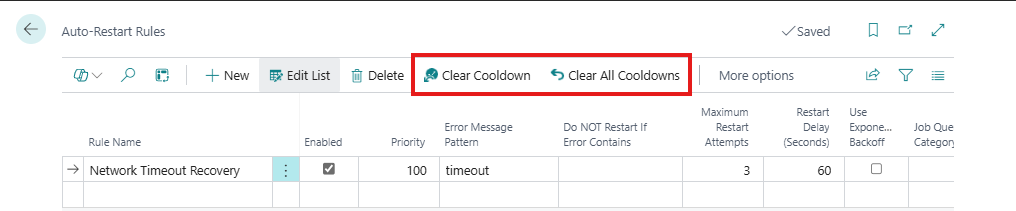
Manual: Use Clear Cooldown action for a selected rule, or Clear All Cooldowns to reset all rules
Rule Priority
How Priority Works
When multiple rules match an error:
-
Rules sorted by Priority (ascending)
-
First matching rule is used
-
Lower number = higher priority
Priority Strategy
| Priority | Rule Type | Example |
|---|---|---|
| 10-50 | Specific patterns | "Specific API timeout" |
| 50-100 | General patterns | "Any timeout" |
| 100+ | Catch-all rules | "All errors" |
Example Priority Setup
Priority | Rule Name | Pattern |
|---|---|---|
10 | Salesforce API |
|
20 | Payment Gateway |
|
50 | Any Timeout |
|
100 | All Errors |
|
Schedule Configuration
Active Hours
Limit when restarts occur:
| Scenario | Weekdays | Weekends | From | To |
|---|---|---|---|---|
| Business hours only | Yes | No | 08:00 | 18:00 |
| 24/7 | Yes | Yes | 00:00 | 00:00 |
| Nights only | Yes | Yes | 22:00 | 06:00 |
| Weekends only | No | Yes | 00:00 | 00:00 |
Overnight Windows
For overnight windows (e.g., 22:00 to 06:00):
-
Set Active From Time = 22:00
-
Set Active To Time = 06:00
-
System detects overnight span automatically
Best Practices
Pattern Design
-
Be specific: Narrow patterns reduce false matches
-
Use exclude patterns: Prevent matching critical errors
-
Test patterns: Verify matching before enabling
Restart Settings
-
Start conservative: 3 attempts, 60-second delay
-
Enable backoff: For external service calls
-
Monitor results: Adjust based on success rate
Cooldown Configuration
-
Enable for persistent issues: Prevents restart loops
-
60 minutes default: Usually sufficient for investigation
-
Clear manually if needed: Use Clear Cooldown action
Rule Organization
-
Specific before general: Use priority effectively
-
Use clear rule names: Include the error type in the name
-
Review periodically: Remove obsolete rules
Monitoring & Troubleshooting
View Active Cooldowns
-
Open Auto-Restart Rules
-
Check Cooldown Active Until column
-
Rules in cooldown show future datetime
View Restart History
-
Open Notification Log
-
Filter by Trigger Event = "OnAutoRestart"
-
See all auto-restart notifications
Common Issues
| Issue | Cause | Solution |
|---|---|---|
| Rule not matching | Pattern too specific | Widen pattern or check spelling |
| Too many restarts | Pattern too broad | Narrow pattern or add exclude |
| Cooldown not clearing | Duration too long | Reduce duration or clear manually |
| Wrong rule matching | Priority incorrect | Adjust priorities |
Next Steps: Configure Maintenance Windows to suppress restarts during planned maintenance, or set up Digest Schedules for summary reports.