Notification Queue & Log
The Notification Queue and Notification Log provide visibility into notification delivery. Use the Queue to see pending notifications and the Log to review delivery history and troubleshoot issues.
Notification Queue
Overview
The Notification Queue holds notifications waiting to be sent:
-
Pending: Awaiting first delivery attempt
-
Retrying: Failed, scheduled for retry
-
Processing: Currently being sent
Accessing the Queue
-
Search for Notification Queue
-
Or from Job Queue Admin Setup: Actions > Navigate > Notification Queue
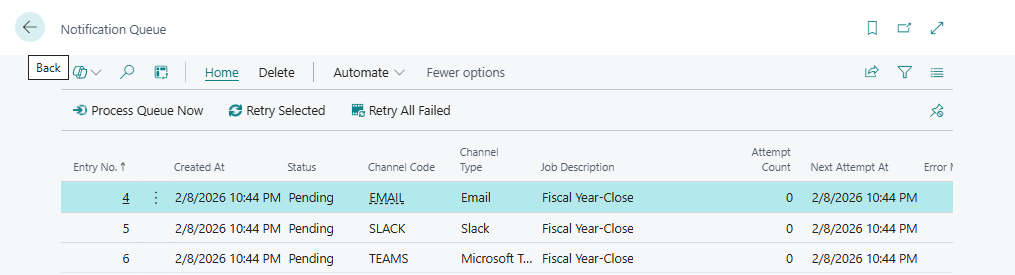
Queue Entry Fields
| Field | Description |
|---|---|
| Entry No. | Unique identifier |
| Created At | When entry was created |
| Status | Pending, Processing, Sent, Failed |
| Channel Code | Target notification channel |
| Channel Type | Email, Teams, or Slack |
| Job Description | Name of the failed job |
| Job Error Message | Error that triggered notification |
| Attempt Count | Number of send attempts |
| Next Attempt At | Scheduled retry time |
| Error Message | Last send error (if failed) |
Queue Statuses
| Status | Meaning | Action |
|---|---|---|
| Pending | Waiting for first send attempt | None - will process automatically |
| Processing | Currently being sent | Wait for completion |
| Sent | Successfully delivered | Entry will be removed |
| Failed | All retries exhausted | Review error, fix issue |
Processing the Queue
Automatic Processing
The queue processes automatically via:
-
Layer 2 queue processor (scheduled task)
-
Immediate send (Layer 1) bypasses queue
Manual Processing
Force immediate queue processing:
-
Open Notification Queue
-
Click Process Queue Now action
-
All pending entries are processed immediately
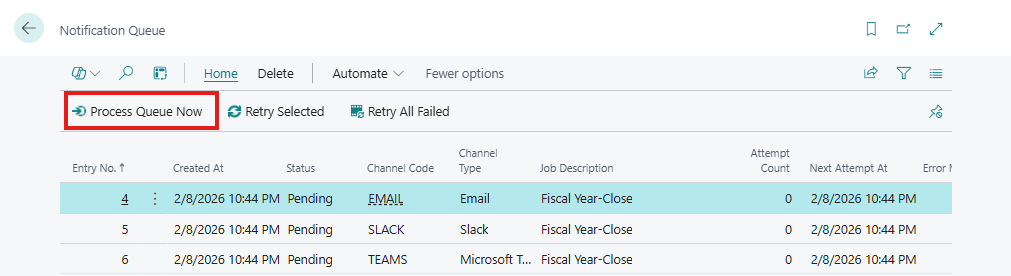
Queue Actions
The Notification Queue page provides these management actions:
| Action | Description |
|---|---|
| Process Queue Now | Immediately processes all pending entries |
| Retry Selected | Resets selected failed entries to Pending for retry |
| Retry All Failed | Resets all failed entries to Pending for retry |
| Delete Selected | Deletes the selected queue entries |
| Delete All Failed | Deletes all entries with Failed status |
| Delete All Sent | Deletes all entries with Sent status (cleanup) |
Retry Logic
Failed notifications are automatically retried:
| Attempt | Delay | Action |
|---|---|---|
| 1 | Immediate | First send attempt |
| 2 | 1 minute | Retry after delay |
| 3 | 5 minutes | Retry with longer delay |
| 4+ | 15 minutes | Continue until max attempts |
After max attempts, entry marked as Failed.
Notification Log
Overview
The Notification Log provides complete delivery history:
-
Every notification attempt recorded
-
Success and failure tracking
-
Response codes and error messages
-
Complete audit trail
Accessing the Log
-
Search for Notification Log
-
Or from Job Queue Admin Setup: Actions > Navigate > Notification Log
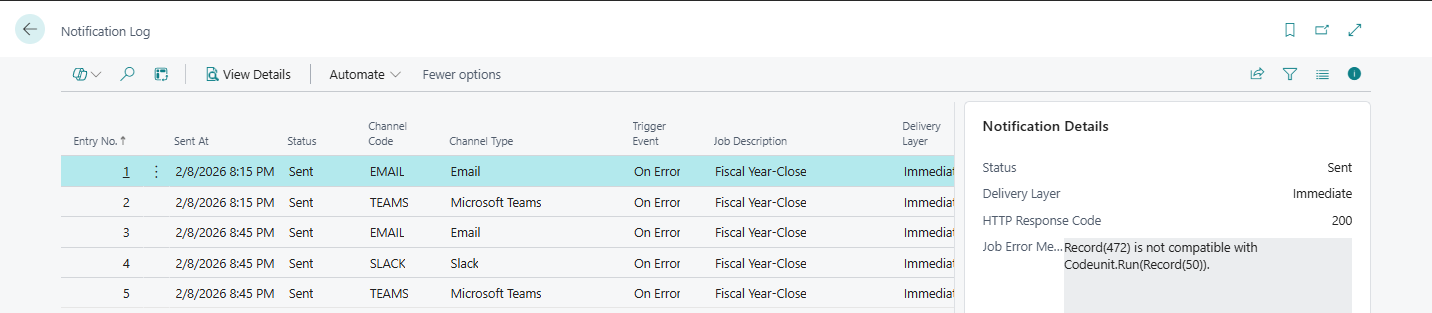
Log Entry Fields
| Field | Description |
|---|---|
| Entry No. | Unique identifier |
| Sent At | When notification was attempted |
| Status | Sent, Failed, Suppressed |
| Channel Code | Notification channel used |
| Channel Type | Email, Teams, or Slack |
| Trigger Event | OnError, OnAutoRestart, OnCooldown |
| Job Queue Entry ID | Source job identifier |
| Job Description | Name of the job |
| Response Code | HTTP response code |
| Error Message | Error details (if failed) |
| Delivery Layer | Immediate, Queue, or Azure |
Log Statuses
| Status | Meaning | Response Code |
|---|---|---|
| Sent | Successfully delivered | 200-299 |
| Failed | Delivery failed | 400-599 or error |
| Suppressed | Blocked by maintenance/throttle | N/A |
Viewing Log Details
Log Entry Card
Click on a log entry to see full details:
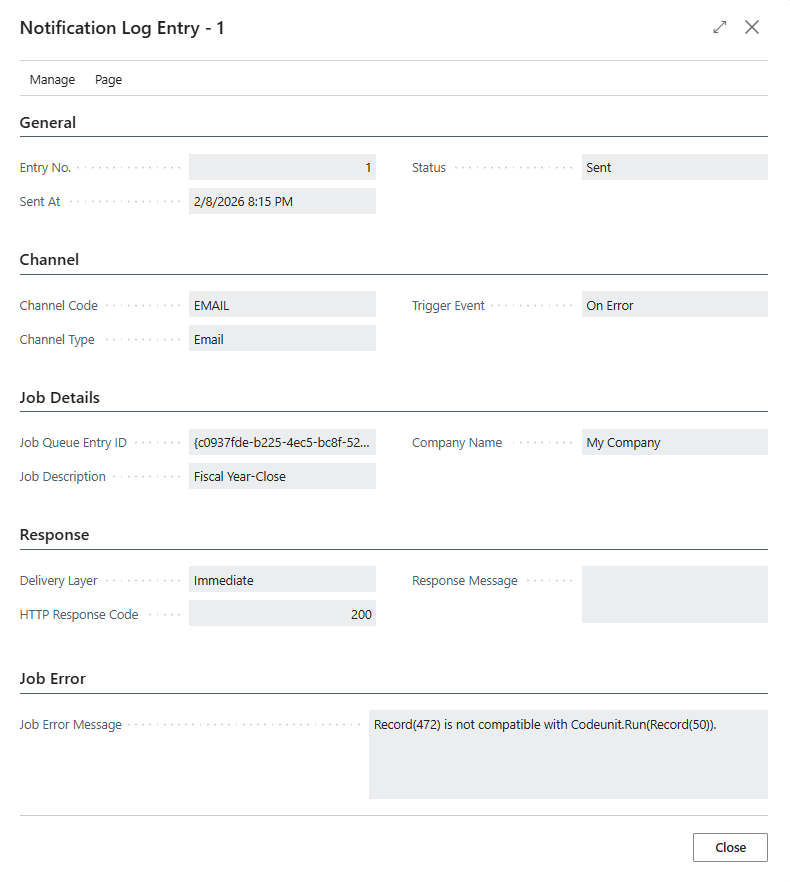
Key Information:
-
Complete error message text
-
Full response body (if available)
-
Job details snapshot
-
Channel configuration at time of send
FactBox Information
The Log FactBox shows summary statistics:
-
Recent notifications for selected job
-
Success/failure ratio
-
Last successful delivery
Filtering & Analysis
Common Filters
| Purpose | Filter |
|---|---|
| Failed only | Status = Failed |
| Specific channel | Channel Code = [code] |
| Specific job | Job Queue Entry ID = [id] |
| Today's notifications | Sent At = Today |
| Error notifications | Trigger Event = OnError |
Analyzing Failures
-
Filter by Status = Failed
-
Group by Channel Code to find problematic channels
-
Review Error Message for patterns
-
Check Response Code for HTTP errors
Trend Analysis
-
Export to Excel for analysis
-
Review notification counts over time
-
Identify peak failure periods
-
Track delivery success rates
Troubleshooting
Common Response Codes
| Code | Meaning | Solution |
|---|---|---|
| 200 | Success | No action needed |
| 400 | Bad Request | Check message format |
| 401 | Unauthorized | Verify credentials |
| 403 | Forbidden | Check permissions |
| 404 | Not Found | Verify channel URL/ID |
| 429 | Rate Limited | Reduce notification frequency |
| 500 | Server Error | External service issue |
| 503 | Unavailable | External service down |
| Timeout | Connection timeout | Network/firewall issue |
Email Issues
| Error | Cause | Solution |
|---|---|---|
| No email account | BC email not configured | Set up Email Accounts |
| SMTP error | Email server issue | Check BC email settings |
| Invalid recipient | Bad email address | Verify channel email |
Teams Issues
| Error | Cause | Solution |
|---|---|---|
| 401 Unauthorized | Workflow deleted | Recreate workflow, update URL |
| 404 Not Found | Invalid URL | Verify workflow URL |
| 400 Bad Request | Message format issue | Contact support |
Slack Issues
| Error | Cause | Solution |
|---|---|---|
| invalid_auth | Bad bot token | Regenerate token |
| channel_not_found | Wrong channel ID | Verify channel ID |
| not_in_channel | Bot not invited | Invite bot to channel |
Queue Management
Retrying Failed Entries
To retry specific failed entries:
-
Open Notification Queue
-
Select the failed entries you want to retry
-
Click Retry Selected action
-
Entries are reset to Pending with attempt count cleared
-
Use Process Queue Now to send immediately
To retry all failed entries at once:
-
Click Retry All Failed action
-
All failed entries are reset to Pending
-
Process queue to send
Note: Before retrying, fix the underlying issue (channel configuration, network, etc.) to avoid repeated failures.
Clearing Stuck Entries
For entries that won't process:
-
Identify stuck entries (old Created At, high Attempt Count)
-
Review Error Message for cause
-
Fix underlying issue (channel config, etc.)
-
Use Retry All Failed to reset entries
-
Use Process Queue Now to send
Deleting Queue Entries
To clean up the queue:
| Action | Use When |
|---|---|
| Delete Selected | Remove specific entries you've selected |
| Delete All Failed | Clear all failed entries that cannot be fixed |
| Delete All Sent | Remove completed entries to reduce clutter |
Best Practice: Periodically use Delete All Sent to clean up successfully processed entries. Keep failed entries until you've reviewed and addressed the issues.
Deleting Old Log Entries
Periodically clean up the Notification Log:
-
Filter to old entries (e.g., > 90 days)
-
Select entries to delete
-
Use standard BC delete function
Recommendation: Delete log entries per your data retention policy.
Monitoring Best Practices
Daily Checks
-
Review Notification Queue for stuck entries
-
Check Log for recent failures
-
Verify key channels are delivering
Weekly Checks
-
Analyze failure trends
-
Review throttled notifications
-
Check channel health across all types
Monthly Checks
-
Export and archive old log entries
-
Review notification patterns
-
Optimize throttling settings
Integration with Other Features
Throttling Impact
When throttling blocks a notification:
-
Entry not created in Queue
-
Log entry created with Status = Suppressed
-
Error Message indicates throttle reason
Maintenance Window Impact
During active maintenance windows:
-
Entry may not be created (if immediate suppression)
-
Or Log entry with Status = Suppressed
-
Error Message indicates maintenance window
Auto-Restart Correlation
To see restart notifications:
-
Filter Log by Trigger Event = OnAutoRestart
-
Correlate with job queue restart history
-
Track restart success vs. notification delivery
Summary: The Notification Queue and Log provide complete visibility into Job Queue Admin's notification delivery. Use them to monitor delivery health, troubleshoot issues, and maintain audit records.