Email Configuration
Configure email notifications to receive job failure alerts via email. Email notifications use Business Central's built-in email system and require no additional infrastructure.
Prerequisites
Before configuring email notifications:
-
Email Account Configured: BC must have at least one email account set up
-
SMTP Access: Your email account must be able to send emails
-
Job Queue Admin Setup Complete: Privacy acknowledged and extension enabled
Verify Email Setup
-
Search for Email Accounts
-
Verify at least one account exists and is set as default
-
Test sending an email from BC
If no email account exists, configure one before proceeding.
Creating an Email Channel
Step 1: Open Notification Channels
-
Search for Notification Channels
-
Or from Job Queue Admin Setup: Actions > Navigate > Notification Channels
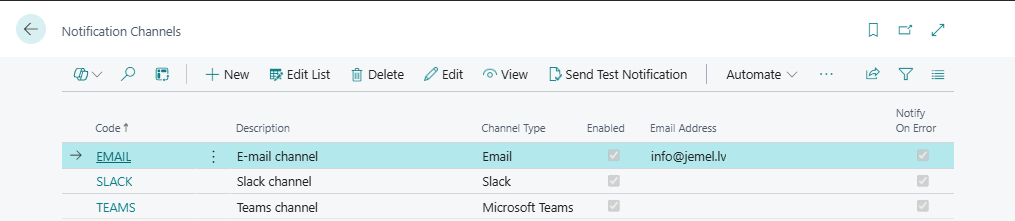
Step 2: Create New Channel
-
Click New to create a new channel
-
Fill in the required fields:
| Field | Value |
|---|---|
| Code | Unique identifier (e.g., EMAIL-OPS) |
| Channel Type | |
| Description | Descriptive name (e.g., "IT Operations Email") |
| Email Address | Destination email address |
| Enabled | Yes |
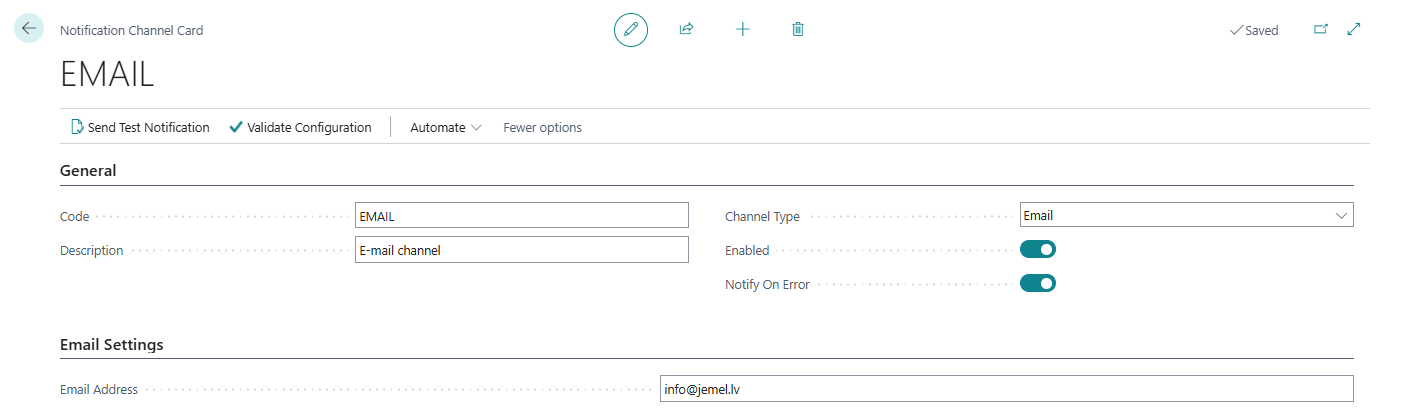
Step 3: Save and Test
-
Click OK to save the channel
-
Use Send Test Notification action to verify delivery
-
Check your email for test notification
Email Channel Fields
Identification
| Field | Description | Required |
|---|---|---|
| Code | Unique channel identifier | Yes |
| Channel Type | Must be "Email" | Yes |
| Description | Human-readable name | No |
| Enabled | Active/inactive toggle | Yes |
Email Settings
| Field | Description | Required |
|---|---|---|
| Email Address | Recipient email address | Yes |
Email Address Format:
-
Single address:
admin@company.com -
Multiple addresses:
admin@company.com;ops@company.com(semicolon-separated) -
Must be valid email format
-
Distribution lists supported
Email Message Format
Subject Line
[JQA] Job Failed: {Job Description}
Message Body
Job Queue Failure Notification

Job: {Job Description}
Error: {Error Message}
Time: {Failure Timestamp}
Company: {Company Name}

Object: {Object Type} {Object ID}

View Job: {Deep Link URL}
Example Email
Subject: [JQA] Job Failed: Process Sales Orders

Job Queue Failure Notification

Job: Process Sales Orders
Error: Connection timeout while connecting to external service
Time: 2024-01-15 14:30:45
Company: CRONUS International Ltd.

Object: Codeunit 50100

View Job: https://businesscentral.dynamics.com/...
Testing Email Channel
Using Send Test Notification
-
Open the Email Channel card
-
Click Send Test Notification in the action bar
-
A test notification is sent immediately
-
Check your email for the test message
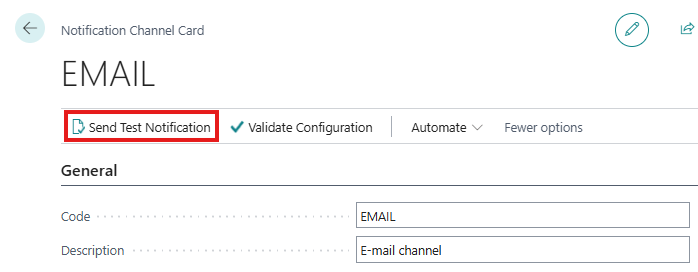
Using Validate Configuration
-
Click Validate Configuration to check settings without sending
-
Validates: email address format, BC email account exists
Verifying Delivery
-
Check the destination inbox
-
Check spam/junk folder if not received
-
Review Notification Log for send status
Troubleshooting Test Failures
| Symptom | Possible Cause | Solution |
|---|---|---|
| No email received | BC email not configured | Set up Email Accounts |
| Email in spam | First-time sender | Whitelist sender address |
| Test failed error | Invalid email address | Verify email format |
| Timeout error | SMTP connectivity issue | Check email account settings |
Multiple Email Channels
You can create multiple email channels for different purposes:
Example: Routing by Severity
| Channel Code | Email Address | Triggers |
|---|---|---|
| EMAIL-CRITICAL | oncall@company.com | Error, Cooldown |
| EMAIL-INFO | itops@company.com | Auto-Restart |
Example: Routing by Team
| Channel Code | Email Address | Description |
|---|---|---|
| EMAIL-SALES | sales-support@company.com | Sales job failures |
| EMAIL-WAREHOUSE | warehouse@company.com | Inventory job failures |
| EMAIL-FINANCE | finance@company.com | Financial job failures |
Use Job Configuration to route specific jobs to specific channels.
Best Practices
Email Address Selection
-
Use distribution lists: Easier to maintain than individual addresses
-
Avoid personal emails: Use team/role addresses
-
Test delivery: Verify emails actually arrive
Trigger Configuration
-
Start with Error only: Reduce noise initially
-
Add Cooldown later: Important for persistent failure awareness
Maintenance
-
Update addresses promptly: When team members change
-
Review channels quarterly: Remove unused channels
-
Test periodically: Ensure delivery still works
Common Issues
Emails Not Sending
Symptom: Notification Log shows "Pending" status
Causes:
-
BC Email Account not configured
-
Email sending disabled in BC
-
SMTP server issues
Solution: Verify Email Accounts setup in BC
Emails Going to Spam
Symptom: Emails received but in spam folder
Causes:
-
First-time sender
-
Email content flagged
Solution:
-
Add sender to safe senders list
-
Work with IT to whitelist BC email server
Invalid Email Address Error
Symptom: Channel test fails with validation error
Causes:
-
Typo in email address
-
Invalid format
Solution: Verify email address format (name@domain.com)
Next Steps: Consider adding Teams or Slack channels for instant notifications to your team collaboration tools.