Maintenance Windows
Maintenance Windows let you define scheduled periods when notifications and/or auto-restarts are suppressed. Use them during planned maintenance, deployments, or other activities when job failures are expected.
Overview
Why Maintenance Windows?
During planned maintenance, you may experience expected job failures:
-
System updates: BC upgrades or extension deployments
-
Database maintenance: Index rebuilds, data migrations
-
External service changes: API updates, certificate renewals
-
Infrastructure changes: Server moves, network changes
Maintenance windows prevent notification storms and unnecessary auto-restart attempts during these periods.
What Gets Suppressed
You can suppress either or both:
| Option | Effect |
|---|---|
| Suppress Notifications | No alerts sent to channels |
| Suppress Auto-Restart | No automatic job restarts |
Creating Maintenance Windows
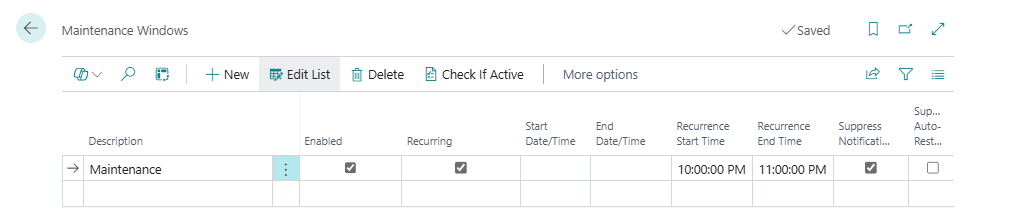
Step 1: Open Maintenance Windows
-
Search for Maintenance Windows
-
Or from Job Queue Admin Setup: Actions > Navigate > Maintenance Windows
Step 2: Create New Window
-
Click New to create a new maintenance window
-
Fill in the required fields:
| Field | Value | Example |
|---|---|---|
| Description | Descriptive name | "Weekly Sunday Maintenance" |
| Enabled | Yes | Yes |
| Start DateTime | When window begins | 2024-01-21 02:00 |
| End DateTime | When window ends | 2024-01-21 06:00 |
Step 3: Configure Suppression
Set what to suppress during the window:
| Field | Description | Recommended |
|---|---|---|
| Suppress Notifications | Stop all alerts | Yes |
| Suppress Auto-Restart | Stop automatic restarts | Depends on scenario |
Step 4: Configure Filters (Optional)
Limit window to specific contexts:
| Field | Description |
|---|---|
| Category Code | Only apply to specific job category |
| Company Filter | Only apply to specific companies |
Window Types
One-Time Windows
For specific planned events:
| Scenario | Start DateTime | End DateTime |
|---|---|---|
| BC Upgrade | 2024-01-20 18:00 | 2024-01-21 08:00 |
| Data Migration | 2024-01-15 22:00 | 2024-01-16 02:00 |
| API Maintenance | 2024-02-01 00:00 | 2024-02-01 04:00 |
Recurring Windows
For regular maintenance schedules:
-
Set Recurring to Yes
-
Configure recurrence times:
| Field | Description |
|---|---|
| Recurrence Time Start | Daily start time |
| Recurrence Time End | Daily end time |
| Scenario | Days | Start Time | End Time |
|---|---|---|---|
| Nightly batch window | All | 02:00 | 04:00 |
| Weekend maintenance | Sat-Sun | 00:00 | 06:00 |
| Daily backup window | All | 23:00 | 23:30 |
Window Fields Reference
Identification
| Field | Description | Required |
|---|---|---|
| Entry No. | Auto-assigned unique ID | Auto |
| Description | Descriptive name | Yes |
| Enabled | Active/inactive toggle | Yes |
Timing (One-Time)
| Field | Description | Required |
|---|---|---|
| Start DateTime | Window start | Yes (if not recurring) |
| End DateTime | Window end | Yes (if not recurring) |
Timing (Recurring)
| Field | Description | Required |
|---|---|---|
| Recurring | Enable recurring mode | No |
| Recurrence Time Start | Daily start time | If recurring |
| Recurrence Time End | Daily end time | If recurring |
Suppression Options
| Field | Description | Default |
|---|---|---|
| Suppress Notifications | Stop notification delivery | Yes |
| Suppress Auto-Restart | Stop automatic restarts | Yes |
Filters
| Field | Description | Default |
|---|---|---|
| Category Code | Job category filter | (all) |
| Company Filter | Company name filter | (all) |
Filter Configuration
Category Filtering
Apply window to specific job categories:
-
Set Category Code to target category
-
Only jobs with matching category are affected
-
Other categories continue normally
Example: Suppress notifications for "EDI" category during EDI server maintenance.
Company Filtering
Apply window to specific companies:
-
Set Company Filter to target company name
-
Only jobs in that company are affected
-
Other companies continue normally
Example: Suppress during CRONUS company data refresh while production continues.
Combined Filters
Filters combine with AND logic:
| Category Code | Company Filter | Result |
|---|---|---|
| EDI | CRONUS | Only EDI jobs in CRONUS |
| EDI | (blank) | All EDI jobs, any company |
| (blank) | CRONUS | All jobs in CRONUS |
| (blank) | (blank) | All jobs, all companies |
Checking Active Windows
From List Page
-
Open Maintenance Windows
-
Select a window
-
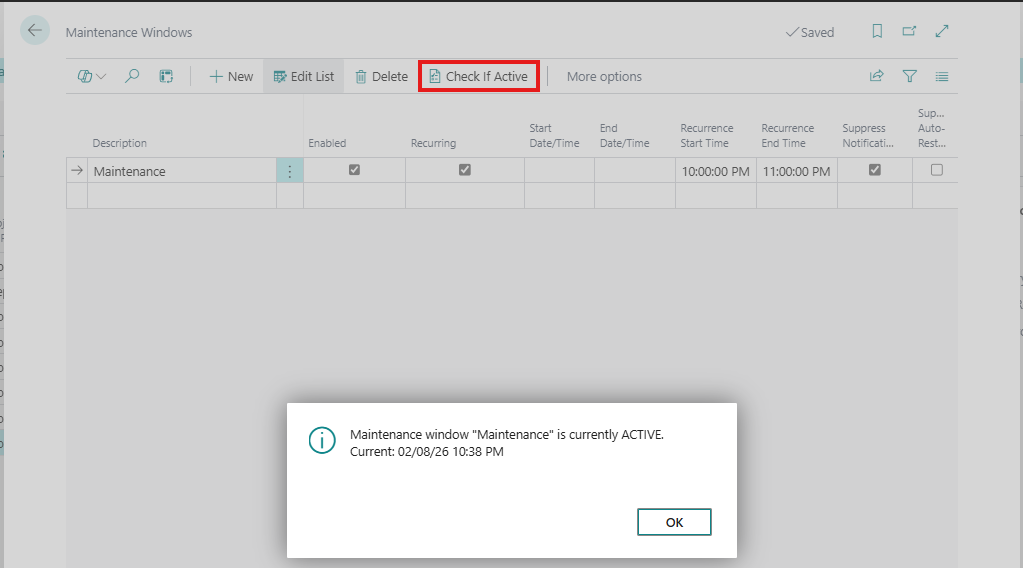
Click Check If Active action
-
System displays whether window is currently active
Programmatically
The system automatically checks maintenance windows when:
-
Processing job failure events
-
Before sending notifications
-
Before attempting auto-restart
Suppression Scenarios
Full Suppression
During major maintenance:
| Field | Value |
|---|---|
| Suppress Notifications | Yes |
| Suppress Auto-Restart | Yes |
Result: Complete silence - no alerts, no restarts.
Notifications Only
For expected transient failures:
| Field | Value |
|---|---|
| Suppress Notifications | Yes |
| Suppress Auto-Restart | No |
Result: Auto-restart continues, but no alert noise.
Auto-Restart Only
When manual control needed:
| Field | Value |
|---|---|
| Suppress Notifications | No |
| Suppress Auto-Restart | Yes |
Result: Alerts sent, but no automatic recovery attempts.
Overlap Handling
Multiple Active Windows
When multiple windows are active:
-
All active windows are checked
-
If ANY window suppresses notifications → notifications suppressed
-
If ANY window suppresses auto-restart → auto-restart suppressed
Overlapping Times
Windows can overlap:
| Window | Time | Suppress Ntf | Suppress Restart |
|---|---|---|---|
| A | 02:00-04:00 | Yes | No |
| B | 03:00-05:00 | No | Yes |
At 03:30: Both notifications AND auto-restart are suppressed.
Best Practices
Window Planning
-
Create ahead of time: Set up windows before maintenance
-
Include buffer: Add 30-60 minutes after maintenance
-
Document purpose: Use clear description
Suppression Strategy
| Scenario | Notifications | Auto-Restart |
|---|---|---|
| Planned BC upgrade | Suppress | Suppress |
| Database reindex | Suppress | Allow |
| External API maintenance | Suppress | Suppress |
| Network maintenance | Suppress | Allow |
Maintenance
-
Review regularly: Delete expired one-time windows
-
Verify timing: Check time zones are correct
-
Test before critical: Use Check If Active action
Common Scenarios
Weekly BC Update Window
Description: Weekly BC Update Window
Recurring: Yes
Recurrence Time Start: 02:00
Recurrence Time End: 04:00
Active Days: Saturday, Sunday
Suppress Notifications: Yes
Suppress Auto-Restart: Yes
Nightly Batch Window
Description: Nightly Batch Processing
Recurring: Yes
Recurrence Time Start: 23:00
Recurrence Time End: 01:00
Active Days: All
Suppress Notifications: Yes
Suppress Auto-Restart: No
One-Time Migration
Description: Customer Data Migration 2024-01-20
Recurring: No
Start DateTime: 2024-01-20 20:00
End DateTime: 2024-01-21 08:00
Suppress Notifications: Yes
Suppress Auto-Restart: Yes
Troubleshooting
Window Not Suppressing
| Symptom | Cause | Solution |
|---|---|---|
| Still getting notifications | Window not enabled | Set Enabled = Yes |
| Wrong time active | Time zone issue | Verify DateTime is correct |
| Only some jobs affected | Filter set | Check Category/Company filters |
Unexpected Suppression
| Symptom | Cause | Solution |
|---|---|---|
| No notifications during business hours | Recurring window too broad | Narrow recurrence times |
| Some jobs suppressed | Category filter | Review filter settings |
Checking What's Active
-
Open Maintenance Windows
-
Set filter: Enabled = Yes
-
Check each window with Check If Active action
Next Steps: Configure Digest Schedules to receive periodic summary reports, or review Notification Log for delivery history.