Digest Schedules
Digest Schedules let you receive periodic summary reports of job queue status. Instead of individual failure notifications, digests provide a consolidated view of running, failed, and on-hold jobs.
Overview
Why Digest Reports?
Digests complement real-time notifications:
-
Daily overview: Start your day knowing job queue health
-
Trend visibility: See patterns over time
-
Reduced noise: One summary instead of many alerts
-
Management reporting: Share status with stakeholders
Digest Content
Each digest includes:
-
Summary statistics: Counts by status
-
Running jobs: Currently executing jobs
-
Failed jobs: Jobs that failed since last digest
-
On-hold jobs: Jobs requiring attention
-
Generation timestamp: When digest was created
Creating Digest Schedules
Step 1: Open Digest Schedules
-
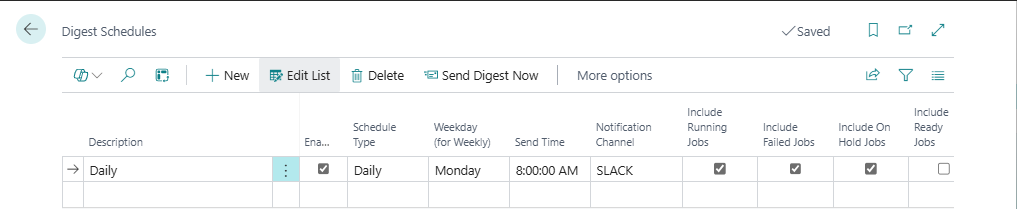
Search for Digest Schedules
-
Or from Job Queue Admin Setup: Actions > Navigate > Digest Schedules
Step 2: Create New Schedule
-
Click New to create a new digest schedule
-
Fill in the required fields:
| Field | Value | Example |
|---|---|---|
| Description | Descriptive name | "Daily Morning Digest" |
| Enabled | Yes | Yes |
| Schedule Type | Frequency | Daily |
| Send Time | Time to send | 08:00 |
| Channel Code | Delivery channel | EMAIL-DIGEST |
Step 3: Configure Content
Set what to include in the digest:
| Field | Description | Recommended |
|---|---|---|
| Include Running Jobs | List currently running | Yes |
| Include Failed Jobs | List recent failures | Yes |
| Include On Hold Jobs | List jobs needing attention | Yes |
| Max Jobs Per Section | Limit items per section | 10 |
Step 4: Configure Scope
Set the scope of the digest:
| Field | Description |
|---|---|
| All Companies | Include all companies in digest |
| Category Filter | Limit to specific job category |
Schedule Fields Reference
Identification
| Field | Description | Required |
|---|---|---|
| Entry No. | Auto-assigned unique ID | Auto |
| Description | Descriptive name | Yes |
| Enabled | Active/inactive toggle | Yes |
Timing
| Field | Description | Required |
|---|---|---|
| Schedule Type | Daily or Weekly | Yes |
| Send Time | Time of day to send | Yes |
| Day of Week | For weekly schedules | If weekly |
| Next Send At | Calculated next send | Auto |
| Last Sent At | Last successful send | Auto |
Delivery
| Field | Description | Required |
|---|---|---|
| Channel Code | Notification channel to use | Yes |
Content Options
| Field | Description | Default |
|---|---|---|
| Include Running Jobs | Show running jobs | Yes |
| Include Failed Jobs | Show failed jobs | Yes |
| Include On Hold Jobs | Show on-hold jobs | Yes |
| Max Jobs Per Section | Maximum items per section | 10 |
Scope
| Field | Description | Default |
|---|---|---|
| All Companies | Include all companies | Yes |
| Category Filter | Job category filter | (all) |
Schedule Types
Daily Digest
Sent every day at specified time:
| Field | Value |
|---|---|
| Schedule Type | Daily |
| Send Time | 08:00 |
Use for: Operations teams needing daily status.
Weekly Digest
Sent once per week:
| Field | Value |
|---|---|
| Schedule Type | Weekly |
| Send Time | 09:00 |
| Day of Week | Monday |
Use for: Management summaries, trend analysis.
Digest Content Sections
Summary Section
High-level statistics:
Job Queue Status Summary
------------------------
Running Jobs: 5
Failed Jobs: 2
On Hold Jobs: 1
Ready Jobs: 45
Total Jobs: 53
Running Jobs Section
Currently executing jobs:
Running Jobs (5)
----------------
1. Process Sales Orders - Started 07:45
2. Sync Inventory - Started 07:50
3. EDI Import - Started 07:55
4. Generate Reports - Started 08:00
5. Email Dispatch - Started 08:05
Failed Jobs Section
Recent failures:
Failed Jobs (2)
---------------
1. Payment Processing - Failed at 07:30
   Error: Connection timeout to payment gateway

2. Customer Sync - Failed at 06:15
   Error: Record not found: Customer ABC
On-Hold Jobs Section
Jobs requiring attention:
On Hold Jobs (1)
----------------
1. Data Migration - On hold since 2024-01-15
   Reason: Waiting for data validation
Channel Configuration
Email Digests
Best for: Individual recipients, external stakeholders
-
Create Email channel for digests
-
Set Channel Code to email channel
-
Digest sent as formatted email
Teams Digests
Best for: Team visibility, shared channels
-
Create Teams channel for digests
-
Set Channel Code to Teams channel
-
Digest sent as Adaptive Card
Slack Digests
Best for: DevOps teams, technical staff
-
Create Slack channel for digests
-
Set Channel Code to Slack channel
-
Digest sent as Block Kit message
Manual Send
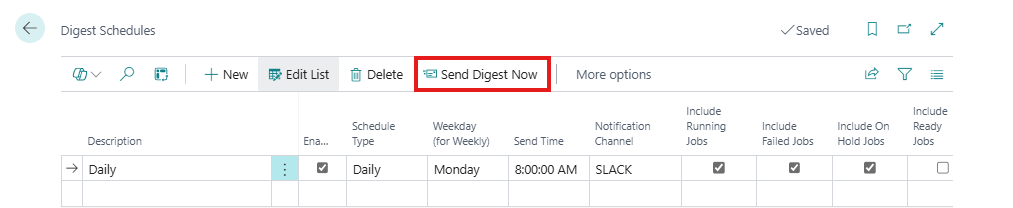
Send Digest Now
Send a digest immediately without waiting for schedule:
-
Open Digest Schedules
-
Select the schedule
-
Click Send Digest Now action
-
Digest generated and sent immediately
Note: Manual send doesn't affect the regular schedule.
Recalculate Next Send
Update the next send time:
-
Select the schedule
-
Click Recalculate Next Send action
-
Next Send At updated based on current settings
Multi-Company Digests
All Companies Mode
When All Companies = Yes:
-
Digest includes jobs from all companies
-
Each section shows company name
-
Single digest covers entire environment
Single Company Mode
When All Companies = No:
-
Digest only includes current company
-
Create separate schedules for each company
-
More targeted reporting
Company Filter
Use Category Filter with company-specific categories to create targeted digests.
Best Practices
Schedule Timing
| Audience | Schedule Type | Send Time |
|---|---|---|
| Morning shift | Daily | 07:00 |
| Management | Weekly | Monday 09:00 |
| Evening check | Daily | 17:00 |
| Weekend summary | Weekly | Friday 16:00 |
Content Configuration
| Scenario | Running | Failed | On Hold | Max Items |
|---|---|---|---|---|
| Operations | Yes | Yes | Yes | 20 |
| Management | No | Yes | Yes | 10 |
| Troubleshooting | Yes | Yes | No | 50 |
Channel Selection
| Audience | Recommended Channel |
|---|---|
| Individuals | |
| Team | Teams/Slack |
| External stakeholders |
Troubleshooting
Digest Not Sending
| Symptom | Cause | Solution |
|---|---|---|
| No digest received | Schedule disabled | Set Enabled = Yes |
| Wrong time | Time zone issue | Verify Send Time |
| Channel error | Invalid channel | Test channel configuration |
Missing Content
| Symptom | Cause | Solution |
|---|---|---|
| No failed jobs shown | Include Failed = No | Enable Include Failed Jobs |
| Jobs missing | Max Items too low | Increase Max Jobs Per Section |
| Wrong company | All Companies = No | Enable All Companies or check current company |
Checking Schedule Status
-
Open Digest Schedules
-
Review Next Send At column
-
Review Last Sent At column
-
Use Send Digest Now to test
Next Steps: Review the Notification Queue & Log to monitor notification delivery and troubleshoot issues.