Job Queue Entry Integration
Job Queue Admin monitors all job queue entries by default. No configuration needed - just install, set up channels, and start receiving notifications.
Monitor All by Default
After installing Job Queue Admin, all your job queue entries are automatically monitored. This means:
-
No per-job configuration required - everything works immediately
-
Failed jobs trigger notifications - sent to your configured channels
-
Auto-restart rules apply - to all jobs matching rule patterns
You only need to create exclusions for jobs you don't want monitored.
Job Queue Entry Card
When you open a Job Queue Entry Card, you'll see a Monitoring section:
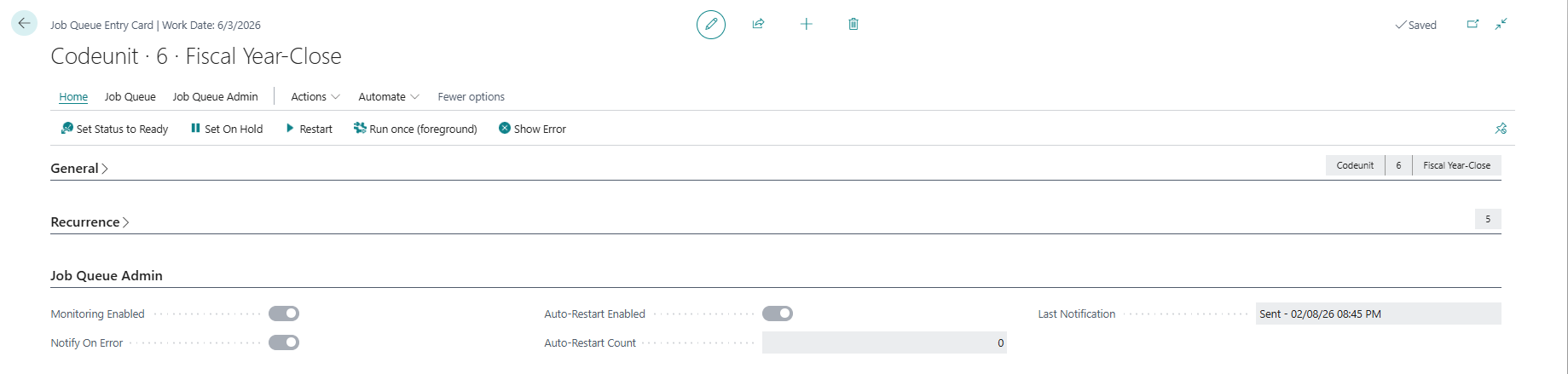
Fields Displayed
| Field | Description |
|---|---|
| Monitoring Enabled | Shows if Job Queue Admin is monitoring this job (green = Yes, red = Excluded) |
| Notify On Error | Shows if notifications are sent when this job fails |
| Auto-Restart Enabled | Shows if this job will auto-restart after failure |
| Last Notification | Status and timestamp of the last notification sent |
Note: By default, all jobs show "Yes" (green) for Monitoring Enabled.
Actions Available
| Action | Description |
|---|---|
| Exclude from Monitoring | Stop monitoring this specific job |
| Include in Monitoring | Re-enable monitoring (remove exclusion) |
| Notification Log | View all notifications sent for this job |
| Send Test Notification | Send a test notification immediately |
Job Queue Entries List
The Job Queue Entries list shows monitoring status at a glance:
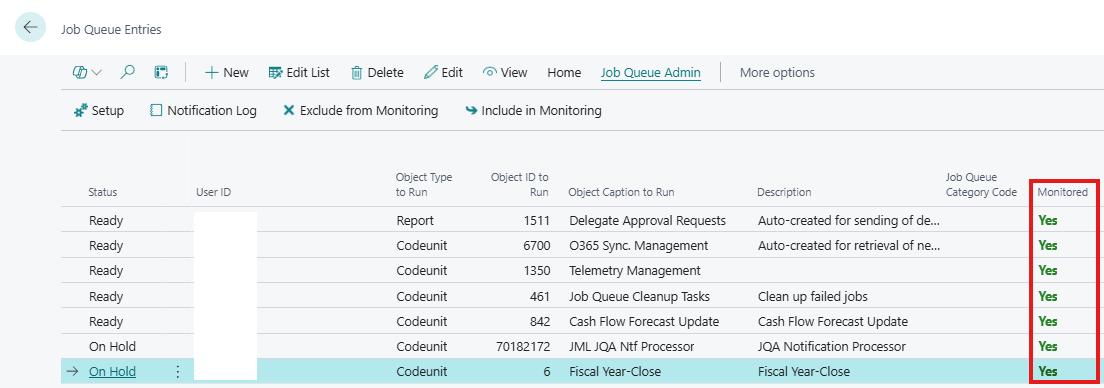
Column Added
| Column | Values | Description |
|---|---|---|
| Monitored | Yes / Excluded | Shows if Job Queue Admin is monitoring this job |
-
Yes (green): Job is actively monitored (default for all jobs)
-
Excluded (red): Job has been explicitly excluded from monitoring
FactBox Added
A Notification Log FactBox appears on the right side, showing recent notifications for the selected job.
Actions Available
| Action | Description |
|---|---|
| Job Queue Admin Setup | Opens the main Setup page |
| Notification Log | Opens full notification log |
| Exclude from Monitoring | Exclude selected job from monitoring |
| Include in Monitoring | Re-include selected job in monitoring |
| Entry Notification Log | View notifications for selected job only |
How Monitoring Works
When a job queue entry fails, Job Queue Admin runs through these checks in order:
| Step | Check | If Fails |
|---|---|---|
| 1 | Is the extension enabled? | Stop — no monitoring |
| 2 | Is this job excluded? (Monitoring Enabled = off) | Stop — job is excluded |
| 3 | Is a maintenance window active for this job? | Stop — notification suppressed |
| 4 | Has throttling limit been reached? | Stop — notification skipped |
| 5 | Does the job have specific channel codes? | Send only to those channels |
| 6 | No specific channel codes (default) | Send to all enabled channels |
Key Point: Jobs are monitored by default. Only jobs with an explicit exclusion record (Monitoring Enabled = off) are skipped.
Per-Job Channel Routing
By default, notifications go to all enabled channels. If you need different jobs to notify different teams, you can assign specific channels per job.
When to Use This
-
Finance posting jobs should alert the Finance Teams channel
-
Planning jobs should alert the Purchasing Teams channel
-
Critical jobs should alert both Teams and Email, while routine jobs use Email only
Setting Up Per-Job Routing
-
First, create your notification channels (e.g., a Teams channel for Finance and another for Purchasing). See the Notification Channels section.
-
Search for Job Queue Exclusions & Overrides in Business Central
-
Add a new line for the job you want to route
-
Set the Notification Channel Codes field to the channel code(s) for that job
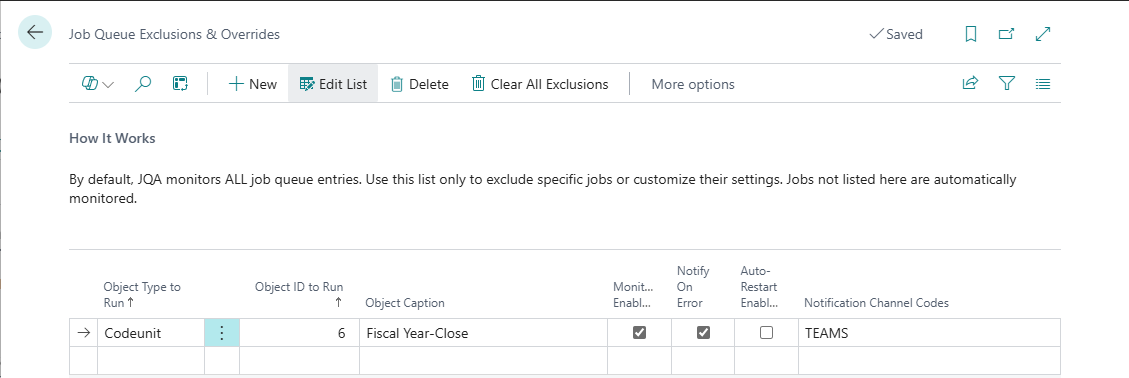
Example: Department-Specific Alerts
| Object Type | Object ID | Object Caption | Notification Channel Codes |
|---|---|---|---|
| Report | 10021 | Customer Statements | FINANCE |
| Codeunit | 5300 | Calc. Regenerative Plan | PURCHASING |
| Report | 795 | Adjust Cost - Item Entries | FINANCE, FINANCE-EMAIL |
In this example:
-
Customer Statements failures notify only the Finance Teams channel
-
Planning failures notify only the Purchasing Teams channel
-
Adjust Cost failures notify both the Finance Teams channel and a Finance email address
-
All other jobs (not listed) continue to notify all enabled channels
How Routing Decides
| Job Has Channel Codes? | Behavior |
|---|---|
| Yes | Send only to those specific channels |
| No (default) | Send to all enabled channels with Notify On Error = Yes |
You can assign multiple channels to one job by entering comma-separated codes (e.g., FINANCE, FINANCE-EMAIL).
Excluding a Job from Monitoring
If you have jobs that you don't want monitored (e.g., internal system jobs, test jobs), you can exclude them:
From Job Queue Entry Card
-
Open the Job Queue Entry
-
Click Exclude from Monitoring in the Job Queue Admin action group
-
The job will no longer trigger notifications
From Job Queue Entries List
-
Select the job in the list
-
Click Exclude from Monitoring in the Job Queue Admin action group
-
The "Monitored" column will change to "Excluded"
Re-Including an Excluded Job
To re-enable monitoring for a previously excluded job:
-
Select the job
-
Click Include in Monitoring
-
The exclusion record is deleted, and the job returns to default monitoring
Job Queue Exclusions & Overrides Page
The Job Queue Exclusions & Overrides page is the central place to manage per-job settings:
-
Search for "Job Queue Exclusions" in Business Central
-
View all jobs with explicit configurations
| Column | Description |
|---|---|
| Object Type to Run | The job's object type (Codeunit, Report, etc.) |
| Object ID to Run | The job's object ID |
| Object Caption | Auto-filled description of the object |
| Monitoring Enabled | Uncheck to exclude this job from monitoring |
| Notify On Error | Override the default notification setting for this job |
| Auto-Restart Enabled | Override auto-restart for this job |
| Notification Channel Codes | Comma-separated channel codes for targeted routing |
Use Clear All Exclusions to remove all records and return every job to default monitoring.
Remember: Jobs not listed here are automatically monitored and notify all enabled channels.
Testing Notifications
To test that notifications work for a specific job:
-
Open the Job Queue Entry Card
-
Click Send Test Notification in the Job Queue Admin action group
-
Check your notification channels (Teams, Slack, Email)
Note: Test notifications go to all enabled channels.
Summary
| Scenario | Behavior |
|---|---|
| Job fails, no config | Notification sent to all enabled channels |
| Job fails, has channel codes | Notification sent only to specified channels |
| Job fails, excluded (Monitoring Enabled = off) | No notification |
| Job fails, in maintenance window | Notification suppressed |
| Job fails, throttled | Notification skipped |
Default: All jobs are monitored and notify all enabled channels. Use channel codes for targeted routing, or disable monitoring for jobs you want excluded.
Next Steps: Configure Notification Channels (Teams, Slack, or Email) to receive alerts.