Teams Integration
Configure Microsoft Teams notifications to receive job failure alerts directly in your Teams channels. Teams integration uses Power Automate Workflows (formerly Connectors) for reliable message delivery.
Prerequisites
Before configuring Teams notifications:
-
Microsoft Teams Access: You need access to the target Teams channel
-
Workflow Creation Permission: Ability to create workflows in Teams
-
Job Queue Admin Setup Complete: Privacy acknowledged and extension enabled
Creating a Teams Workflow
Step 1: Open Teams Channel
-
Open Microsoft Teams
-
Navigate to the channel where you want notifications
-
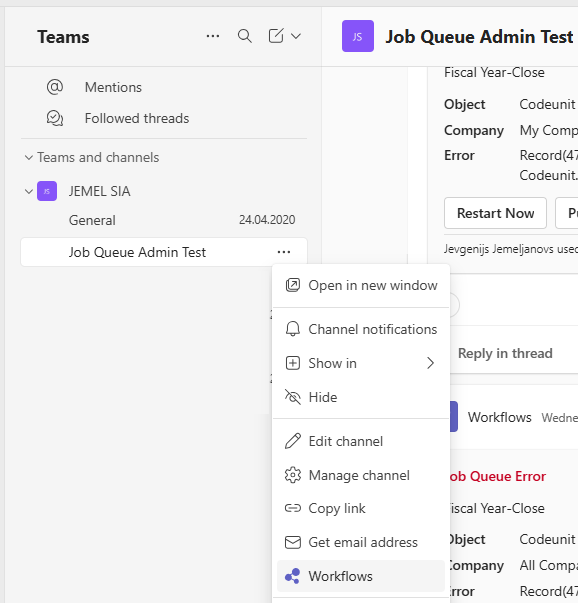
Access Workflows using one of these methods:
Method A: Click the ... (More options) menu next to the channel name, then select Workflows
Method B: Click the + (Add a tab) button at the top of the channel, then select Apps and search for "Workflows"
Step 2: Create Webhook Workflow
-
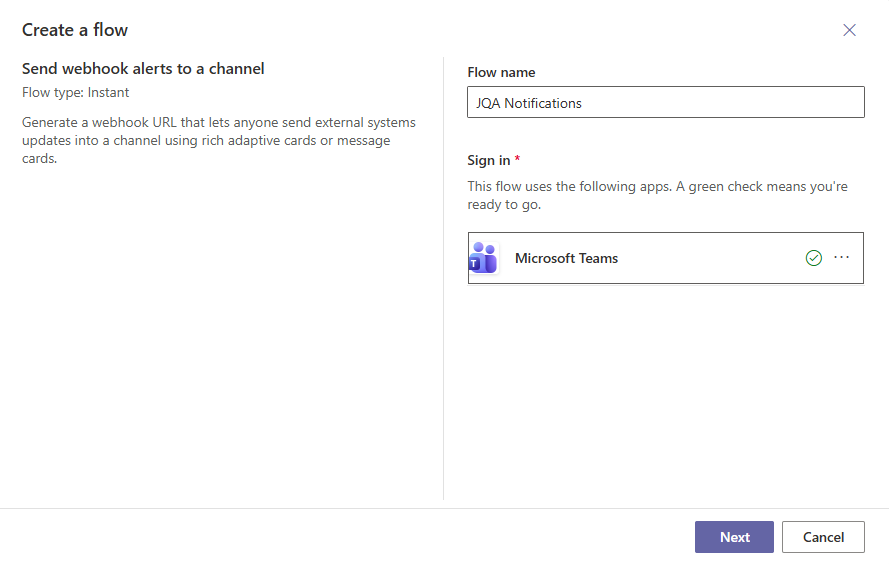
In the Workflows panel, search for "Send webhook alerts to a channel"
-
Click on the workflow template
-
Click Add workflow

Step 3: Configure Workflow
-
Give the workflow a name (e.g., "JQA Notifications")
-
Select the target Team and Channel
-
Click Add workflow
-
Copy the webhook URL - you'll need this for Job Queue Admin
After creating the workflow, verify it saved correctly: open the workflow in Power Automate, click the last step "Post card in a chat or channel", and confirm the Team and Channel fields show the correct names. Sometimes these values are replaced with @ symbols and must be re-selected manually.
Important: The webhook URL looks like:
https://prod-XX.westeurope.logic.azure.com:443/workflows/...
Keep this URL secure - anyone with the URL can post to your channel.
Creating a Teams Channel in Job Queue Admin
Step 1: Open Notification Channels
-
Search for Notification Channels
-
Or from Job Queue Admin Setup: Actions > Navigate > Notification Channels
Step 2: Create New Channel
-
Click New to create a new channel
-
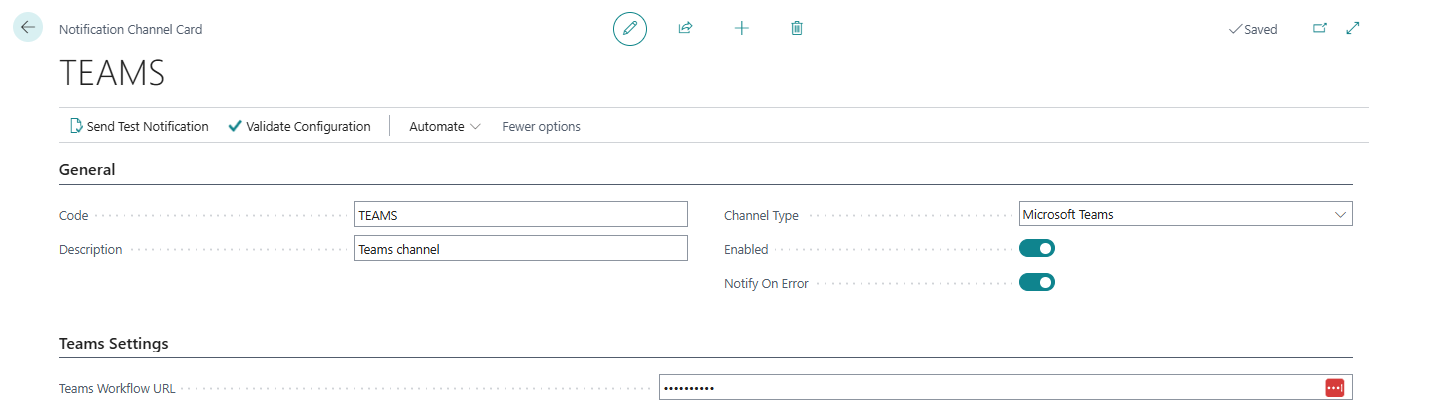
Fill in the required fields:
| Field | Value |
|---|---|
| Code | Unique identifier (e.g., TEAMS-OPS) |
| Channel Type | Teams |
| Description | Descriptive name (e.g., "IT Operations Teams") |
| Teams Workflow URL | Paste the webhook URL from Step 3 above |
| Enabled | Yes |
Step 3: Save and Test
-
Click OK to save the channel
-
Use Send Test Notification action to verify delivery
-
Check your Teams channel for the test message
Teams Channel Fields
Identification
| Field | Description | Required |
|---|---|---|
| Code | Unique channel identifier | Yes |
| Channel Type | Must be "Teams" | Yes |
| Description | Human-readable name | No |
| Enabled | Active/inactive toggle | Yes |
Teams Settings
| Field | Description | Required |
|---|---|---|
| Teams Workflow URL | Power Automate webhook URL | Yes |
Teams Workflow URL Format:
-
Must start with
https:// -
Typically contains
logic.azure.comoroffice.com -
Full URL from workflow creation
Teams Message Format
Adaptive Card Structure
Teams notifications are sent as Adaptive Cards directly to Power Automate Workflows:
{
  "type": "AdaptiveCard",
  "$schema": "http://adaptivecards.io/schemas/adaptive-card.json",
  "version": "1.4",
  "body": [
    {
      "type": "TextBlock",
      "text": "Job Queue Error",
      "weight": "Bolder",
      "size": "Medium",
      "color": "Attention"
    },
    {
      "type": "TextBlock",
      "text": "Test Notification from Job Queue Admin",
      "wrap": true
    },
    {
      "type": "FactSet",
      "facts": [
        {"title": "Object", "value": "Codeunit 50000"},
        {"title": "Company", "value": "CRONUS"},
        {"title": "Error", "value": "This is a test notification..."}
      ]
    },
    {
      "type": "ActionSet",
      "actions": [
        {
          "type": "Action.OpenUrl",
          "title": "Restart Now",
          "url": "{Signed Action URL}"
        },
        {
          "type": "Action.OpenUrl",
          "title": "Put On Hold",
          "url": "{Signed Action URL}"
        },
        {
          "type": "Action.OpenUrl",
          "title": "View in BC",
          "url": "{Deep Link to BC}"
        }
      ]
    }
  ]
}
Note: The Adaptive Card is wrapped in a message envelope with type: "message" and attachments array, as required by Teams Workflows. Job Queue Admin handles this wrapping automatically.
Example Teams Message
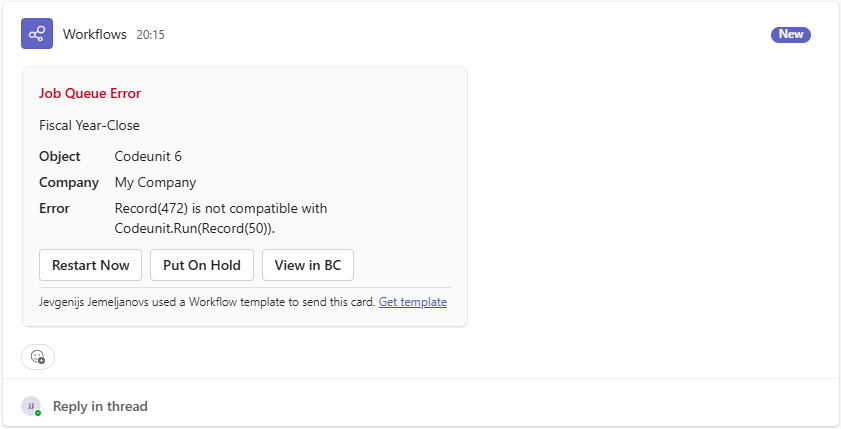
The message includes:
-
Header: "Job Queue Failure" with alert styling
-
Job Details: Description, error, timestamp, company
-
Action Buttons: Interactive buttons for quick actions
Interactive Action Buttons
Teams notifications include interactive buttons that let you take action directly from the notification:
Available Actions
| Button | Action | Description |
|---|---|---|
| Restart Now | Restarts the job | Sets job status to Ready and triggers the scheduler |
| Put On Hold | Puts job on hold | Prevents automatic restart, requires manual action |
| View in BC | Opens BC | Deep link to the Job Queue Entry card |
How It Works
-
Click an action button in the Teams notification
-
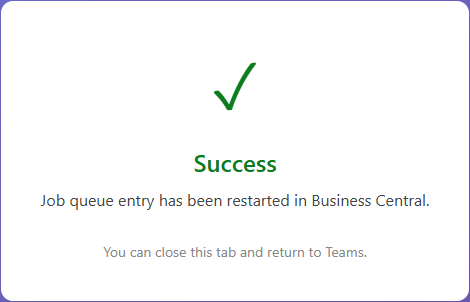
A browser window opens briefly showing the action result
-
The job status is updated in Business Central
-
You can close the browser tab and return to Teams
Button Security
-
Action buttons use signed URLs that expire after 7 days
-
Each notification has unique action links
-
Links cannot be forged or tampered with
-
After expiry, you'll see a friendly error asking you to use a more recent notification
Troubleshooting Action Buttons
| Issue | Cause | Solution |
|---|---|---|
| "Link has expired" | Notification older than 7 days | Trigger a new notification or restart job manually in BC |
| "Invalid action link" | Link was modified | Use the original link from the Teams notification |
| "Action failed" | BC permissions or job state | Check you have permissions and job is not currently running |
| Browser doesn't open | Teams security settings | Try right-click > Open in browser |
Testing Teams Channel
Using Send Test Notification
-
Open the Teams Channel card
-
Click Send Test Notification in the action bar
-
A test notification is sent immediately
-
Check your Teams channel for the test message
Verifying Delivery
-
Check the target Teams channel
-
Message should appear within seconds
-
Review Notification Log for send status
Troubleshooting Test Failures
Symptom | Possible Cause | Solution |
|---|---|---|
No message in Teams | Workflow URL incorrect | Verify URL copied correctly |
401 Unauthorized | Workflow deleted/disabled | Recreate workflow in Teams |
400 Bad Request | Invalid message format | Update to latest extension version |
Timeout error | Network connectivity | Check firewall rules |
"teamId needs to be a valid GUID" | Workflow Team/Channel values lost (shows | Edit workflow in Power Automate, open "Post card in a chat or channel" step, re-select Team and Channel |
"No app ids found on host team" | Using private channel | Must use standard (public) channel - private channels don't support Workflows |
"Property 'type' must be 'AdaptiveCard'" | Old app version | Update to latest extension version |
Important: Private channels (with lock icon) do not support Power Automate Workflows. You must use a standard/public channel for Teams notifications.
Workflow Management
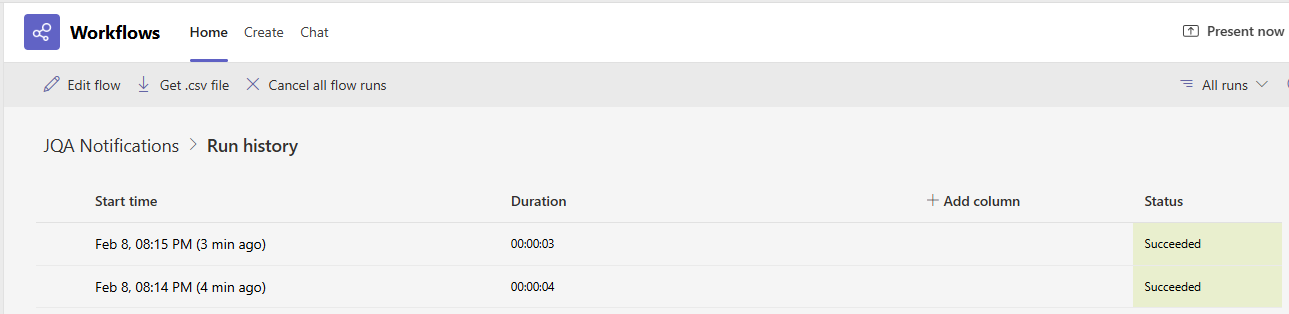
Viewing Workflow History
-
Open Teams > Channel > Workflows
-
Find your JQA workflow
-
Click to view run history
-
See success/failure of each notification
Updating Webhook URL
If you need to recreate the workflow:
-
Create new workflow in Teams
-
Copy new webhook URL
-
Update Teams Workflow URL in the channel card
-
Test the channel
Deleting Workflows
Warning: Deleting the workflow in Teams will break notifications.
If you delete the workflow:
-
Notifications will fail with 401/404 errors
-
Create a new workflow
-
Update the URL in the channel card
Multiple Teams Channels
You can create multiple Teams channels for different purposes:
Example: Routing by Team
| Channel Code | Teams Channel | Description |
|---|---|---|
| TEAMS-SALES | #sales-alerts | Sales integration failures |
| TEAMS-OPS | #it-operations | General job failures |
| TEAMS-CRITICAL | #critical-alerts | Critical system failures |
Use Job Configuration to route specific jobs to specific Teams channels.
Best Practices
Workflow Setup
-
Use dedicated workflows: One workflow per JQA channel
-
Name clearly: Include "JQA" in workflow name
-
Document URL location: Note where the URL is stored
Channel Selection
-
Use appropriate channels: Don't spam general channels
-
Create dedicated alert channels: Easier to manage
-
Consider permissions: Who should see job failures?
Trigger Configuration
-
Start with Error only: Reduce noise initially
-
Add Cooldown for critical jobs: Important awareness
Security Considerations
Webhook URL Protection
-
Treat URL as sensitive: Anyone with URL can post
-
Don't share publicly: Keep in channel configuration only
-
Rotate if compromised: Create new workflow, update channel configuration
Message Content
-
Error messages visible: Consider what errors contain
-
Deep links require BC access: URL alone doesn't grant access
-
Company name included: Multi-company considerations
Next Steps: Consider adding Slack integration if your team uses both platforms, or configure Job Configurations for channel routing.