Teams Setup
Configure Microsoft Teams notifications so that Notify User can post task notifications to Teams channels and send direct messages to individual recipients. This feature requires the Plus subscription.
How It Works
Notify User uses two different mechanisms depending on the recipient type:
| Recipient Type | Method | How It Works |
|---|---|---|
| Group task | Webhook POST to channel | Automatic server-side delivery to the group's Teams channel |
| Individual task | Teams DM deep link | Opens Teams with a pre-filled direct message to the recipient |
Group Notifications (Webhook)
When a task is assigned to a User Task Group that has a webhook URL configured, Notify User automatically posts a formatted message to the group's Teams channel. The message includes the task title, sender, priority, due date, description, and deep links to the task and source record in Business Central.
Individual Notifications (DM)
When a task is assigned to individual recipients, Notify User opens Microsoft Teams with a pre-filled direct message. If there are multiple individual recipients, a single group chat is opened with all of them. The sender reviews the message and clicks Send in Teams. This requires no webhook configuration and no admin setup.
Setting Up Group Channel Webhooks
Group webhooks use Power Automate Workflows (formerly Connectors) for reliable message delivery.
Step 1: Create a Workflow in Teams
-
Open Microsoft Teams
-
Navigate to the channel where you want group notifications to appear
-
Access Workflows using one of these methods:
Method A: Click the ... (More options) menu next to the channel name, then select Workflows
Method B: Click the + (Add a tab) button at the top of the channel, then select Apps and search for "Workflows"
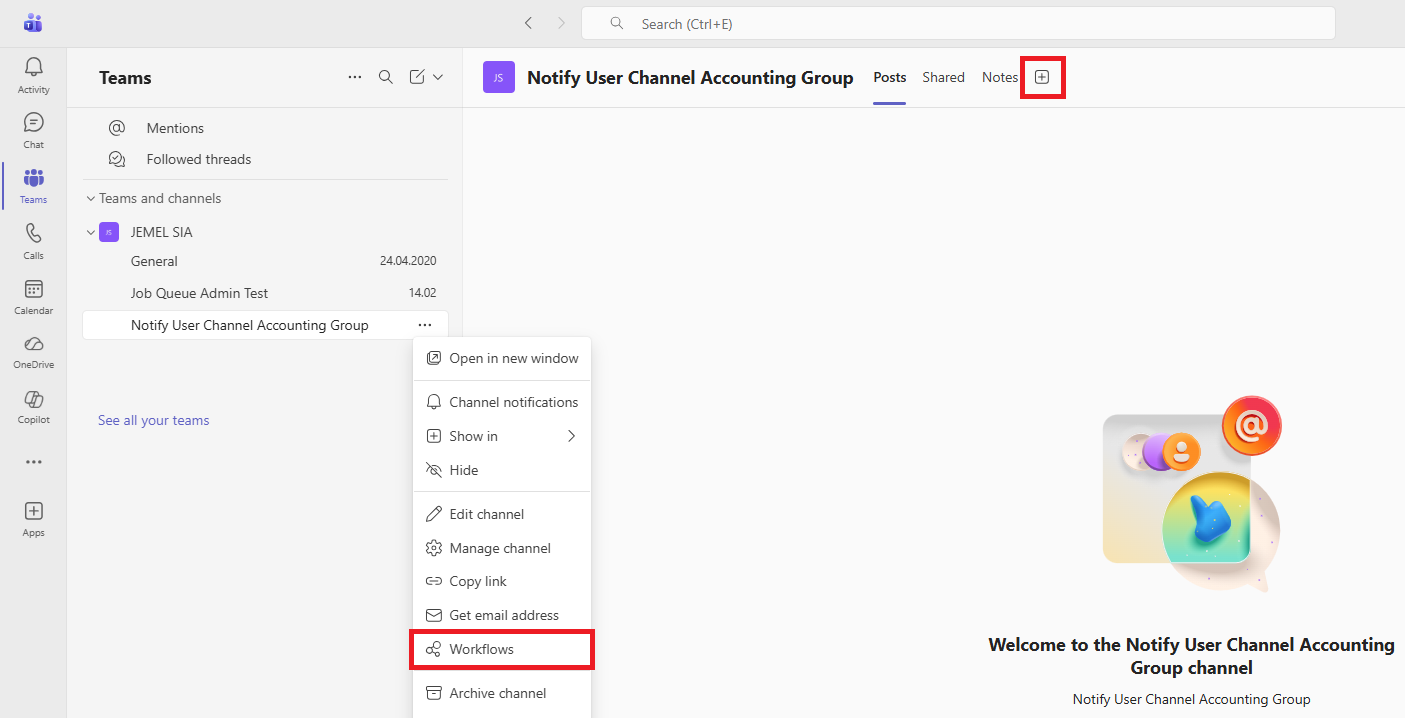
Step 2: Create Webhook Workflow
-
In the Workflows panel, search for "Send webhook alerts to a channel"
-
Click on the workflow template
-
Click Add workflow

Step 3: Configure and Copy URL
-
Give the workflow a name (e.g., "Notify User - Sales Team")
-
Select the target Team and Channel
-
Click Add workflow
-
Copy the webhook URL - you will need this for the next step
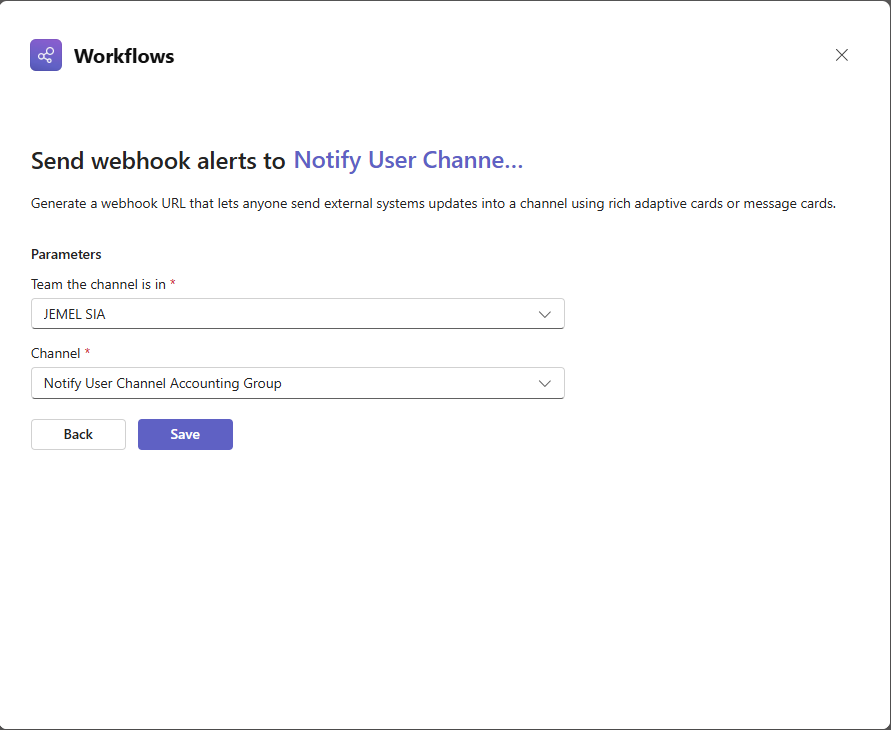
After creating the workflow, verify it saved correctly: open the workflow in Power Automate, click the last step "Post card in a chat or channel", and confirm the Team and Channel fields show the correct names. Sometimes these values are replaced with @ symbols and must be re-selected manually.
The webhook URL looks like:
https://prod-XX.westeurope.logic.azure.com:443/workflows/...
Keep this URL secure - anyone with the URL can post messages to your channel.
: Private channels (with lock icon) do not support Power Automate Workflows. You must use a standard/public channel.
Step 4: Configure the Webhook in Business Central
-
In Business Central, search for User Task Groups in the Tell Me bar
-
For the desired group, paste the webhook URL into the Teams Webhook URL column
-
Click Test Webhook in the Actions menu to verify delivery
-
Check your Teams channel for the test message

Each group can have its own webhook URL pointing to a different Teams channel. Groups without a webhook URL will not post to Teams (individual recipients in those groups still receive DMs).
Individual DM Notifications
Individual DM notifications require no setup. When a task is created with Send to Teams enabled for individual recipients:
-
Notify User builds a Teams deep link URL with the recipients' emails and a pre-filled message
-
Teams opens with a draft message — a direct message for a single recipient, or a group chat for multiple recipients
-
The sender reviews the message and clicks Send
The recipient's email is resolved from the Contact Email field on the User record (with Authentication Email as fallback). If no email is found for a recipient, that recipient is skipped silently and the task is still created.
Send to Teams Behavior
The Send to Teams checkbox on the notification dialog:
-
Is available when you have a Plus subscription
-
Defaults to unchecked
-
When you click OK with Send to Teams enabled:
-
If a User Task Group is selected, the system verifies the group has a webhook URL. If not, an error message guides you to configure it or uncheck Send to Teams
-
For individual recipients, a single Teams chat is opened with all recipients who have an email address (1:1 DM for one recipient, group chat for multiple)
-
Both mechanisms can work together. For example, if you select two individual recipients and a group:
-
The group task posts a message to the group's Teams channel (webhook)
-
A Teams group chat opens with both individual recipients and a pre-filled message
Teams Message Content
Channel Messages (Webhook)
Formatted message posted to the group's Teams channel:
-
Header: "New Task" from sender name with priority
-
Due date and group name (when applicable)
-
Description: First 500 characters of the task description
-
Deep links: Direct links to the User Task Card and source record in Business Central
DM Messages
Pre-filled message for direct messages:
-
Header: "New Task" with priority
-
Due date (when set)
-
Description: First 200 characters of the task description
-
Task link: URL to the User Task Card in Business Central (automatically becomes clickable after sending)
Troubleshooting
Issue | Solution |
|---|---|
Test Webhook fails | Verify the webhook URL is correct and the workflow is still active in Teams |
"teamId needs to be a valid GUID" | Edit workflow in Power Automate, open "Post card in a chat or channel" step, re-select Team and Channel (values sometimes show as |
"No app ids found on host team" | Must use standard (public) channel - private channels do not support Workflows |
Send to Teams checkbox is disabled | Verify you have a Plus subscription |
Error about missing webhook URL | The selected group does not have a webhook URL. Configure it on the User Task Groups page |
Teams DM not opening | Recipient may not have a Contact Email or Authentication Email on their User record |
Message not appearing in Teams channel | Check if the workflow is still active in the Teams channel settings |