Receiving Tasks
When someone creates a notification for you, it appears as a standard User Task in Business Central.
Where Tasks Appear
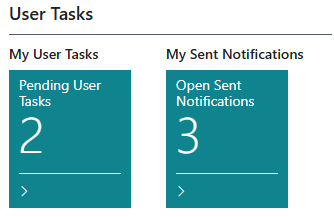
New tasks show up in My User Tasks on your Role Center. The task title shows the source record reference (e.g., "Customer 10000").
Opening a Task
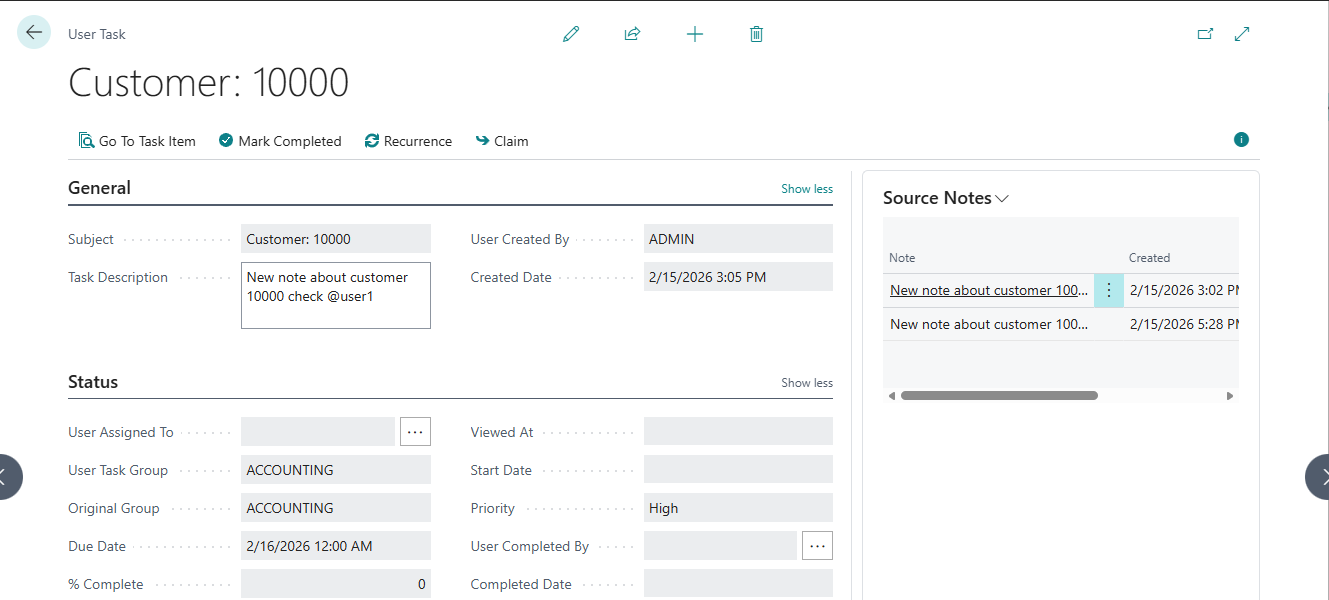
Click on a task to open the User Task Card. The card shows:
| Field | Description |
|---|---|
| Title | Source record reference |
| Description | The note text from the sender |
| Assigned To | Your user name (or empty for group tasks) |
| User Task Group Assigned To | The group, if this is a group task |
| Original Group | The group the task was originally assigned to before claiming (always visible, read-only) |
| Priority | Low, Normal, or High |
| Due DateTime | Deadline, if set. Overdue tasks are highlighted |
| Viewed At | Timestamp of when you first opened this task |
| Percent Complete | Your progress on the task (0-100) |
Navigating to the Source Record
The task is linked to the record where the original note was saved. To open the source record:
-
On the User Task Card, click Go To Task Item in the Actions menu
-
The source record page opens (e.g., the Customer Card, Sales Order, etc.)
This button is available only for tasks created by Notify User (tasks with a linked source record).
If the source record has been deleted, clicking Go To Task Item displays the message: "The source record has been deleted."
Source Notes FactBox
The Source Notes FactBox appears on the right side of the User Task Card. It shows all notes attached to the original source record.
Viewing Notes
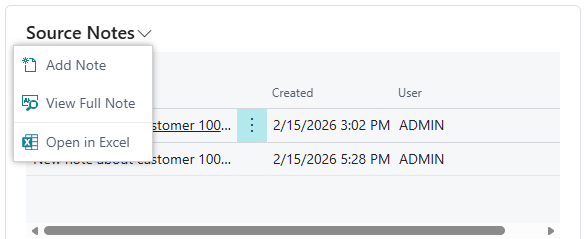
The FactBox displays a list of notes with:
-
Note - Preview of the note text (first 80 characters)
-
Created - When the note was created
-
User - Who created the note
To read the full text, select a note and click View Full Note in the actions.
Adding Notes
You can add notes to the source record directly from the task card:
-
Click Add Note in the FactBox actions
-
A dialog opens where you type the note text
-
Click OK to save. The note is added to the source record
Adding a note from the FactBox creates the note directly on the source record. This triggers the notification dialog, just like adding a note from the source record page itself.
Deleted Source Records
If the source record has been deleted:
-
The Source Notes FactBox shows an empty list
-
The View Full Note and Add Note actions are disabled
Read Receipts
When you open a task that was assigned to you (and you are not the sender), a Viewed At timestamp is recorded automatically. This happens once - subsequent views do not change the timestamp.
The sender can see this timestamp in the My Sent Notifications list and on the task card, confirming that you have seen the notification.
Read receipts are not recorded when:
-
You open a task you created yourself
-
You open a group task that has no individual assignee
-
The task has already been viewed (first view only)