Recipients And Groups
Send notifications to multiple users at once, use @mentions in your notes for automatic recipient detection, and assign tasks to User Task Groups.
Adding Recipients
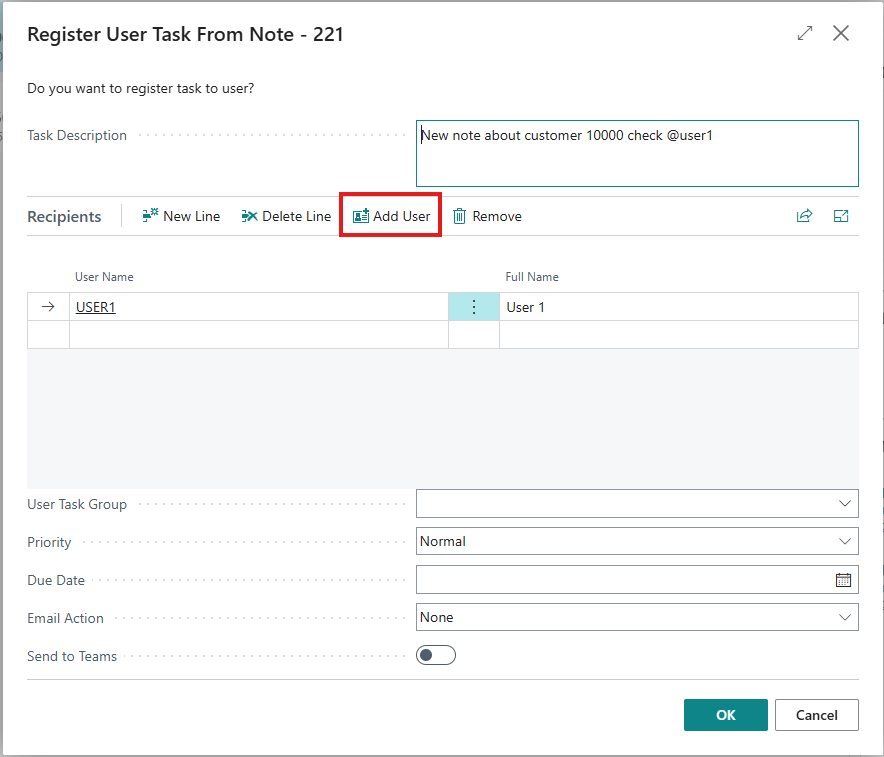
The Recipients list in the notification dialog shows all users who will receive an individual task. There are two ways to add recipients:
Manual Selection
-
In the notification dialog, find the Recipients section
-
Click Add User in the actions
-
Select a user from the user list
-
Repeat to add more recipients
Removing Recipients
-
Select a recipient in the list
-
Click Remove in the actions
@Mention Auto-Detection
Type @username in your note text to automatically add users to the recipient list. When the notification dialog opens, mentioned users are pre-filled.
How It Works
-
Type a note including @mentions:
@JOHN.DOE please review this invoice @JANE.SMITH -
Save the note
-
The notification dialog opens with JOHN.DOE and JANE.SMITH already in the Recipients list
-
You can add or remove recipients as needed before clicking OK
Matching Rules
The @mention parser matches in this order:
-
Exact User Name -
@JOHN.DOEmatches the user with User Name "JOHN.DOE" -
Partial Full Name -
@Johnmatches if exactly one user's Full Name starts with "John"
If a mention matches multiple users (ambiguous), it is skipped. If it matches no users, it is also skipped.
For reliable matching, use the exact User Name (as shown in the User table) after the @ symbol.
User Task Groups
In addition to individual recipients, you can assign a notification to a User Task Group. This creates a separate group task that all group members can see.
How Group Tasks Work
-
A group task has no individual assignee - it is visible to all members of the group
-
Any group member can Claim the task to take individual ownership (see the Claim Workflow page)
-
The group task is created in addition to any individual recipient tasks
Selecting a Group
-
In the notification dialog, use the User Task Group lookup field
-
Select the desired group
-
When Send to Teams is checked and you click OK, the system verifies the group has a webhook URL configured
Example: Individual + Group
If you add two recipients (Alice, Bob) and select group "Sales Team":
-
Alice gets an individual User Task
-
Bob gets an individual User Task
-
A group task is created for "Sales Team"
This means three tasks are created in total.
Tips
-
Each recipient gets an independent task. Completing one task does not affect the others
-
Duplicate recipients are prevented: adding the same user twice has no effect
-
You must have at least one recipient or a User Task Group selected. Both empty is not allowed
-
@mentions are processed when the dialog opens. You can still modify the recipient list before sending