Claim Workflow
When a notification is sent to a User Task Group, any group member can claim the task to take individual ownership.
Why Claim?
Group tasks have no individual assignee - they are visible to all group members. This is useful for team queues, but eventually someone needs to take responsibility. The Claim action lets a group member say "I'll handle this."
How to Claim a Task
-
Open a group task from My User Tasks or the group task list
-
On the User Task Card, click Claim in the Actions menu
-
The task is now assigned to you individually
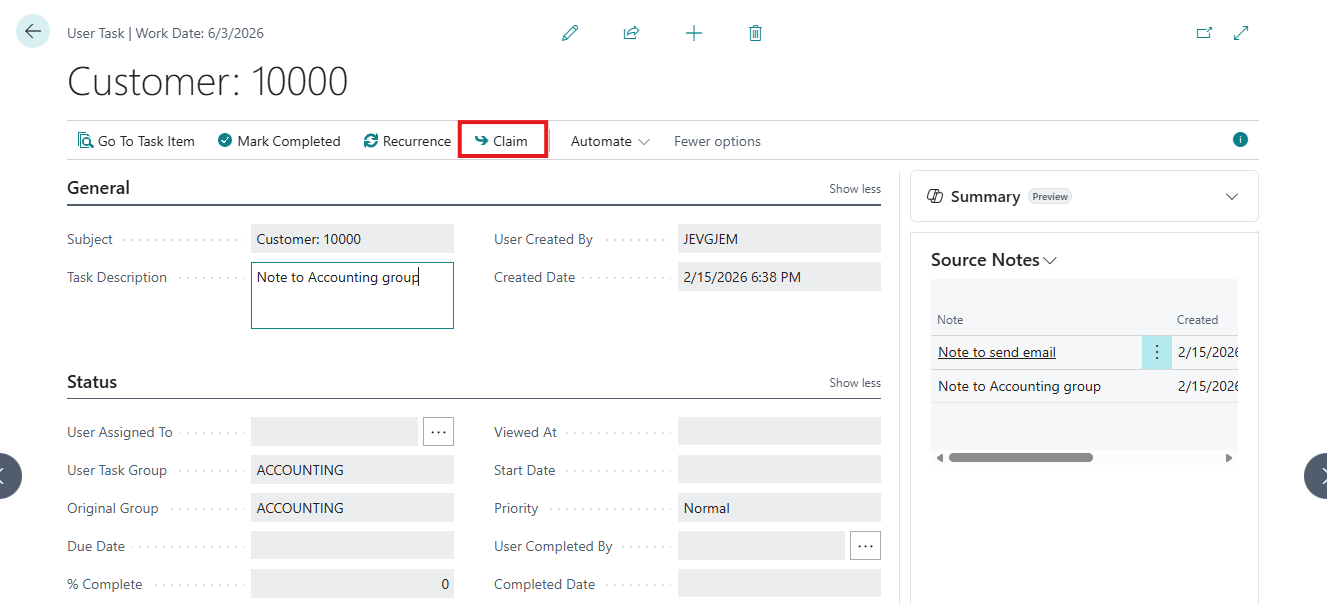
After claiming:
-
Assigned To changes to your user name
-
User Task Group Assigned To is cleared (the task is now yours, not the group's)
-
Original Group field shows the group the task was originally assigned to
-
The Claim button disappears (task is already claimed)
Original Group Preservation
When you claim a group task, the Original Group field is set automatically. This preserves the history of which group originally received the notification.
The Original Group field is always visible on the User Task Card (read-only). It is populated:
-
At the time of claiming, with the group the task was assigned to
-
At the time of creation, if the task was created directly for a group
The sender can see the Original Group in the My Sent Notifications list.
When Is Claim Available?
The Claim button is visible only when both conditions are met:
-
The task is assigned to a User Task Group (the group field is not empty)
-
The task has no individual assignee (Assigned To is empty)
Once a task is claimed or was originally assigned to a specific user, the Claim button does not appear.