Creating A Notification
When you save a note on any record in Business Central, Notify User automatically opens a dialog where you configure and send the notification.
The Notification Dialog
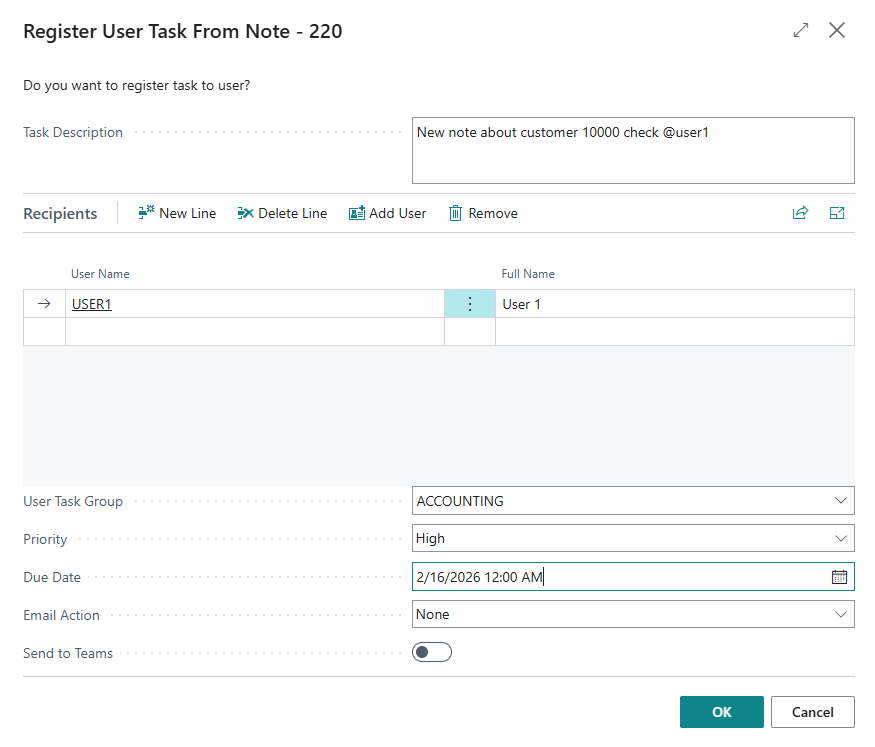
After saving a note, the Register User Task From Note dialog appears with the following fields:
| Field | Description |
|---|---|
| Task Description | Pre-filled with the note text. You can edit it before sending. This becomes the User Task description |
| Recipients | List of users who will receive individual tasks. Pre-filled from @mentions in the note |
| User Task Group | Optional group assignment. Creates a separate group task in addition to individual tasks |
| Priority | Low, Normal (default), or High. Shown on the task card and in Teams messages |
| Due Date | Optional deadline. Overdue tasks are highlighted in task lists |
| Email Action | None, Send, or Preview and Send. Requires Plus subscription |
| Send to Teams | Notify via Teams. Group tasks post to the group's webhook channel. Individual recipients receive a Teams DM. Requires Plus subscription |
Priority
Set the task priority to communicate urgency:
-
Low - Informational, no rush
-
Normal - Default priority for standard tasks
-
High - Requires prompt attention; highlighted in Teams messages
Priority defaults to Normal when the dialog opens.
Due Date
Set a due date to define a deadline for the task. When a due date is set:
-
The date appears on the User Task Card
-
Overdue tasks are highlighted with an Unfavorable style in task lists
-
The due date is included in Teams notification messages
Leave the due date empty if the task has no specific deadline.
Email Notifications
Email notifications require the Plus subscription. The field is disabled for Plan users.
Choose how to handle email delivery:
-
None - No email is sent (default)
-
Send - Sends the email silently in the background
-
Preview and Send - Opens the standard Business Central email editor so you can review and modify the message before sending
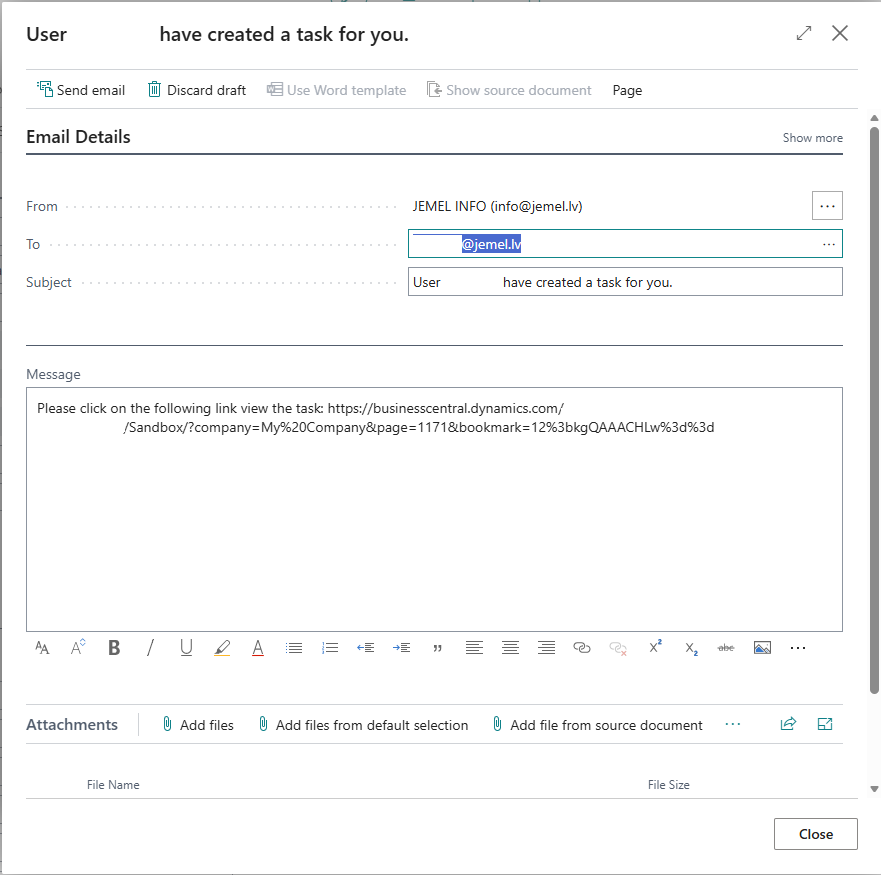
The recipient's email address is taken from the Contact Email field on the User record. For group tasks, emails are sent to all group members who have a Contact Email configured.
Teams Notifications
Teams notifications require the Plus subscription.
When Send to Teams is enabled, notifications are delivered via Teams:
-
Group tasks post a formatted message to the group's Teams channel (requires a webhook URL on the group)
-
Individual tasks open a Teams DM to the recipient (no webhook needed)
The Send to Teams checkbox:
-
Is available when you have a Plus subscription
-
Defaults to unchecked
-
When clicking OK with a group selected, the system validates the group has a webhook URL configured. If not, you are prompted to configure it on the User Task Groups page or uncheck Send to Teams
See the Teams Setup page for webhook configuration instructions.
What Happens When You Click OK
-
A separate User Task is created for each recipient in the list
-
If a User Task Group is selected, an additional group task is created
-
Each task contains: the description text, a link to the source record, the source description, and the configured priority and due date
-
Email notifications are sent according to the Email Action setting
-
If Send to Teams is enabled: group tasks post to the Teams channel, and a single Teams chat opens with all individual recipients (1:1 DM for one recipient, group chat for multiple)
-
The recipient sees the task in their My User Tasks on their Role Center
You must have at least one recipient or a User Task Group selected. The dialog will show an error if both are empty.