Component Journal
Record component installations, removals, and replacements using the Component Journal worksheet - the primary tool for documenting component operations.

Understanding Component Journal
What is Component Journal?
Component Journal = Worksheet for recording component operations before posting to ledger
How It Works:
-
Open Component Journal
-
Add journal lines (one per component operation)
-
Fill in: Asset, Item, Entry Type, Quantity, etc.
-
Post journal
-
Component Entries created
-
Complete audit trail
Similar To:
-
Item Journal (for inventory)
-
Asset Journal (for holder changes)
-
General Journal (for accounting)
Component Journal vs. Component Entries
Component Journal = Temporary worksheet (editable)
Component Entries = Permanent ledger (not editable)
| Aspect
|
Component Journal
|
Component Entries
| | --- | --- | --- | |
Type
|
Worksheet
|
Ledger
| |
Editable
|
Yes (before posting)
|
No (permanent)
| |
Purpose
|
Record operations
|
History/audit trail
| |
Created
|
Manually by users
|
Automatically on posting
| |
Deleted
|
Can delete lines
|
Cannot delete entries
|
Workflow: Component Journal → Post → Component Entries
Opening Component Journal
Search Method
Step 1: Search
-
Press Alt+Q (Tell Me)
-
Type "Component Journal"
-
Select "Asset Component Journal"
-
Page opens
From Role Center
Method: Navigate → Maintenance → Component Journal
Result: Component Journal opens
Journal Batch Management
What is a Batch?
Batch = Container for journal lines
Purpose:
-
Group related operations
-
Separate different types of work
-
Multiple users can work in different batches simultaneously
Examples:
-
MAINTENANCE (scheduled maintenance lines)
-
REPAIR (repair operation lines)
-
INSTALLATION (new component installs)
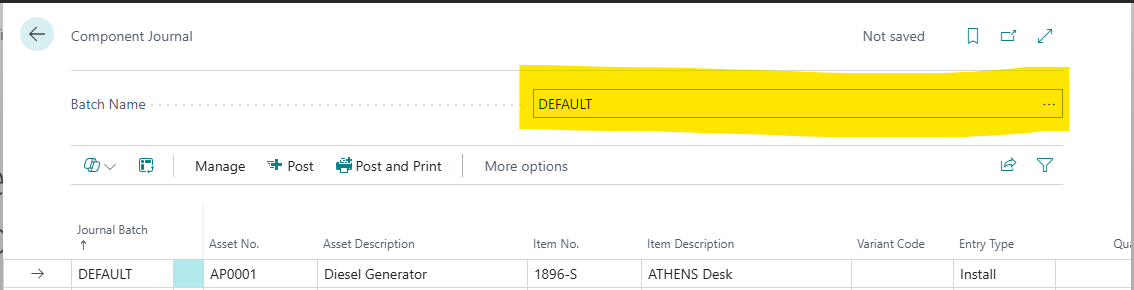
Batch Selector
Location: Top of Component Journal page
Field: "Batch Name"
Default: DEFAULT (auto-created if no batches exist)
Creating New Batch
Step 1: Open Batch Selector
-
Click Batch Name field
-
Click lookup (dropdown arrow)
-
Batch list opens
Step 2: Create New Batch
-
Click New
-
Name: Enter batch code (e.g., MAINTENANCE)
-
Description: Enter description (e.g., "Scheduled Maintenance")
-
Click OK
Step 3: Select Batch
-
New batch now available in selector
-
Switch between batches as needed
Understanding Journal Lines
Journal Line = One Component Operation
Each Line Records:
-
Which asset (Asset No.)
-
Which component (Item No.)
-
What operation (Entry Type)
-
How many (Quantity)
-
Where in asset (Position)
-
When (Posting Date)
-
Why (Reason Code)
Multiple Lines: Create multiple lines for multiple operations
Journal Line Fields
Asset No. (Required)
Type: Code[20]
Required: Yes
Links To: Asset Pro Asset table
Purpose: Which asset this component is for
Lookup: Opens Asset List
Validation:
-
Asset must exist
-
Asset must not be blocked
Auto-Fill: Asset Description
Example: VEH-001 (Fleet Truck)
Asset Description (Read-Only)
Type: Text[100]
Auto-Populated: From asset record
Editable: No
Purpose: Asset name for reference
Item No. (Required)
Type: Code[20]
Required: Yes
Links To: Business Central Item table
Purpose: Which component (part)
Lookup: Opens Item List
Validation: Item must exist in BC
Auto-Fill: Item Description, Unit of Measure Code
Example: FILTER-OIL (Engine Oil Filter)
Item Description (Read-Only)
Type: Text[100]
Auto-Populated: From item record
Editable: No
Purpose: Item name for reference
Variant Code (Optional)
Type: Code[10]
Links To: Item Variant
Optional: Yes
Purpose: Specific item variant
Example: Item "TIRE", Variant "17-INCH"
When to Use: Items with multiple variants
Entry Type (Required)
Type: Enum
Required: Yes
Options: Install, Remove, Replace, Adjustment
Purpose: What operation is being performed
Critical: Determines interpretation of operation
Default: None (must select)
[Screenshot Placeholder: Entry Type dropdown]
Quantity (Required)
Type: Decimal
Required: Yes
Precision: 0-5 decimals
Purpose: How many components
Sign Convention:
-
Install: Positive (e.g., 4 for 4 tires)
-
Remove: Negative (e.g., -1 for 1 drive) OR positive with Remove type
-
Replace: Positive (new component qty)
-
Adjustment: Positive or negative (correction)
Example: 5 (five quarts of oil)
Unit of Measure Code (Optional)
Type: Code[10]
Links To: Item Unit of Measure
Auto-Filled: From Item's Base Unit of Measure
Purpose: Unit for quantity
Examples: PCS (pieces), QT (quarts), GAL (gallons), EA (each)
Can Override: Yes, if item has multiple UOMs
Position (Optional, Recommended)
Type: Text[50]
Optional: Yes (but highly recommended)
Purpose: Physical location within asset
Examples:
-
"Front Left Wheel"
-
"Disk Bay 3"
-
"Engine Compartment"
-
"Slot A1"
-
"Cartridge Tray 2"
Benefit: Precise component tracking, faster maintenance
Best Practice: Always fill when position matters
Serial No. (Optional)
Type: Code[50]
Optional: Yes
Purpose: Serial number for serialized components
Examples:
-
Hard drive: HDD-SN-8472947
-
Memory module: MEM-12345678
-
Battery: BAT-SN-2024-001
When to Use:
-
Serialized parts
-
Warranty tracking
-
Expensive components
-
RMA requirements
Lot No. (Optional)
Type: Code[50]
Optional: Yes
Purpose: Lot/batch number
Examples:
-
Filter lot: LOT-2024-Q1-001
-
Oil batch: BATCH-5W30-2024
When to Use:
-
Lot-tracked items
-
Quality control
-
Recall management
Posting Date (Required)
Type: Date
Required: Yes
Default: Today's date (WorkDate)
Purpose: When component operation occurred
Can Change: Yes (for backdating)
Example: 2024-03-15
Reason Code (Optional, Recommended)
Type: Code[10]
Optional: Yes
Links To: BC Reason Code
Purpose: Why component operation happened
Common Codes:
-
MAINTENANCE - Scheduled maintenance
-
REPAIR - Repair/replacement
-
FAILURE - Component failure
-
UPGRADE - Component upgrade
-
RECALL - Manufacturer recall
-
AUDIT - Inventory audit adjustment
Benefit: Reporting by reason, clear audit trail
Document No. (Optional)
Type: Code[20]
Optional: Yes
Purpose: Internal document reference
Examples:
-
COMP-JNL-2024-001
-
WO-12345 (work order)
-
MAINT-Q1-001
Usage: Group related operations, link to work orders
External Document No. (Optional)
Type: Code[35]
Optional: Yes
Purpose: External reference
Examples:
-
Work Order: WO-2024-12345
-
Service Ticket: TICKET-8472
-
Purchase Order: PO-VEN-001
-
RMA: RMA-VENDOR-789
Benefit: Complete traceability to external systems
Creating Journal Lines
Adding First Line
Step 1: Position Cursor
-
Component Journal open
-
Cursor in first empty line
Step 2: Fill Required Fields
-
Asset No.: Select asset (lookup or type)
-
Item No.: Select component (lookup or type)
-
Entry Type: Select (Install/Remove/Replace/Adjustment)
-
Quantity: Enter quantity
-
Posting Date: Verify/change date
Step 3: Fill Optional Fields
-
Position: Enter location (recommended)
-
Serial No.: Enter if serialized
-
Reason Code: Select reason (recommended)
-
External Document No.: Enter reference
Step 4: Move to Next Line
-
Press Enter or Down arrow
-
New line ready
Adding Multiple Lines
Method 1: Sequential Entry
-
Fill line 1
-
Press Enter
-
Fill line 2
-
Repeat
Method 2: Copy Similar Lines
-
Fill first line completely
-
Copy relevant fields to next line
-
Change only what's different
Example: 4 tires installation
-
Line 1: Asset VEH-001, Item TIRE, Position "Front Left", Qty 1
-
Line 2: Asset VEH-001, Item TIRE, Position "Front Right", Qty 1
-
Line 3: Asset VEH-001, Item TIRE, Position "Rear Left", Qty 1
-
Line 4: Asset VEH-001, Item TIRE, Position "Rear Right", Qty 1
Entry Type Examples
Install Entry
Purpose: Adding component to asset
Quantity: Positive
Example 1: Install Hard Drive
-
Asset No.: SRV-001
-
Item No.: HDD-2TB
-
Entry Type: Install
-
Quantity: 1
-
Position: "Bay 3"
-
Serial No.: HDD-12345
-
Reason Code: UPGRADE
Result: Hard drive installation documented
Remove Entry
Purpose: Taking component out of asset
Quantity: Negative (or positive with Remove type)
Example 2: Remove Defective Memory
-
Asset No.: SRV-001
-
Item No.: MEM-8GB
-
Entry Type: Remove
-
Quantity: 1
-
Position: "Slot A2"
-
Serial No.: MEM-DEFECT-001
-
Reason Code: FAILURE
-
External Document No.: RMA-2024-001
Result: Removal documented for RMA
Replace Entry
Purpose: Replacing component (old out, new in)
Quantity: Positive (new component qty)
Example 3: Replace Oil Filter
-
Asset No.: VEH-001
-
Item No.: FILTER-OIL
-
Entry Type: Replace
-
Quantity: 1
-
Reason Code: MAINTENANCE
-
External Document No.: WO-2024-045
Result: Filter replacement documented
Note: Replace = convenience type for remove + install in one entry
Adjustment Entry
Purpose: Correct component records
Quantity: Positive or negative (correction)
Example 4: Adjust After Physical Count
-
Asset No.: PRINTER-001
-
Item No.: TONER-BLK
-
Entry Type: Adjustment
-
Quantity: 1 (found one more than recorded)
-
Reason Code: AUDIT
Result: Record corrected to match physical reality
Complete Use Cases
Use Case 1: Vehicle Oil Change
Scenario: Scheduled oil change for Fleet Truck VEH-001
Components:
-
Oil filter
-
Engine oil (5 quarts)
Journal Lines:
Line 1: Oil Filter Replacement
-
Asset No.: VEH-001
-
Item No.: FILTER-OIL
-
Entry Type: Replace
-
Quantity: 1
-
Posting Date: 2024-03-15
-
Reason Code: MAINTENANCE
-
External Document No.: WO-2024-045
Line 2: Engine Oil Installation
-
Asset No.: VEH-001
-
Item No.: OIL-5W30
-
Entry Type: Install
-
Quantity: 5
-
Unit of Measure Code: QT
-
Posting Date: 2024-03-15
-
Reason Code: MAINTENANCE
-
External Document No.: WO-2024-045
Post: Complete oil change documented
[Screenshot Placeholder: Oil change journal lines]
Use Case 2: Server Hard Drive Replacement
Scenario: Failed hard drive in server, replacing with new drive
Components:
-
Old drive (defective)
-
New drive (replacement)
Journal Lines:
Line 1: Remove Defective Drive
-
Asset No.: SRV-001
-
Item No.: HDD-2TB
-
Entry Type: Remove
-
Quantity: 1
-
Position: "Bay 3"
-
Serial No.: HDD-OLD-12345
-
Posting Date: 2024-03-20
-
Reason Code: FAILURE
-
External Document No.: TICKET-8472
Line 2: Install New Drive
-
Asset No.: SRV-001
-
Item No.: HDD-2TB
-
Entry Type: Install
-
Quantity: 1
-
Position: "Bay 3"
-
Serial No.: HDD-NEW-67890
-
Posting Date: 2024-03-20
-
Reason Code: REPAIR
-
External Document No.: TICKET-8472
Alternative: Use single Replace entry with new serial number
Post: Drive replacement completely documented with serials
Use Case 3: Printer Toner Replacement
Scenario: Replace empty toner cartridge
Journal Line:
-
Asset No.: PRINTER-LAB-001
-
Item No.: TONER-BLK
-
Entry Type: Replace
-
Quantity: 1
-
Posting Date: 2024-03-18
-
Reason Code: MAINTENANCE
Post: Consumable usage tracked
Use Case 4: HVAC Annual Maintenance
Scenario: Annual maintenance for HVAC unit - multiple components
Components:
-
2x Air filters
-
1x Belt
-
1x Lubricant
Journal Lines:
Line 1: Air Filters
-
Asset No.: HVAC-001
-
Item No.: FILTER-AIR-20X25
-
Entry Type: Replace
-
Quantity: 2
-
Posting Date: 2024-04-01
-
Reason Code: MAINTENANCE
-
External Document No.: MAINT-ANNUAL-001
Line 2: Belt
-
Asset No.: HVAC-001
-
Item No.: BELT-V-A42
-
Entry Type: Replace
-
Quantity: 1
-
Posting Date: 2024-04-01
-
Reason Code: MAINTENANCE
-
External Document No.: MAINT-ANNUAL-001
Line 3: Lubricant
-
Asset No.: HVAC-001
-
Item No.: LUBE-HVAC
-
Entry Type: Install
-
Quantity: 1
-
Unit of Measure Code: QT
-
Posting Date: 2024-04-01
-
Reason Code: MAINTENANCE
-
External Document No.: MAINT-ANNUAL-001
Post: Complete annual maintenance documented
Posting the Component Journal
Before Posting
Verify:
-
All required fields filled (Asset No., Item No., Entry Type, Quantity, Posting Date)
-
Quantities correct (positive/negative as appropriate)
-
Reason codes entered (recommended)
-
External references documented
-
Batch contains correct lines
Review Lines: Scroll through all lines in batch
How to Post
Method 1: Post Button
Step 1: Click Post
-
Open Component Journal
-
Verify lines
-
Click Post button (ribbon)
-
Posting starts
Step 2: Automatic Processing
-
Each journal line creates one Component Entry
-
Entry No. assigned automatically
-
Transaction No. assigned (groups related entries)
-
User ID stamped
-
Lines deleted from journal after successful posting
Step 3: Confirmation
-
"Journal lines posted successfully" message
-
Lines removed from journal
-
Component Entries created
Method 2: Post and Print
Purpose: Post journal and view newly created entries
Steps:
-
Click Post and Print
-
Journal posts
-
Component Entries page opens
-
Filtered to today's entries
-
View/print entries
Benefit: Immediate verification of posted entries
What Happens on Posting
For Each Journal Line:
-
Validation:
-
All required fields present
-
Asset exists and not blocked
-
Item exists
-
Quantity not zero
-
-
Component Entry Created:
-
Entry No. assigned (auto-increment)
-
All fields copied from journal line
-
Transaction No. assigned
-
User ID stamped
-
Posted to Component Entry table
-
-
Journal Line Deleted:
-
Line removed from journal (successful posting)
-
Batch ready for new lines
-
Result: Permanent component ledger updated
Posting Errors
Error: "Asset No. must have a value"
Cause: Missing required field
Solution: Fill Asset No.
Error: "Item FILTER-OIL does not exist"
Cause: Item not in BC Item table
Solution: Create item first, then journal
Error: "Asset VEH-001 is blocked"
Cause: Asset blocked
Solution: Unblock asset or use different asset
Best Practices
Group Related Operations
Use Document No:
-
Same Document No. for related operations
-
Example: WO-2024-045 for all lines in one work order
Benefit: Link related component changes
Always Use Position
Why: Precise tracking
Example: Server with 8 disk bays
-
Position: "Bay 1" through "Bay 8"
-
Know exactly which bay has which drive
-
Faster troubleshooting
Consistency: Use standard naming (Bay 1, not BAY-1 or DISK1)
Track Serial Numbers
Always Enter For:
-
Hard drives
-
Memory modules
-
Expensive parts (>$500)
-
Warranty-tracked items
-
Safety-critical components
Benefit: Warranty claims, RMA tracking, failure analysis
Use Reason Codes Consistently
Standard Set:
-
MAINTENANCE - Scheduled maintenance
-
REPAIR - Repair operations
-
FAILURE - Component failure
-
UPGRADE - Component upgrade
-
RECALL - Manufacturer recall
-
AUDIT - Inventory audit
Train Team: Everyone uses same codes
Benefit: Meaningful reports, trend analysis
Document External References
External Document No:
-
Work order numbers
-
Service ticket IDs
-
RMA numbers
-
Purchase order references
Complete Traceability: Link to external systems
Post Regularly
Don't Wait: Post after each maintenance session
Why:
-
Immediate documentation
-
Fresh in memory
-
Catch errors early
-
Complete audit trail
Not: Batch up weeks of operations
Review Before Posting
Check:
-
All lines correct
-
No duplicate lines
-
Quantities make sense
-
Positions filled
-
External references documented
One-Time Review: Easier than fixing Component Entries later
Batch Management Best Practices
Separate Batches by Purpose
Standard Batches:
-
MAINTENANCE - Scheduled maintenance
-
REPAIR - Ad-hoc repairs
-
INSTALLATION - New component installs
-
AUDIT - Audit adjustments
Benefit: Organized workflow, clear separation
One Batch Per User (Optional)
Multi-User Environment:
-
USER1 batch
-
USER2 batch
-
Each user works in own batch
Benefit: No conflicts, clear ownership
Clear Batch After Posting
Result: Empty batch ready for next work
If Lines Remain: Review why (errors?)
Validation Rules
Asset Must Exist: Asset No. must be valid
Item Must Exist: Item No. must be in BC Item table
Quantity Required: Must specify quantity
Quantity Not Zero: Cannot post zero quantity
Posting Date Required: Must have valid date
Entry Type Required: Must select type
Troubleshooting
Problem: Cannot Find Component Journal
Solution:
-
Search "Component Journal" or "Asset Component Journal"
-
Check permissions (may need Component Management permission)
Problem: Batch Name Field Not Visible
Cause: May be looking at wrong page
Solution: Ensure "Asset Component Journal" page, Batch Name at top
Problem: Lines Disappear After Entering
Cause: Not saving properly or batch changed
Solution:
-
Verify batch selection
-
Don't change batch with unsaved lines
-
Press Esc to cancel if needed
Problem: Cannot Post - Validation Error
Common Errors:
-
Missing required fields (Asset No., Item No., Entry Type, Quantity, Posting Date)
-
Item doesn't exist in BC
-
Asset blocked or doesn't exist
-
Quantity = 0
Solution: Review error message, fix field, retry
Problem: Posted Lines Not Creating Entries
Cause 1: Posting failed with error (lines still in journal)
Solution: Read error message, fix issue
Cause 2: Permissions issue
Solution: Check Component Entry posting permissions
Problem: Need to Correct Posted Entry
Cannot Edit: Component Entries are permanent
Solution: Create Adjustment entry to correct
Example: Recorded wrong position
-
Create Adjustment entry with correct position
-
Document in description: "Correcting position from Bay 1 to Bay 2"
The Component Journal is your daily tool for maintenance documentation. Make it a habit: every component installed, removed, or replaced = one journal line. Post daily for complete, accurate component history. Use Position and Serial No. fields religiously - your future self will thank you when troubleshooting!