AI Asset Name Suggester
The AI Asset Name Suggester uses artificial intelligence to generate professional, consistent asset names automatically based on your asset's classification, manufacturer, model, and other attributes.
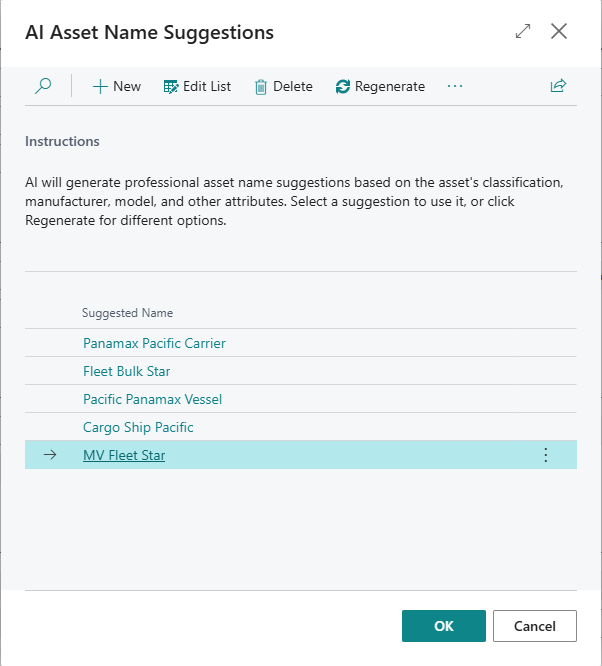
What is the AI Name Suggester?
The AI Name Suggester is an AI-powered feature that:
-
Generates 5 professional name suggestions for your asset
-
Analyzes classification, manufacturer, model, and other context
-
Creates concise, business-appropriate names (2-4 words)
-
Ensures naming consistency across assets
-
Saves time during asset creation
-
Uses Azure OpenAI technology
Result: Professional asset names without manual brainstorming
When to Use AI Name Suggester
Ideal Scenarios:
-
Creating new assets - Generate name during initial setup
-
Renaming existing assets - Improve inconsistent names
-
Bulk asset creation - Maintain naming standards
-
Standardization projects - Align asset names with conventions
-
Unclear naming - When unsure how to name an asset
Not Needed When:
-
Asset has obvious name (e.g., already has manufacturer label)
-
Strict naming convention already defined
-
Simple, generic assets
How It Works
The Process:
-
You provide context - Fill in asset fields (classification, manufacturer, model)
-
AI analyzes - System builds description from your data
-
AI generates - Azure OpenAI creates 5 professional suggestions
-
You choose - Select the best suggestion
-
Name applied - Asset Description field updated
Behind the Scenes:
-
Uses JEMEL's Azure OpenAI subscription
-
Sends asset context (no sensitive data)
-
Receives 5 varied suggestions
-
Processes in ~2-5 seconds
Accessing AI Name Suggester
Method 1: Assist Button on Description Field (Easiest)
During Asset Creation:
-
Open Asset Card (new or existing)
-
Fill in at least one:
-
Classification Code
-
Manufacturer Code
-
Model No.
-
-
Click in Description field
-
Press Alt+↓ (assist button appears)
-
AI Suggestions dialog opens
-
Select suggestion
-
Click OK
-
Description field populated

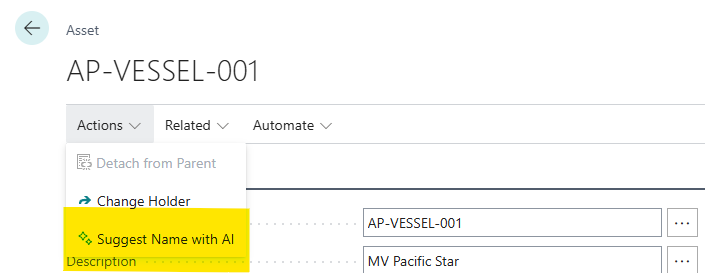
Method 2: Suggest Name Action
From Asset Card:
-
Open Asset Card
-
Click Actions → Suggest Name with AI
-
AI Suggestions dialog opens
-
Select suggestion
-
Click OK
Using the AI Suggestions Dialog
Dialog Layout
Instructions Section:
-
Explains how AI suggestions work
-
Reminds you to select a suggestion or regenerate
Suggested Names List:
-
Shows 5 AI-generated names
-
Each name 2-4 words typically
-
Click to select
-
Double-click to apply and close
Actions:
-
OK - Apply selected suggestion
-
Cancel - Close without applying
-
Regenerate - Generate new set of suggestions
Selecting a Suggestion
-
AI generates 5 suggestions automatically on open
-
Review each suggestion
-
Click the row with your preferred name
-
Row highlights (selected)
-
Click OK
-
Name applied to Description field
-
Message confirms: "Asset name updated to: [Selected Name]"
Tip: Read all 5 suggestions before choosing - they vary in style and emphasis
Context Requirements
AI needs minimum context to generate meaningful suggestions:
Required (At Least ONE)
Classification Code
-
Most important context
-
Defines asset type and category
-
Example: "MRI" classification generates MRI-related names
Manufacturer Code
-
Adds brand context
-
Example: "SIEMENS" includes brand in suggestions
Model No.
-
Specific model details
-
Example: "Vida 3T" adds model specificity
Optional (Improves Suggestions)
Industry Code
-
Provides business domain context
-
Example: MEDICAL vs. IT affects naming style
Serial No.
-
Can include in name if distinctive
-
Example: Short serial numbers may be incorporated
Year of Manufacture
-
Adds temporal context
-
Example: "2024 Model" might appear
Current Description
-
AI can refine existing description
-
Useful when renaming
More Context = Better Suggestions
Example: Creating Names for MRI Scanner
Scenario: You're adding a new MRI scanner
Step 1: Provide Context
Fill in Asset Card:
-
Industry Code: MEDICAL
-
Classification Code: MRI (under Medical Imaging → Diagnostic)
-
Manufacturer Code: SIEMENS
-
Model No.: Magnetom Vida 3T
-
Year of Manufacture: 2024
Step 2: Trigger AI
-
Click Description field
-
Press Alt+↓
Step 3: AI Generates
AI Suggestions dialog opens with:
-
"Siemens MRI Vida 3T" ← Concise, model-focused
-
"MRI Scanner - Siemens Magnetom" ← Descriptive with brand
-
"Medical Imaging - Siemens Vida" ← Category-focused
-
"Siemens Magnetom Vida 3T" ← Full model name
-
"MRI System - 3T Vida" ← System-focused
Step 4: Select
-
You choose #2: "MRI Scanner - Siemens Magnetom"
-
Click OK
-
Description field updated
Result: Professional, consistent name applied
[Screenshot Placeholder: Example with MRI scanner context and resulting suggestions]
Regenerating Suggestions
If you don't like the initial 5 suggestions:
How to Regenerate:
-
In AI Suggestions dialog
-
Click Regenerate action
-
AI generates 5 new suggestions
-
Review new options
-
Select or regenerate again
What Changes:
-
AI uses same context (your asset data)
-
Creates different variations
-
Temperature setting adds creativity
-
Each generation produces unique names
How Many Times:
-
No limit on regeneration
-
Generate until you find suitable name
-
Each request takes ~2-5 seconds
If suggestions are consistently off-target, add more context (manufacturer, model, etc.)