Asset Journal
The Asset Journal is a worksheet for batch-processing asset holder changes. Transfer multiple assets at once, edit in Excel, and post directly without formal document workflow.

Understanding Asset Journal
What is Asset Journal?
Asset Journal = Excel-like worksheet for changing asset holders in batches
Think of it as:
-
Spreadsheet of pending holder changes
-
Each line = one asset transfer
-
Post all lines together
-
Creates Holder Entries for audit trail
Similar to:
-
BC General Journal (for GL entries)
-
BC Item Journal (for inventory)
-
Asset Journal (for asset transfers)
When to Use Asset Journal
Perfect For:
-
Batch transfers - 10+ assets at once
-
Quick corrections - Fix holder errors
-
Excel imports - Bulk data from other systems
-
Internal moves - Location-to-location
-
Regular operations - Monthly location transfers
-
Return from repair - Multiple assets from vendor
Not Ideal For:
-
Formal documented transfers (use Transfer Orders)
-
Single asset changes (use Change Holder Dialog)
-
External approvals required (use Transfer Orders)
Opening Asset Journal
Method 1: From Role Center
-
Open Asset Manager Role Center
-
Navigate: Transfers → Asset Journal
-
Journal opens
Method 2: Direct Search
-
Press Alt+Q
-
Enter "Asset Journal"
-
Choose related link
Method 3: From Cues
-
Role Center → Activity Cues
-
Click "Asset Journal" quick action (if configured)

Journal Structure
Journal Batches
Asset Journal uses batches to organize lines:
What is a Batch?
-
Named container for journal lines
-
Separate batches for different purposes
-
Filter journal to one batch at a time
-
Examples: DEFAULT, REPAIR, MONTHLY, CUSTOMER
Benefits:
-
Organize by transfer type
-
Separate personal vs. shared batches
-
Process different batches separately
-
Clear workload separation
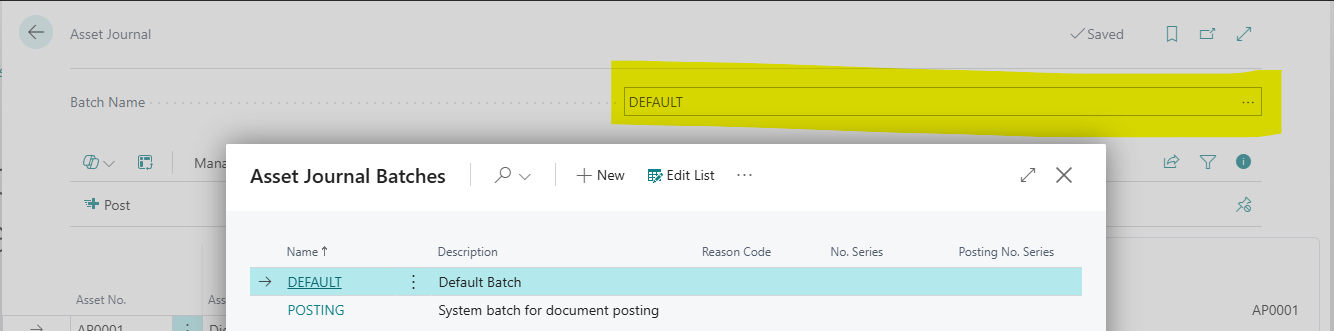
Default Batch
First Time Opening:
-
If no batches exist, system creates "DEFAULT"
-
Name: DEFAULT
-
Description: Default Batch
-
Auto-created, ready to use
Using DEFAULT:
-
Good for general transfers
-
Single-user scenarios
-
Testing
Creating Custom Batches
Why Create Batches:
-
Separate transfer types (REPAIR, RELOCATION, CUSTOMER)
-
Personal batches per user (USER1, USER2)
-
Department batches (FINANCE, IT, FLEET)
-
Periodic batches (MONTH-END, QUARTERLY)
How to Create:
-
From Journal:
-
Click Batch Name field
-
Press Alt+↓ (lookup)
-
Asset Journal Batches page opens
-
Click New
-
-
Direct Creation:
-
Search "Asset Journal Batches"
-
Open page
-
Click New
-
Batch Fields:
-
Name (Code, 10 characters): REPAIR, MONTHLY, etc.
-
Description (Text, 100 characters): "Assets from/to repair"
Switching Batches
How to Switch:
-
Click Batch Name field (top of journal)
-
Select different batch from dropdown
-
Or press Alt+↓ for lookup
-
Journal filters to selected batch
Effect:
-
Journal lines filter to that batch only
-
Different users can work in different batches simultaneously
-
Posting one batch doesn't affect others
Journal Fields
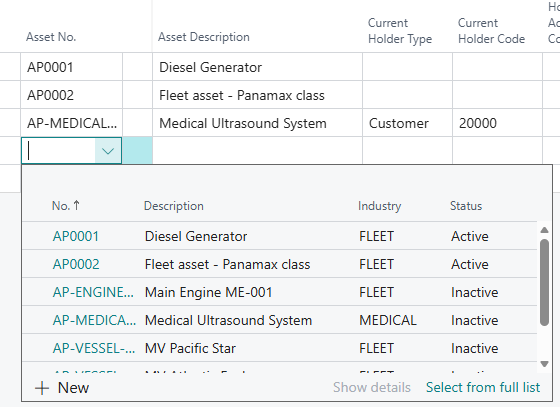
Asset No. (Required)
Purpose: The asset being transferred
Field Type: Code[20]
Lookup: Yes (filtered)
Validation: Asset must exist, not blocked, not child asset
How to Enter:
-
Type asset number directly
-
Or press Alt+↓ for lookup
-
Lookup shows valid transferable assets
Auto-Fill on Selection:
-
Asset Description
-
Current Holder Type/Code/Name
-
Current Holder Address Code
Restrictions:
-
Cannot transfer blocked assets
-
Cannot transfer child assets (with parent) - detach first
Asset Description (Read-Only)
Purpose: Asset name for reference
Field Type: Text[100]
Editable: No
Auto-Populated: From asset record
Usage: Visual confirmation of correct asset selected
Current Holder Fields (Read-Only)
Current Holder Type/Code/Name/Address Code
Purpose: Shows asset's current holder
Editable: No (informational only)
Auto-Populated: From asset when Asset No. selected
Why Read-Only:
-
Reflects actual asset holder
-
Cannot be changed (would cause mismatch)
-
Validates transfer is from correct holder
New Holder Type (Required)
Purpose: Type of holder receiving asset
Field Type: Enum
Options: Customer, Vendor, Location, or blank
Required: Yes
Behavior on Change:
-
Clears New Holder Code
-
Clears New Holder Address Code
Validation:
-
Must be specified
-
Asset No. must be set first
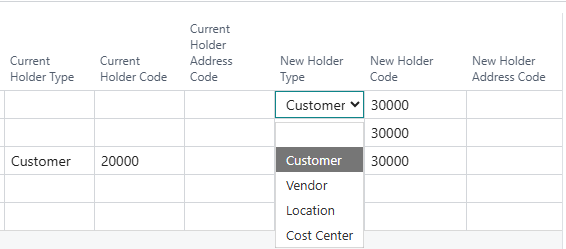
New Holder Code (Required)
Purpose: Specific holder receiving asset
Field Type: Code[20]
Table Relation: Customer, Vendor, or Location (based on Type)
Lookup: Yes (filtered by Type)
Required: Yes
How to Enter:
-
Type code directly
-
Or press Alt+↓ for lookup
Validation:
-
Holder must exist
-
Cannot be same as current holder (unless address changes)
-
New Holder Type must be set first
Effect on Change:
-
Clears New Holder Address Code
-
Validates holder exists
New Holder Address Code (Optional)
Purpose: Specific address for Customer or Vendor
Field Type: Code[10]
Applicable: Customers (Ship-to Address), Vendors (Order Address)
Not Applicable: Locations
Optional: Yes
When to Use:
-
Customer has multiple ship-to addresses
-
Vendor has multiple order addresses
-
Track asset to specific address
Validation:
-
Address must exist for selected holder
-
Automatically cleared if holder type is Location
Posting Date (Required)
Purpose: Date when holder change occurred
Field Type: Date
Default: WorkDate (today)
Required: Yes
Usage:
-
Determines Holder Entry posting date
-
Historical transfers: use past date
-
Future planning: use future date (if allowed)
Validation:
-
Must be valid date
-
Asset No. must be set first
Document No. (Optional)
Purpose: Reference document number
Field Type: Code[20]
Optional: Yes
Manual Entry: Type your own reference
Usage:
-
Group related transfers
-
Reference external documents
-
Batch identifier
Examples:
-
"REPAIR-2024-001" (repair batch)
-
"RELOC-MARCH" (monthly relocation)
-
"CUST-TRANSFER-001" (customer transfer)
Benefit: All lines with same Document No. linked in Holder Entries
Description (Optional)
Purpose: Free-form transfer description
Field Type: Text[100]
Optional: Yes
Manual Entry: Type description
Usage:
-
Explain transfer reason
-
Notes for audit trail
-
Additional context
Examples:
-
"Return from overhaul"
-
"Relocation to new warehouse"
-
"Transfer under SA-2024-001"
Appears In: Holder Entry description field
Reason Code (Optional)
Purpose: Standardized reason for transfer
Field Type: Code[10]
Table Relation: Business Central Reason Code
Optional: Yes (but recommended)
Common Reason Codes:
-
REPAIR - To/from repair
-
RELOCATION - Internal move
-
SALE - Asset sold
-
RETURN - Return from customer/vendor
-
LOAN - Loaned equipment
-
DECOMMISSION - Asset retired
Benefits:
-
Standardized categorization
-
Reporting by reason
-
Compliance requirements
-
Clear audit trail
Setup: Create Reason Codes in BC: Search "Reason Codes" → New
External Document No. (Optional)
Purpose: External reference (PO, invoice, agreement)
Field Type: Code[35]
Optional: Yes
Manual Entry: Type external reference
Usage:
-
Customer PO number
-
Vendor invoice number
-
Service agreement number
-
Tracking number
Examples:
-
"PO-12345" (customer purchase order)
-
"INV-VEN-789" (vendor invoice)
-
"SA-2024-001" (service agreement)
Benefit: Cross-reference to source documents outside Asset Pro
Creating Journal Lines
Step-by-Step: Single Line
Scenario: Transfer Laptop LAPTOP-001 from Location OFFICE to Location WAREHOUSE
Step 1: Select Batch
-
Open Asset Journal
-
Batch Name: DEFAULT (or create custom)
Step 2: Add Line
-
Click first empty line
-
Asset No.: LAPTOP-001
-
Current holder auto-fills: Location OFFICE
Step 3: Specify New Holder
-
New Holder Type: Location
-
New Holder Code: WAREHOUSE (lookup)
-
New Holder Address Code: (not applicable for locations)
Step 4: Add Details
-
Posting Date: Today (default)
-
Document No.: RELOC-2024-03
-
Description: "Office relocation"
-
Reason Code: RELOCATION
Step 5: Ready to Post
-
Line complete
-
Review fields
-
Post when ready (covered below)
Step-by-Step: Multiple Lines
Scenario: Return 5 laptops from Vendor V-001 (repair) to Location WAREHOUSE
Step 1: Line 1
-
Asset No.: LAPTOP-001
-
New Holder Type: Location
-
New Holder Code: WAREHOUSE
-
Document No.: REPAIR-2024-001
-
Reason Code: REPAIR
-
Description: "Return from repair"
Step 2: Lines 2-5
-
Repeat for LAPTOP-002 through LAPTOP-005
-
Use same New Holder, Document No., Reason
-
Vary descriptions if needed
Step 3: Review
-
5 lines in journal
-
All: Location WAREHOUSE
-
All: Document No. REPAIR-2024-001
-
Ready to post
Result: All 5 post together, creates 10 Holder Entries (5 Out + 5 In)
Posting the Journal
How to Post
Step 1: Review Lines
-
Check all lines correct
-
Verify holders match expectations
-
Ensure dates valid
Step 2: Click Post
-
Click Post action
-
Or press F9
Step 3: System Processing
-
Validates each line
-
Creates Holder Entries
-
Updates asset Current Holder
-
Deletes journal lines (posted)
Step 4: Confirmation
-
Success message appears
-
Journal lines cleared
-
Holder Entries created

What Happens During Post
For Each Line:
-
Validation:
-
Asset exists and not blocked
-
Asset not a child (no parent)
-
New holder exists
-
New holder different from current
-
All required fields filled
-
-
Create Holder Entries:
-
Transfer Out entry (from current holder)
-
Transfer In entry (to new holder)
-
Both linked by Transaction No.
-
-
Update Asset:
-
Current Holder Type = New Holder Type
-
Current Holder Code = New Holder Code
-
Current Holder Address Code = New Holder Address Code
-
Current Holder Since = Posting Date
-
-
Delete Journal Line:
-
Line removed from journal
-
Permanent posting (cannot undo)
-
Post Validation Errors
Error: "Asset has parent"
-
Cause: Asset is child of parent asset
-
Solution: Detach from parent first, then transfer
Error: "Asset is blocked"
-
Cause: Asset marked as blocked
-
Solution: Unblock asset on Asset Card
Error: "New holder same as current holder"
-
Cause: Trying to transfer to same holder and address
-
Solution: Change holder or address code
Error: "Asset No. must have a value"
-
Cause: Empty Asset No. field
-
Solution: Fill in asset number
Error: "New Holder Type must have a value"
-
Cause: New Holder Type blank
-
Solution: Select holder type
Edit in Excel
Asset Journal supports Edit in Excel for bulk editing:
How to Use Edit in Excel
Step 1: Open Journal
-
Open Asset Journal
-
Select batch with lines (or empty batch)
Step 2: Launch Excel
-
Click Actions → Edit in Excel
-
Or click Edit in Excel button
-
Excel opens with journal data
Step 3: Edit in Excel
-
Add/modify/delete lines
-
Copy/paste from other sources
-
Use Excel formulas
-
Fill down for bulk
Step 4: Publish Back
-
Save changes in Excel
-
Click Publish in Excel Add-in
-
Changes sync to BC
Step 5: Post in BC
-
Return to BC Asset Journal
-
Lines updated
-
Post as normal
Excel Editing Use Cases
Use Case 1: Bulk Import
-
Copy 100 asset numbers from CSV
-
Paste into Excel Asset Journal
-
Fill down New Holder columns
-
Publish back
-
Post in BC
Use Case 2: Formulas
-
IF formulas for conditional holders
-
VLOOKUP for mapping holders
-
Complex logic in Excel
-
Publish result to BC
Use Case 3: Review
-
Export journal to Excel
-
Review with manager
-
Adjust as needed
-
Publish back
Benefits:
-
Familiar Excel interface
-
Powerful formulas
-
Copy/paste from anywhere
-
Bulk operations
Journal Batches Strategy
Batch Organization Strategies
By Transfer Type:
-
REPAIR - Repair-related transfers
-
RELOCATION - Internal moves
-
CUSTOMER - Customer transfers
-
VENDOR - Vendor transfers
By User:
-
USER-JOHN - John's personal batch
-
USER-MARY - Mary's personal batch
-
Prevents conflicts
By Frequency:
-
DAILY - Daily operations
-
WEEKLY - Weekly batch processing
-
MONTHLY - Month-end transfers
-
ADHOC - One-off transfers
By Department:
-
FINANCE - Finance dept transfers
-
IT - IT dept transfers
-
FLEET - Fleet operations
Best Practice: Batch Per Purpose
Recommended:
-
Create batch per transfer purpose
-
Use meaningful names
-
Document in description
Example Setup:
-
DEFAULT - General use
-
REPAIR - Assets to/from repair vendor
-
MONTHLY - Monthly location reorgs
-
EMERGENCY - Urgent transfers
Benefits:
-
Clear separation
-
Easy tracking
-
Parallel processing
-
Audit clarity
Common Workflows
Workflow 1: Return from Vendor Repair
Scenario: 10 assets at Vendor V-001 (Repair Shop), returning to Location WAREHOUSE
Steps:
-
Open Asset Journal, batch: REPAIR
-
Line 1:
-
Asset: LAPTOP-001
-
New Holder: Location WAREHOUSE
-
Document No.: REPAIR-RET-2024-03
-
Reason: REPAIR
-
Description: "Repair complete - return to stock"
-
-
Repeat lines 2-10 for remaining laptops
-
Review all lines
-
Post (F9)
Result:
-
10 assets now at WAREHOUSE
-
20 Holder Entries created (10 Out + 10 In)
-
Document No. groups them
-
Reason Code = REPAIR for reporting
Time: 5 minutes including posting
Workflow 2: Monthly Location Reorganization
Scenario: 50 assets moving from OLD-WH to NEW-WH
Steps:
-
Prepare list of 50 asset numbers in Excel
-
Open Asset Journal, batch: MONTHLY
-
Click Edit in Excel
-
Excel opens
-
Paste 50 asset numbers in Asset No. column
-
Fill down:
-
New Holder Type: Location
-
New Holder Code: NEW-WH
-
Document No.: REORG-2024-03
-
Reason Code: RELOCATION
-
Description: "Warehouse consolidation"
-
-
Publish back to BC
-
Return to BC journal
-
Review 50 lines
-
Post (F9)
Result: 50 assets transferred in 10 minutes
Workflow 3: Customer Demo Equipment Setup
Scenario: 5 demo units to Customer C-001 for 30-day trial
Steps:
-
Open Asset Journal, batch: CUSTOMER
-
Add 5 lines (demo units)
-
New Holder: Customer C-001
-
New Holder Address Code: SITE-02 (if multiple sites)
-
Document No.: DEMO-2024-001
-
Reason Code: DEMO
-
Description: "30-day demo trial - return 04/30"
-
External Document No.: SO-12345 (sales order)
-
Post
Result:
-
5 demo units at customer
-
Clear reason (DEMO)
-
Return date in description
-
Linked to sales order
Follow-Up: Create reminder to return on 04/30
Journal Actions
Post (F9)
Purpose: Post all lines in batch
Shortcut: F9
Effect:
-
Validates all lines
-
Creates Holder Entries
-
Updates assets
-
Clears journal lines
Use: Primary action for processing journal
Test Report
Purpose: Preview posting without committing
Effect: Would show validation errors and preview of entries
Status: Future enhancement
Suggest Lines (Future)
Purpose: Auto-create lines based on criteria
Examples:
-
"All assets at Vendor V-001" (return from repair)
-
"Assets without holder" (initial assignment)
-
"Assets at OLD-WH" (location move)
Status: Future enhancement
Asset (Navigation)
Purpose: Open Asset Card for selected line
Effect: Opens asset detail in new page
Use: Verify asset details before posting
Holder Entries (Navigation)
Purpose: View holder history for selected asset
Effect: Opens Holder Entries filtered to asset
Use: Check past transfers, verify current holder
Validation Rules
Asset Validation
Rule: Asset must exist and not be blocked
Rule: Asset cannot have parent (no child assets)
Why: Child assets move with parent, cannot transfer separately
Solution: Detach child from parent first
Holder Validation
Rule: New holder must be different from current
Exception: Can be same holder if address changes
Example Valid: Customer C-001 Address MAIN → Customer C-001 Address SITE-02
Example Invalid: Location WAREHOUSE → Location WAREHOUSE (same address)
Required Fields
Rule: Must fill:
-
Asset No.
-
New Holder Type
-
New Holder Code
-
Posting Date
Optional but Recommended:
-
Document No. (grouping)
-
Reason Code (reporting)
-
Description (audit trail)
Performance Tips
Batching
Group Similar Transfers:
-
Same destination: one batch
-
Same reason: one batch
-
Post together: faster
Document No. Grouping:
-
Use same Document No. for related lines
-
Links entries together
-
Easier reporting
Excel Editing
For 20+ Assets:
-
Use Edit in Excel
-
Much faster than manual entry
-
Copy/paste from sources
-
Fill down formulas
Parallel Processing:
-
Multiple users, different batches
-
Process simultaneously
-
No conflicts
Posting Frequency
Post Often:
-
Small batches (10-20 lines)
-
Post immediately
-
Clear journal frequently
-
Reduced error risk
Or Accumulate:
-
Larger batches (50-100 lines)
-
Post once per day/week
-
Review thoroughly first
-
Bulk processing
Best Practices
Use Meaningful Batches
Clear Names:
-
REPAIR not BATCH1
-
CUSTOMER not TEMP
-
Purpose-driven naming
Document in Description:
-
Batch description field
-
Explain batch purpose
-
Team clarity
Complete Required Fields
Always Fill:
-
Asset No. (obviously)
-
New Holder Type/Code
-
Posting Date
-
Document No. (for grouping)
-
Reason Code (for reporting)
Consider Description:
-
Brief explanation
-
Aids future investigations
-
Audit clarity
Document No. Strategy
Consistent Format:
-
REPAIR-2024-001, REPAIR-2024-002
-
RELOC-MARCH-2024
-
DEMO-CLIENT-001
Sequential:
-
Use sequence within type
-
Easy tracking
-
Clear progression
Review Before Posting
Check:
-
All assets correct
-
Holders match expectations
-
Dates valid
-
No duplicate lines
-
No errors
Then Post:
-
No undo after posting
-
Holder Entries permanent
-
Assets updated immediately
Reason Codes
Create Standard Set:
-
REPAIR, RELOCATION, SALE, RETURN, LOAN, DECOMMISSION
-
Use consistently
-
Train team on codes
Enable Reporting:
-
Filter Holder Entries by Reason
-
Transfer volume by reason
-
Compliance reports
Troubleshooting
Problem: Cannot Select Asset - Not in Lookup
Cause 1: Asset blocked
Solution: Unblock on Asset Card
Cause 2: Asset has parent
Solution: Detach from parent first
Cause 3: Asset doesn't exist
Solution: Create asset first
Problem: Current Holder Shows Wrong Holder
Cause: Asset holder changed since line created
Solution:
-
Delete line
-
Re-add asset (refreshes current holder)
-
Or check Asset Card for actual current holder
Problem: Posting Fails - "Same holder" Error
Cause: New holder same as current holder and address
Solution:
-
Change to different holder
-
Or specify different address code (if applicable)
Problem: Lines Disappeared After Posting
Expected: Journal lines deleted after successful post
Verification: Check Holder Entries for posted records
Recovery: None needed - working as designed
Problem: Edit in Excel Not Working
Cause 1: Excel Add-in not installed
Solution: Install Business Central Excel Add-in
Cause 2: SaaS environment issue
Solution: Check BC environment settings
Cause 3: Permissions
Solution: Verify user has export permissions
Related Topics
See Also:
-
Holder Management - Understanding holder concept and Change Holder Dialog
-
Asset Transfer Orders - Formal transfer document workflow
-
Holder Entries - View audit trail of posted transfers
-
Core Asset Management - Creating assets to transfer
Next Steps:
-
Practice with small batches (5-10 assets)
-
Create custom batches for your use cases
-
Try Edit in Excel for bulk operations
-
Learn Transfer Orders for formal processes
Tip: The Asset Journal is your workhorse for bulk transfers. Master Excel editing to handle 100+ asset transfers in minutes. Create purpose-driven batches and use meaningful Document Numbers to keep your transfers organized and traceable!