Custom Attributes
Attributes add custom fields to assets without code modifications. Define industry-specific or classification-level fields with appropriate data types.
Note: Must enable attributes in Asset Setup ("Enable Attributes" = checked).
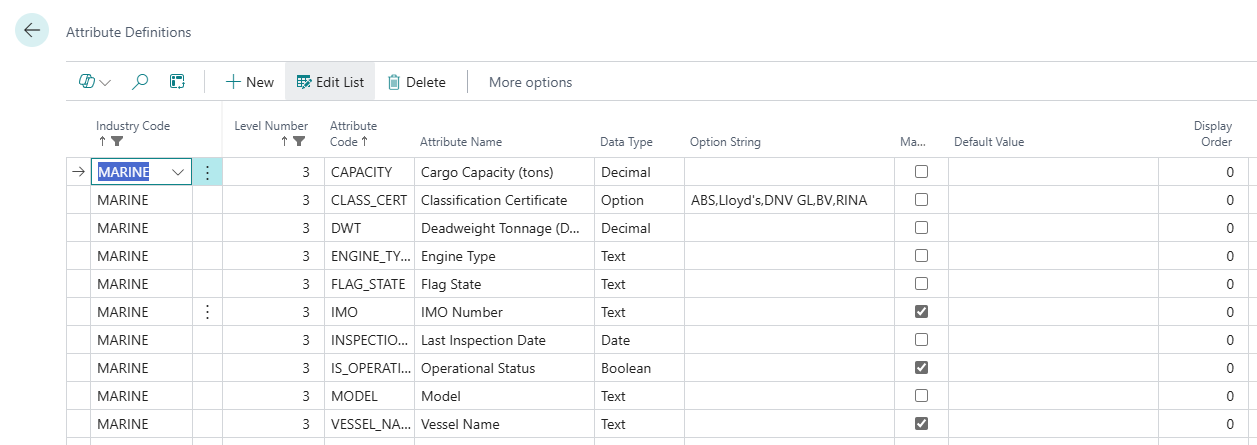
Understanding Attributes
Attribute = Custom field on Asset Card
Each attribute provides:
-
Custom field name
-
Data type (Text, Integer, Decimal, Date, Boolean, Option)
-
Scope (industry-wide or specific classification level)
-
Optional default value
-
Optional mandatory flag
Example attributes:
-
Cargo Capacity (Decimal) - for FLEET industry
-
RAM (Integer) - for IT industry, Level 2 (Laptops)
-
Warranty Expiration (Date) - for all assets
-
Vessel Condition (Option: Excellent, Good, Fair, Poor) - for FLEET
Data Types
| Type
|
Purpose
|
Example Values
| | --- | --- | --- | |
Text
|
Codes, names, short descriptions
|
IMO1234567, Serial: ABC123
| |
Integer
|
Whole numbers, counts, years
|
RAM: 16, Crew: 25, Year: 2024
| |
Decimal
|
Measurements, capacities
|
Cargo: 50000.50, Weight: 125.75
| |
Date
|
Dates, expirations
|
2024-12-31, 2025-06-15
| |
Boolean
|
Yes/No, true/false flags
|
Has GPS: Yes, Certified: No
| |
Option
|
Predefined choices
|
Excellent,Good,Fair,Poor
|
Creating Attributes
Access Attributes Page
-
Choose 🔎 icon
-
Enter Asset Industries
-
Choose related link
-
Open Industries list page
-
Select Industry, press Classification Levels
-
Select Level, to which to attach Attributes
-
Press Attributes
-
Click New
Required Fields
Industry Code
-
Select industry (FLEET, IT, MEDICAL)
-
Attribute applies to this industry only
Level Number
- 1, 2, 3... = Specific classification level only
Attribute Code (max 20 characters)
-
Unique identifier: CARGO-CAP, IMO-NUM, RAM-GB
-
Uppercase recommended
Attribute Name (max 50 characters)
-
Display name: "Cargo Capacity", "IMO Number", "RAM (GB)"
-
Shown on Asset Card
Data Type
- Select from: Text, Integer, Decimal, Date, Boolean, Option
Optional Fields
Option String (for Option type only, max 250 characters)
-
Comma-separated values
-
Example: "Excellent,Good,Fair,Poor"
-
Required when Data Type = Option
Mandatory (checkbox)
-
User must fill this field
-
Asset cannot save without value
-
Use sparingly
Default Value (max 250 characters)
-
Pre-filled when creating new asset
-
User can change
-
Must match data type
Display Order (integer)
-
Controls field order on Asset Card
-
Lower numbers first (1, 2, 3...)
-
Same order = alphabetical by name
Using Attributes on Assets
After defining attributes, they appear on Asset Card:
Attributes FastTab:
-
Shows all Level 0 attributes (industry-wide)
-
Shows attributes for asset's classification level
-
Fields arranged by Display Order
-
Mandatory fields marked with *
Entering Values:
-
Text: Free text entry
-
Integer/Decimal: Numeric input
-
Date: Date picker
-
Boolean: Checkbox
-
Option: Dropdown list
[Screenshot Placeholder: Asset Card Attributes FastTab showing custom fields]
Best Practices
Choose Correct Data Type
-
Use Integer for counts (not Decimal)
-
Use Option for limited choices (not Text)
-
Use Boolean for yes/no (not Option)
Limit Mandatory Fields
-
Only mark critical fields mandatory
-
Too many mandatory = user frustration
Clear Names
-
Include units: "Length (m)", "RAM (GB)"
-
Avoid abbreviations in names
-
Codes can be abbreviated
Option String Format
-
No spaces around commas: "Red,Blue,Green" not "Red, Blue, Green"
-
Keep option values short
-
Max 10 options recommended
Display Order Strategy
-
Group related fields (10, 11, 12)
-
Leave gaps for future additions (10, 20, 30)
-
Most important fields first
Modifying Attributes
Changing Name, Help Text, Display Order
-
Safe to change anytime
-
Doesn't affect existing data
Changing Data Type
-
Not recommended after data exists
-
May lose existing values
-
Test in dev environment first
Adding/Removing Options (Option type)
-
Can add new options safely
-
Removing options: check if values exist first
Blocking Attribute
-
Hides from Asset Card
-
Data preserved
-
Use instead of deletion
Deleting Attribute
-
Cannot delete if values exist
-
Delete all attribute values first (manual process)
-
Or block instead
Enabling/Disabling Attribute System
In Asset Setup:
-
"Enable Attributes" checkbox
-
Checked = Attributes active (default)
-
Unchecked = Attributes hidden
When disabled:
-
Attribute FastTab hidden on Asset Card
-
Data preserved in database
-
Definitions remain
-
Re-enable anytime
Why disable:
-
Simplify UI if not using attributes
-
Slight performance improvement
-
Most organizations keep enabled
Configuration Group Complete
You've now learned all configuration topics:
-
Industries - Top-level containers ✓
-
Classifications - Hierarchical taxonomy ✓
-
Attributes - Custom fields ✓
Next: Move to Core Assets section to start creating and managing assets.