Setup & Configuration
Configure Asset Pro manually using the Asset Setup page. This guide covers all configuration options for administrators who want complete control over system settings.
Alternative Setup Methods:
-
Faster: Use AI Setup Wizard for automated configuration
-
Evaluation: Use Demo Data and Configuration Packages for pre-configured test environment
Accessing Asset Setup
-
Choose the 🔎 icon
-
Enter Asset Setup
-
Choose the related link
-
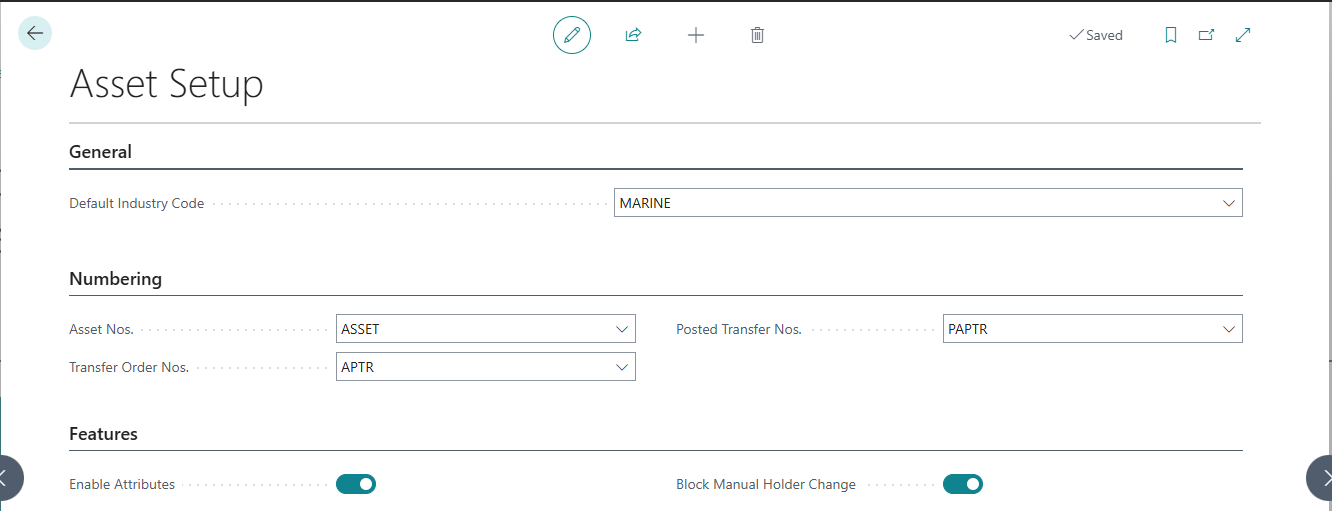
Asset Setup page opens
Or from Asset Manager Role Center:
-
Navigate to Setup & Configuration section
-
Click Asset Setup
Asset Setup Page Structure
The Asset Setup page contains two main areas:
General FastTab
-
Asset numbering
-
Default industry
-
Feature toggles (attributes, holder control)
Numbering FastTab
-
Transfer order number series
-
Posted transfer number series
Number Series Configuration
Asset Nos. (Required)
Purpose: Automatic numbering for new assets
Field: Asset Nos.
Type: No. Series Code
Location: General FastTab
Required: Yes (must be set before creating assets)
Typical Values:
-
ASSET (generates ASSET-0001, ASSET-0002, etc.)
-
AST (generates AST-0001, AST-0002, etc.)
-
Custom format matching your organization's conventions
Setup Steps:
-
If number series doesn't exist, create it first (see Creating Number Series below)
-
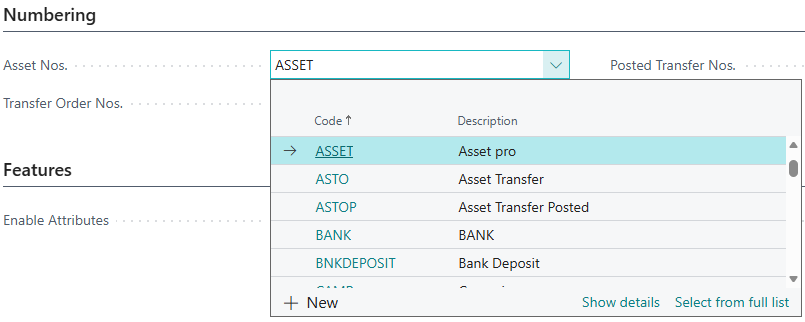
In Asset Setup, click Asset Nos. lookup button
-
Select appropriate number series from list
-
Click OK
Transfer Order Nos. (Required for Transfer Orders)
Purpose: Numbering for Asset Transfer Order documents
Field: Transfer Order Nos.
Type: No. Series Code
Location: Numbering FastTab
Required: Yes (if using transfer orders)
Typical Values:
-
TRANS (generates TRANS-0001, TRANS-0002, etc.)
-
APTR (generates APTR-0001, APTR-0002, etc.)
-
Different prefix from assets to distinguish document types
Why Separate from Assets:
-
Distinguishes documents from assets
-
Separate numbering sequences for different object types
-
Easier to identify object type from number alone
Posted Transfer Nos. (Required for Transfer Orders)
Purpose: Numbering for archived Posted Asset Transfer documents
Field: Posted Transfer Nos.
Type: No. Series Code
Location: Numbering FastTab
Required: Yes (when posting transfer orders)
Typical Values:
-
PTRANS (generates PTRANS-0001, PTRANS-0002, etc.)
-
PAPTR (generates PAPTR-0001, PAPTR-0002, etc.)
-
Usually different prefix from open transfers
Why Separate from Open Transfers:
-
Distinguishes posted (archived) from open (editable) documents
-
Standard BC pattern for document archiving
-
Posted documents use permanent number series
Example Configuration:
Asset Nos.: ASSET Transfer Order Nos.: TRANS Posted Transfer Nos.: PTRANS
Creating Number Series
If required number series don't exist yet, create them:
Step 1: Open No. Series Page
-
Choose the 🔎 icon
-
Enter No. Series
-
Choose the related link
-
No. Series list opens
Step 2: Create Asset Number Series
-
Click New
-
Fill in fields:
-
Code: ASSET
-
Description: Asset Numbers
-
Default Nos.: ☑ (checked)
-
-
Click Lines
-
Starting No.: ASSET-0001
-
Ending No.: ASSET-99999
-
Increment-by No.: 1
-
-
Click OK

Step 3: Create Transfer Order Number Series
-
Click New
-
Fill in fields:
-
Code: TRANS
-
Description: Asset Transfer Orders
-
Starting No.: TRANS-0001
-
Ending No.: TRANS-99999
-
Increment-by No.: 1
-
Default Nos.: ☑ (checked)
-
-
Click OK
Step 4: Create Posted Transfer Number Series
-
Click New
-
Fill in fields:
-
Code: PTRANS
-
Description: Posted Asset Transfers
-
Starting No.: PTRANS-0001
-
Ending No.: PTRANS-99999
-
Increment-by No.: 1
-
Default Nos.: ☑ (checked)
-
-
Click OK
Step 5: Assign to Asset Setup
-
Return to Asset Setup page
-
Assign number series:
-
Asset Nos.: ASSET
-
Transfer Order Nos.: TRANS
-
Posted Transfer Nos.: PTRANS
-
-
Close Asset Setup
Result: Number series configured and ready for use
Default Industry Code (Optional)
Purpose: Pre-fill Industry field when creating new assets
Field: Default Industry Code
Type: Asset Industry Code
Location: General FastTab
Required: No
When to Set:
-
✅ Single-industry organization: All assets belong to one industry (e.g., only FLEET)
-
✅ Predominant industry: 90%+ of assets in one industry
-
✅ User convenience: Save time by pre-filling most common value
When to Leave Blank:
-
⚠️ Multi-industry organization: Assets span multiple industries equally
-
⚠️ No clear default: No single industry represents majority
Configuration:
-
In Asset Setup, click Default Industry Code lookup
-
Select industry from list (e.g., FLEET, IT, MEDICAL)
-
Click OK
Effect:
-
New assets automatically have this industry pre-selected
-
Users can change industry on individual assets
-
Does NOT restrict to only this industry

Feature Toggles
Enable Attributes
Purpose: Control whether custom attribute system is active
Field: Enable Attributes
Type: Boolean (checkbox)
Location: General FastTab
Default: ☑ Enabled (true)
When Enabled (Default):
-
✅ Custom attribute fields available on Asset Card
-
✅ Attribute definitions can be created
-
✅ Industry-specific and classification-level attributes work
-
✅ Full attribute functionality active
When Disabled:
-
❌ Attribute fields hidden on Asset Card
-
❌ Attribute pages hidden
-
❌ Slight performance improvement (less field processing)
-
✅ Core features (classification, holder, etc.) unaffected
When to Disable:
-
Organization doesn't need custom attributes
-
Using only standard BC fields
-
Want to simplify UI by hiding unused features
-
Performance optimization (marginal benefit)
When to Keep Enabled (Recommended):
-
Need industry-specific fields (Cargo Capacity, RAM, etc.)
-
Want flexibility for future customization
-
Most organizations use at least some attributes
Configuration:
-
Check or uncheck Enable Attributes box
-
Close Asset Setup (changes apply immediately)

Block Manual Holder Change
Purpose: Control whether users can change Current Holder directly on Asset Card
Field: Block Manual Holder Change
Type: Boolean (checkbox)
Location: General FastTab
Default: ☐ Disabled (false - manual changes allowed)
When Disabled (Default):
-
✅ Users can change Current Holder field on Asset Card
-
✅ Changes automatically register holder entries
-
✅ Document prefix: "MAN-" (e.g., MAN-ASSET-0001-1)
-
✅ All validation rules apply (posting date, child propagation)
-
✅ Full audit trail maintained
-
✅ Flexible for quick corrections
When Enabled (Blocked):
-
❌ Current Holder field becomes read-only on Asset Card
-
✅ Holder changes ONLY via:
-
Asset Journal (batch transfers)
-
Asset Transfer Orders (formal workflow)
-
Document integration (purchase/sales/transfer posting)
-
-
✅ Forces formal documentation for all changes
-
✅ Stricter audit control
When to Enable (Block Manual Changes):
-
✅ Strict audit requirements: Need formal documentation for every movement
-
✅ Compliance regulations: Industry regulations require formal transfer process
-
✅ Multiple user levels: Want to control which users can move assets
-
✅ Approval workflows: Need formal approval before transfers
-
✅ Large organization: Centralized control over asset movements
When to Disable (Allow Manual Changes - Default):
-
✅ Small organization: Trusted users, need flexibility
-
✅ Quick corrections: Occasional need for simple holder updates
-
✅ User training: Users understand when to use journals vs. manual
-
✅ Balanced approach: Formal transfers most of the time, manual when appropriate
How Manual Changes Work (When Not Blocked):
User changes Current Holder on Asset Card:
-
Opens Asset Card
-
Changes Current Holder Type (Location, Customer, Vendor)
-
Changes Current Holder Code (specific location/customer/vendor)
-
System automatically:
-
Validates posting date (cannot backdate before last holder entry)
-
Creates Transfer Out entry (from old holder)
-
Creates Transfer In entry (to new holder)
-
Documents with "MAN-" prefix
-
Propagates to child assets
-
Maintains full audit trail
-
Result: Flexible but fully audited holder change


The Asset Setup is intentionally minimal - only 7 fields total. Asset Pro's philosophy is configuration through data (industries, classifications, attributes) rather than settings. This keeps setup simple while maintaining flexibility.