Asset Management
Asset Management is the core functionality of Asset Pro - creating, viewing, editing, and organizing individual asset records.
Understanding Assets
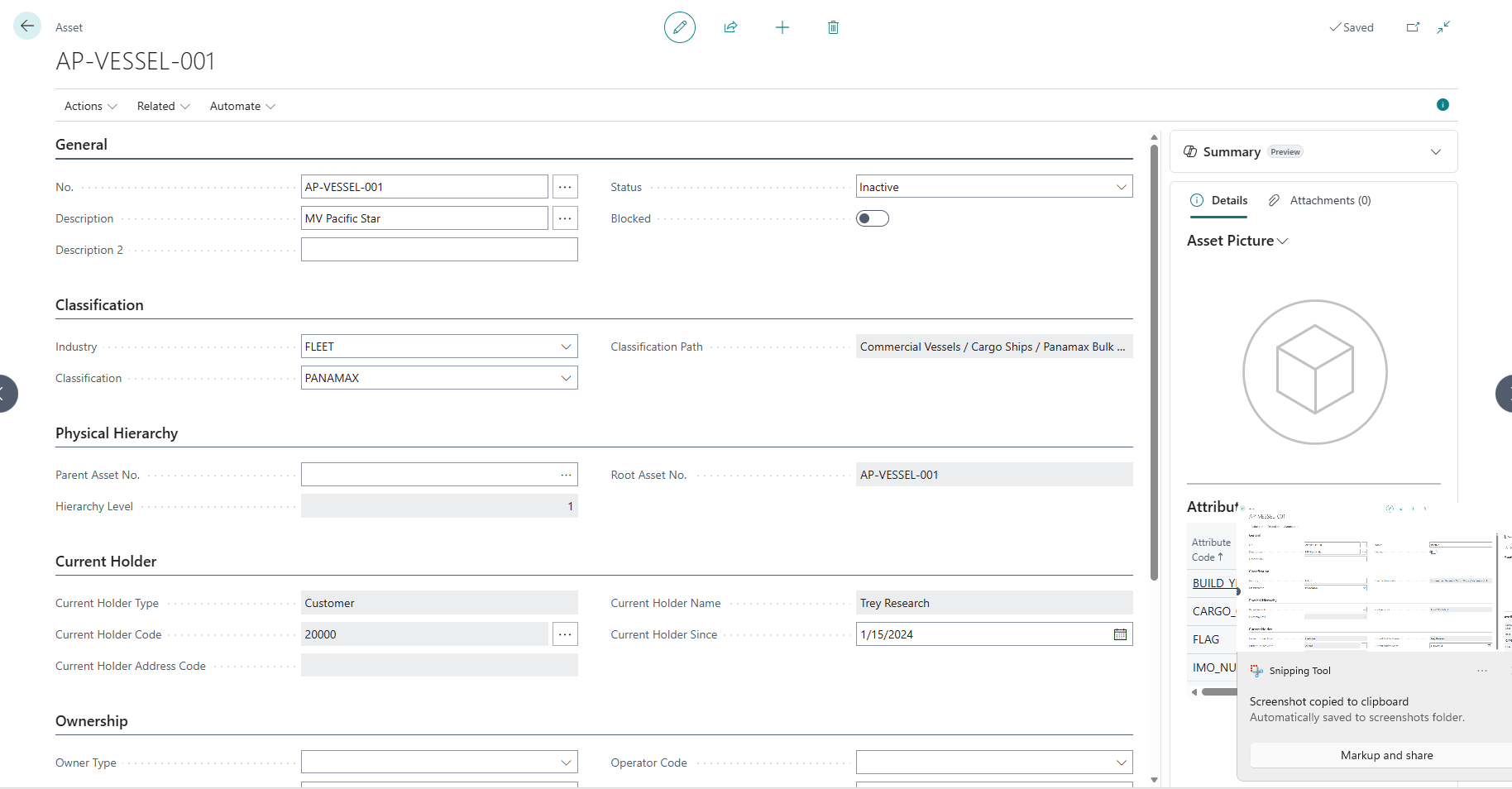
An Asset in Asset Pro represents a physical or logical item your organization tracks. Each asset has:
-
Unique identifier (No.)
-
Classification (Industry + Classification hierarchy)
-
Current holder (Who has it: Customer, Vendor, or Location)
-
Physical hierarchy (Parent-child relationships)
-
Ownership roles (Owner, Operator, Lessee)
-
Financial values (Acquisition cost, book value)
-
Custom attributes (Industry-specific fields)
-
Complete history (Holder changes, relationships, components)
One Asset = One Record with all related information
Asset List vs. Asset Card
Asset Pro uses two main pages for asset management:
| Page
|
Purpose
|
When to Use
| | --- | --- | --- | |
Asset List
|
View multiple assets at once
|
Browsing, filtering, searching, bulk operations
| |
Asset Card
|
View/edit one asset in detail
|
Creating new asset, editing detailed information, viewing full asset profile
|
Pattern: Search in List → Open Card → Edit → Close → Back to List
Creating a New Asset
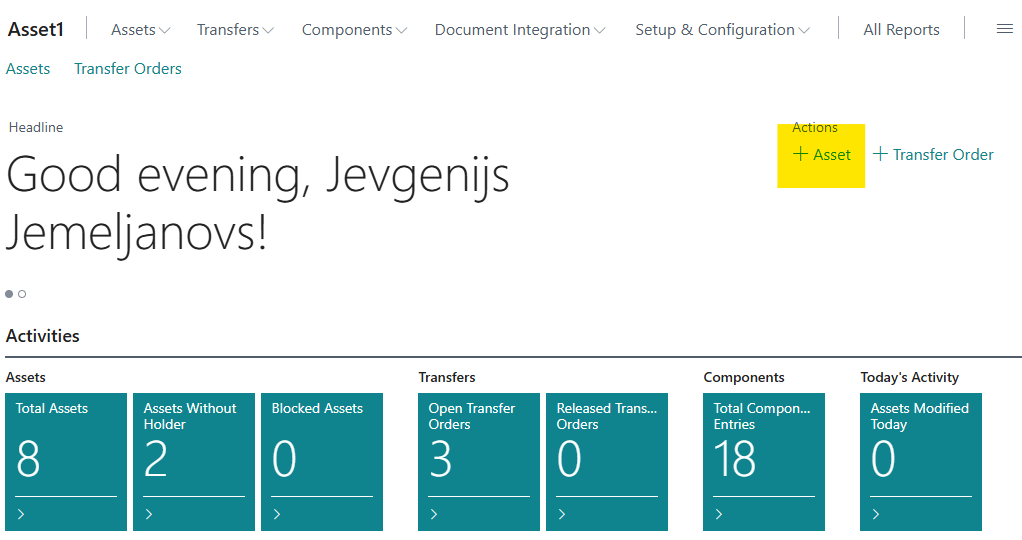
Method 1: From Role Center (Fastest)
-
Open Asset Manager Role Center
-
Click New Asset quick action
-
Asset Card opens in Create mode
-
Fill in required fields
-
Click OK to save
Method 2: From Asset List
-
Choose 🔎 icon
-
Enter Assets
-
Choose related link
-
Click New
-
Asset Card opens
-
Fill in fields
-
Click OK to save
Asset Card Structure
The Asset Card is organized into logical sections (FastTabs):
General Section
No. (Code, 20 characters)
-
Auto-assigned from number series (if configured)
-
Or manually enter (if manual numbering allowed)
-
Cannot change after creation
-
Use assist button (Alt+↓) to select from number series
Description (Text, 100 characters)
-
Primary asset name
-
Tip: Use assist button to get AI-generated name suggestions
-
Example: "MRI Scanner - Siemens Magnetom Vida 3T"
Description 2 (Text, 50 characters)
-
Additional description
-
Optional supplementary information
Status (Option)
-
Active: Asset in normal use
-
Under Maintenance: Temporarily unavailable
-
Decommissioned: Retired from service
-
Blocked: Cannot be used in transactions
Blocked (Boolean)
-
Check to prevent use in transactions
-
Existing references remain valid
-
Asset still visible and searchable

Classification Section
Industry Code (Code, 20 characters)
-
Select the industry this asset belongs to
-
Cannot change after setting (impacts classification structure)
-
Example: FLEET, MEDICAL, IT
Classification Code (Code, 20 characters)
-
The leaf node in your classification tree
-
Example: "PANAMAX" (under Cargo Ship → Commercial)
-
Lookup shows valid classifications for selected industry
-
Validates classification hierarchy
Classification Path (Read-only)
-
Shows full classification path
-
Auto-calculated from classification hierarchy
-
Example: "Commercial / Cargo Ship / Panamax"
-
Helps verify classification structure

Physical Hierarchy Section
Parent Asset No. (Code, 20 characters)
-
The asset this asset is physically inside
-
Example: Engine inside Ship
-
Creates parent-child relationship
-
Use lookup (assists) to select valid parent
-
Rule: Both assets must be at same holder
Hierarchy Level (Integer, Read-only)
-
Depth in physical hierarchy
-
1 = Root (no parent)
-
2 = Child of root
-
3 = Grandchild
-
Auto-calculated when parent assigned
Root Asset No. (Code, 20 characters, Read-only)
-
Top-most ancestor in physical tree
-
Auto-calculated
-
Used for filtering entire asset families
-
Blank if asset is root or standalone

Usage Example:
-
Ship "SS-001" (Root, Level 1)
-
Engine "ENG-100" (Child, Level 2, Root = SS-001)
- Fuel Pump "FP-200" (Grandchild, Level 3, Root = SS-001)
-
Current Holder Section
Current Holder Type (Enum, Read-only)
-
Who currently holds the asset
-
Options: Customer, Vendor, Location, or blank
-
Read-only: Cannot edit directly
-
Changed via Change Holder dialog or Asset Journal
Current Holder Code (Code, 20 characters, Read-only)
-
The specific Customer No., Vendor No., or Location Code
-
Use assist button to open Change Holder dialog
-
Links to master data (Customer, Vendor, Location)
Current Holder Address Code (Code, 10 characters, Read-only)
-
Ship-to Address (for Customers)
-
Order Address (for Vendors)
-
Not applicable for Locations
Current Holder Name (Text, 100 characters, Read-only)
-
Name of holder
-
Auto-populated from master data
-
Updated when holder changes
Current Holder Since (Date)
-
Date when current holder received asset
-
Set automatically when holder changes
-
Used for custody duration calculations

Why Read-Only?
Changes to Current Holder create ledger entries for audit trail. Use:
-
Change Holder action (on Asset Card)
-
Asset Journal (for batch changes)
-
Transfer Orders (for formal transfers)
-
Document Integration (automatic on sales/purchase/transfer posting)
Ownership Section
These fields define ownership and operational roles (not custody):
Owner (Type + Code + Name)
-
Legal owner of the asset
-
Types: Our Company, Customer, Vendor, Employee, Responsibility Center
-
Example: Asset owned by company, but leased to customer
Operator (Type + Code + Name)
-
Entity that operates/uses the asset
-
Day-to-day user
-
Example: Equipment operated by specific employee
Lessee (Type + Code + Name)
-
Entity that leases/rents the asset
-
Only applicable if asset is leased
-
Example: Asset leased to Customer C-001
Use Case: You own a truck (Owner = Our Company), it's located at Customer site (Holder = Customer C-001), and driven by Customer employee (Operator = Employee).

Dates Section
Acquisition Date
-
Date asset was acquired/purchased
-
Used for age calculations
-
Optional but recommended
In-Service Date
-
Date asset was put into operational use
-
May differ from acquisition date
-
Used for service life calculations
Last Service Date
-
Date of most recent maintenance/service
-
Update manually after service
-
Reference for service history
Next Service Date
-
Scheduled date for next service
-
Use for maintenance planning
-
Can trigger reminders (customization)
Decommission Date
-
Date asset was retired from service
-
Set when asset is decommissioned
-
Used with Status = Decommissioned

Financial Section
Acquisition Cost (Decimal, currency)
-
Original purchase cost
-
Auto-formatted as currency
-
Optional field
Current Book Value (Decimal, currency)
-
Current accounting value
-
Update manually or via integration
-
Used for financial reporting
Residual Value (Decimal, currency)
-
Expected value at end of useful life
-
Used for depreciation calculations (if integrated)
-
Optional
Note: Asset Pro does not calculate depreciation automatically. Use Business Central Fixed Assets module for depreciation, or maintain values manually.

Additional Information Section
Serial No. (Code, 50 characters)
-
Manufacturer serial number
-
Unique identifier from manufacturer
-
Used for warranty and support
-
Example: "SN-8472947HJKL"
Manufacturer Code (Code, 10 characters)
-
Links to Business Central Manufacturer table
-
Example: "SIEMENS"
-
Lookup available
Model No. (Code, 50 characters)
-
Manufacturer model number
-
Example: "Magnetom Vida 3T"
-
Freeform field
Year of Manufacture (Integer)
-
Manufacturing year
-
Range: 1900-2100
-
Used for age and compliance
Warranty Expires (Date)
-
Warranty expiration date
-
Used for warranty tracking
-
Can trigger notifications

Creating an Asset: Step-by-Step Example
Scenario: Add new MRI scanner to MEDICAL industry
Step 1: Open New Asset Card
-
Open Asset Manager Role Center
-
Click New Asset
Step 2: General Information
-
No.: Leave blank (auto-assign) or enter manually
-
Description: "MRI Scanner - Siemens Vida"
-
Status: Active
-
Blocked: Unchecked
Step 3: Classification
-
Industry Code: MEDICAL
-
Classification Code: Open lookup
- Select "MRI" (under Medical Imaging → Diagnostic)
-
Classification Path: Auto-displays "Diagnostic / Medical Imaging / MRI"
Step 4: Holder Information
-
Leave Current Holder blank initially
-
Will assign holder later via Asset Journal or Change Holder
Step 5: Additional Details
-
Serial No.: "SN-12345-VIDA-2024"
-
Manufacturer Code: SIEMENS
-
Model No.: "Magnetom Vida 3T"
-
Year of Manufacture: 2024
-
Acquisition Date: Today's date
-
Acquisition Cost: 2,500,000
Result: Asset "MRI Scanner - Siemens Vida" created with full details
Editing an Existing Asset
Opening Asset for Editing
From Asset List:
-
Open Asset List
-
Find asset (filter or search)
-
Click asset line to open Card
-
Edit fields
-
Close (auto-saves)
Direct Search:
-
Press Alt+Q (search)
-
Enter asset number: "ASSET-001"
-
Choose "Asset ASSET-001"
-
Asset Card opens
-
Edit
-
Close
From Role Center:
-
Use embedded Asset List
-
Click asset to open
-
Edit
-
Close
What Can Be Changed?
Freely Editable:
-
Description, Description 2
-
Status (Active, Blocked, etc.)
-
Blocked checkbox
-
Owner, Operator, Lessee
-
All date fields
-
Financial values
-
Serial No., Manufacturer, Model, Year
-
Description fields
Restricted (Validation Rules):
-
No.: Cannot change after creation
-
Industry Code: Cannot change if Classification set
-
Classification Code: Cannot change if asset has parent or children
-
Parent Asset No.: Validated (must be same holder, no circular refs)
Read-Only (Calculated):
-
Classification Path
-
Hierarchy Level
-
Root Asset No.
-
Current Holder fields (use Change Holder action)
-
Last Date Modified, Last Modified By
Using AI Name Suggestions
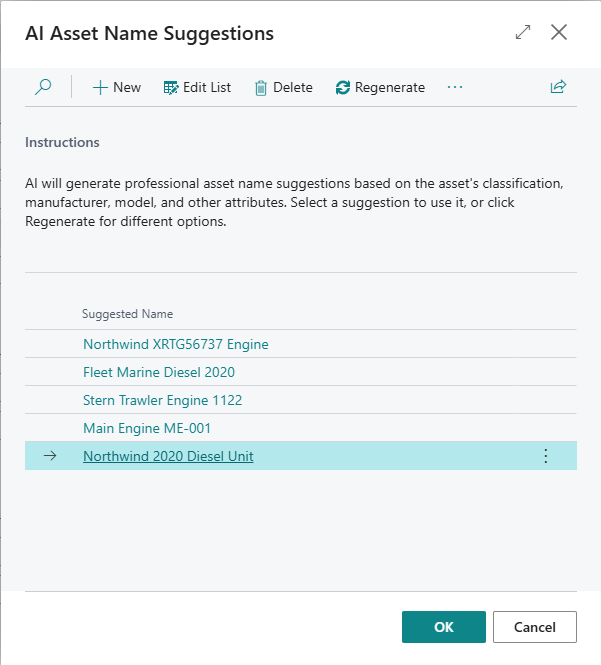
Asset Pro includes AI-powered name suggestions to help create professional, consistent asset names.
When to Use:
-
Creating new assets
-
Renaming existing assets
-
Need consistent naming conventions
-
Want professional naming suggestions
How to Use:
Method 1: Assist Button on Description Field
-
Open Asset Card
-
Click in Description field
-
Press Alt+↓ (assist button)
-
AI Suggestions dialog opens
-
Select suggestion
-
Click OK
Method 2: Suggest Name Action
-
Open Asset Card
-
Click Actions → Suggest Name with AI
-
AI Suggestions dialog opens
-
Select suggestion
-
Click OK
Requirements:
-
At least one of these must be filled:
-
Classification Code
-
Manufacturer Code
-
Model No.
-
-
More context = better suggestions
Example:
-
Input: Classification = "MRI", Manufacturer = "SIEMENS", Model = "Vida 3T"
-
AI Suggestions:
-
"Siemens MRI Vida 3T"
-
"MRI Scanner - Siemens Vida"
-
"Medical Imaging - Siemens MRI"
-
"Siemens Magnetom Vida 3T"
-
"MRI System - Vida 3T"
-
For complete details, see: AI Name Suggester
Asset Card Actions
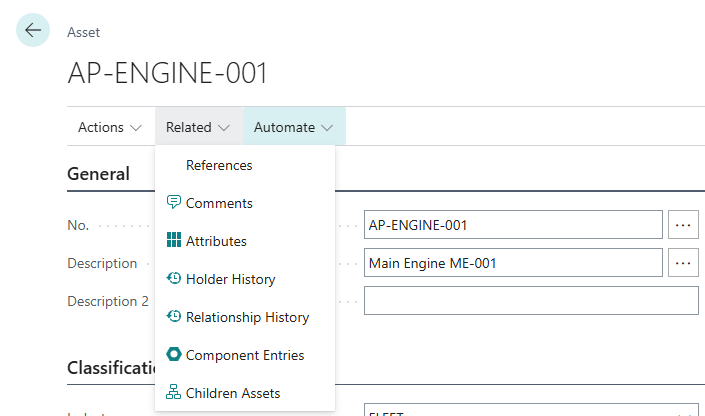
The Asset Card includes several actions for managing assets:
Navigation Actions
References
-
View alternative asset identifiers
-
Barcodes, customer asset numbers, internal codes
-
Useful for cross-referencing
Comments
-
Add notes and comments
-
Free-form text
-
Timestamped by user
Attributes
-
View/edit custom attributes
-
Industry-specific fields
-
Opens attribute editor
Holder History
-
Complete custody history
-
All holder changes
-
Audit trail
Relationship History
-
Attach/detach events
-
Parent-child history
-
When asset relationships changed
Component Entries
-
Component installation/removal history
-
Parts tracking
-
Consumables used
Children Assets
-
View all descendant assets
-
Tree structure
-
Hierarchical view
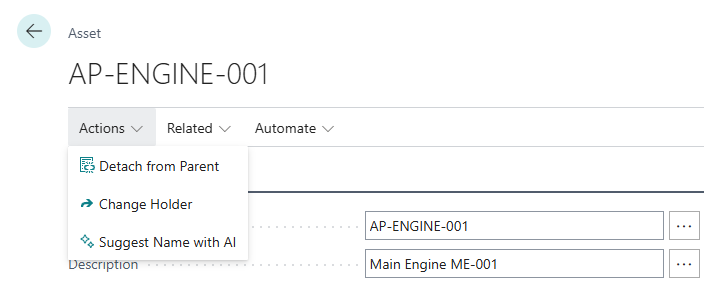
Processing Actions
Detach from Parent
-
Remove parent-child relationship
-
Logs detach event
-
Enabled only if parent assigned
Change Holder
-
Open Change Holder dialog
-
Manually change custody
-
Creates holder entry
-
Visible only if manual holder changes allowed in setup
Suggest Name with AI
-
Generate AI name suggestions
-
Enabled when minimum context available
-
Requires classification, manufacturer, or model
Asset List Operations
The Asset List page provides overview and bulk operations:
List View Features
Columns Displayed:
-
No.
-
Description
-
Industry Code
-
Classification Code
-
Status
-
Current Holder Type
-
Current Holder Code
-
Current Holder Name
-
Serial No.
Filtering:
-
Use column filters
-
Example: Filter Status = "Active"
-
Example: Filter Industry = "FLEET"
Sorting:
-
Click column headers
-
Sort by any visible column
Searching:
-
Press Ctrl+F or use search box
-
Search across all fields
-
Example: Search "MRI" finds all MRI scanners

FactBoxes (Side Panels)
The Asset Card includes FactBoxes for quick reference:
Picture FactBox
Purpose: Display asset photo
-
Upload image for visual identification
-
Helpful for physical assets
-
Multiple images supported
Usage:
-
Click FactBox
-
Upload image
-
Image saved with asset
Attributes FactBox
Purpose: Quick view of custom attributes
-
Displays key attributes without opening editor
-
Read-only view
-
Click to open full attribute editor
Displays:
-
Attribute name
-
Attribute value
-
Data type
Links FactBox
Purpose: Link to external documents
-
Attach URLs, files, links
-
Reference external systems
-
Standard BC functionality
Notes FactBox
Purpose: Quick notes
-
Brief annotations
-
Different from Comments
-
Standard BC functionality
Field Validation Rules
Asset Pro enforces business rules:
Industry Code Validation
Rule: Cannot change industry if classification is set
Why: Classifications belong to specific industries. Changing industry would break classification structure.
Workaround: Clear classification first, then change industry
Classification Code Validation
Rule 1: Cannot change classification if asset has parent
Why: Parent-child relationships based on classification hierarchy
Workaround: Detach from parent, change classification, re-attach
Rule 2: Cannot change classification if asset has children
Why: Would break hierarchical structure
Workaround: Detach all children, change classification, re-attach
Parent Asset Validation
Rule 1: Cannot assign self as parent
Why: Circular reference
Rule 2: Cannot assign descendant as parent
Why: Would create circular hierarchy
Rule 3: Parent must be in same industry
Why: Ensures classification consistency
Rule 4: Both assets must have same holder
Why: Cannot be physically inside asset at different location
Error Message: "Cannot assign asset X to parent Y. Parent is at Location L-001, but child is at different holder."
Solution: Transfer both to same holder first, then assign parent
Asset Numbering
Asset numbers use Business Central number series:
Automatic Numbering (Recommended)
Setup:
-
Open Asset Setup
-
Set Asset Nos. field to number series (e.g., "ASSET")
-
Number series auto-assigns sequential numbers
Usage:
-
Create new asset
-
Leave No. field blank
-
System assigns next number: "ASSET-001", "ASSET-002", etc.
Manual Numbering
Setup:
-
Open Asset Setup
-
Set Asset Nos. to manual number series
-
Or leave blank
Usage:
-
Create new asset
-
Enter No. manually
-
System validates uniqueness
Use automatic numbering for consistency
Deleting Assets
Assets can only be deleted under strict conditions:
Deletion Rules
Cannot delete if:
-
Asset has children (child assets exist)
-
Holder history exists (holder entries)
-
Component entries exist
-
Referenced in documents
Can delete if:
-
No children
-
No holder history
-
No component entries
-
Not referenced anywhere
Workaround:
Instead of deleting, set Status = Decommissioned and Blocked = True
This preserves history while preventing future use.
Search and Filter Techniques
Quick Search
Search by Number:
-
Press Alt+Q
-
Type: "ASSET-001"
-
Press Enter
Search by Description:
-
Open Asset List
-
Press Ctrl+F
-
Type: "MRI"
-
All assets with "MRI" in description shown
Advanced Filtering
Filter by Holder:
-
Open Asset List
-
Click Current Holder Type column header
-
Select Customer
-
Shows all assets at customers
Filter by Industry:
-
Click Industry Code header
-
Select "FLEET"
-
Shows all fleet assets
Filter by Status:
-
Click Status header
-
Select "Active"
-
Shows active assets only
Compound Filters:
-
Apply multiple filters
-
Example: Industry = MEDICAL + Status = Active + Holder = Location
-
Shows active medical equipment at locations
[Screenshot Placeholder: Asset List with multiple filters]
Saving Filter Views
-
Apply filters
-
Click Share → Save View
-
Name view: "Medical Assets at Locations"
-
View saved for future use
-
Select from view dropdown
Best Practices
Asset Creation
Use Consistent Naming:
-
Use AI Name Suggester for consistency
-
Follow company naming standards
-
Include key identifying information
Complete Classification:
-
Always set Industry and Classification
-
Enables powerful filtering and reporting
-
Required for some features
Add Serial Numbers:
-
Critical for warranty and support
-
Enables asset identification
-
Useful for audits
Set Initial Holder:
-
Use Asset Journal to set initial holder after creation
-
Documents custody from day one
-
Complete audit trail
Data Entry
Minimum Required Fields:
-
No. (or auto-assigned)
-
Description
-
Industry Code
-
Classification Code
Recommended Fields:
-
Serial No.
-
Manufacturer Code
-
Model No.
-
Acquisition Date
-
Current Holder
Optional but Useful:
-
Owner, Operator
-
Financial values
-
Service dates
-
Attributes
Organization
Use Classification Effectively:
-
Choose most specific classification level
-
Enables precise filtering
-
Supports reporting
Set Parent-Child Relationships:
-
Track assets inside other assets
-
Useful for complex equipment
-
Enables hierarchical views
Add Custom Attributes:
-
Industry-specific details
-
Configurable fields
-
Enhances searchability
Troubleshooting
Problem: Cannot Save Asset
Cause 1: Required field missing
Solution: Fill in No., Description, Industry Code
Cause 2: Number already exists
Solution: Use different number or allow auto-assignment
Problem: Cannot Change Classification
Cause: Asset has parent or children
Solution:
-
Open Asset Card
-
Note current parent
-
Click Detach from Parent
-
Change classification
-
Reassign parent if needed
Problem: AI Name Suggestions Not Available
Cause 1: Minimum context not met
Solution: Fill in Classification, Manufacturer, or Model first
Cause 2: AI not authorized
Solution: Contact administrator to verify AI service configuration
Problem: Cannot Assign Parent Asset
Cause 1: Different holder
Solution: Transfer both to same holder first
Cause 2: Would create circular reference
Solution: Check asset hierarchy, select different parent
Problem: Asset Not Appearing in List
Cause: Filters applied
Solution:
-
Open Asset List
-
Click Clear All Filters
-
Asset should appear
Tip: The Asset Card is your central hub for all asset information. Spend time familiarizing yourself with each section and the available actions. Use the FactBoxes for quick reference without leaving the card.