Asset Pro Basics
Before diving into daily operations, understand these core concepts and terminology. This foundation will help you work effectively with Asset Pro.
Core Concepts
What is an Asset?
Asset = A physical item you want to track
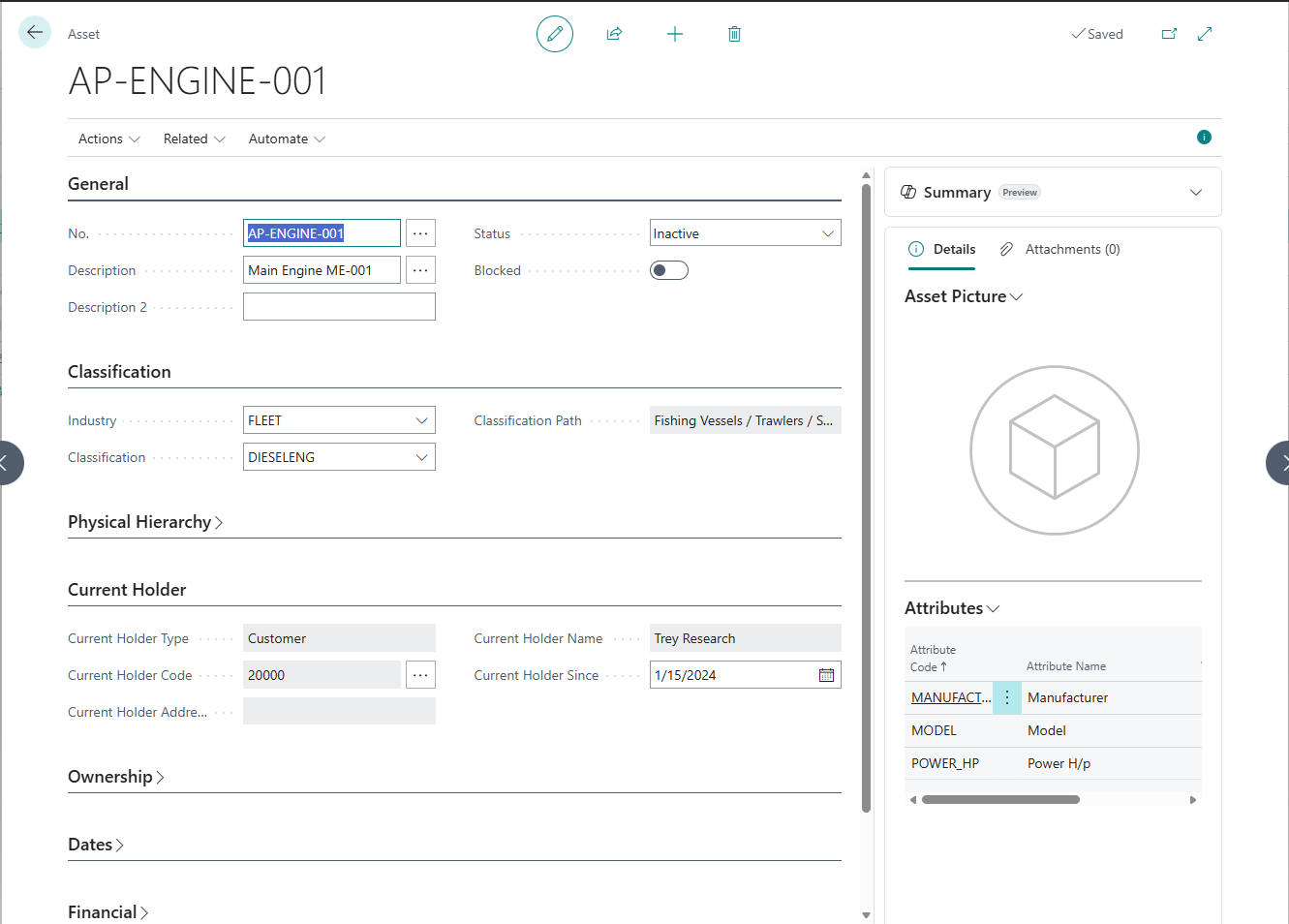
An asset in Asset Pro represents any physical object your organization needs to monitor:
-
Equipment: Computers, machinery, vehicles
-
Devices: Medical equipment, IT hardware, tools
-
Vehicles: Ships, trucks, cars, aircraft
-
Machinery: Production equipment, construction equipment
Key Point: Assets are physical items, not financial assets. Asset Pro tracks custody, location, and movement - not financial depreciation.
Each asset has:
-
Unique number (auto-generated)
-
Description and specifications
-
Current holder (who has it now)
-
Industry and classification
-
Complete custody history
-
Optional parent-child relationships
-
Optional custom attributes
What is a Holder?
Holder = Who currently has custody of the asset
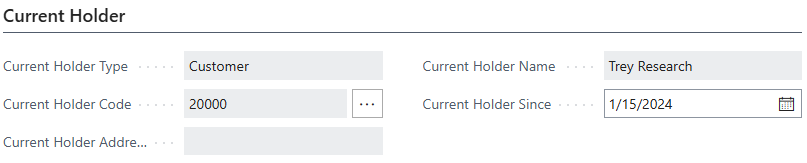
The "holder" is whoever or wherever currently possesses the asset. Asset Pro supports 4 holder types:
1. Location (Most common)
-
Physical locations within your organization
-
Examples: MAIN, WAREHOUSE, BRANCH-EAST, PORT-MIAMI
-
Standard BC Location table
-
Use for: Assets at company facilities
2. Customer
-
Assets at customer locations
-
Examples: Rented equipment, assets under service, sold assets
-
Standard BC Customer table
-
Use for: Customer-facing assets, rentals, service assets
3. Vendor
-
Assets with vendors
-
Examples: Equipment at repair shop, assets in maintenance
-
Standard BC Vendor table
-
Use for: Repair, maintenance, consignment
4. Employee (Coming in future versions)
-
Assets assigned to employees
-
Examples: Laptops, company vehicles, tools
-
Standard BC Employee table
-
Use for: User-assigned equipment
Current Holder Fields:
-
Current Holder Type: Location, Customer, or Vendor
-
Current Holder Code: Specific location/customer/vendor
-
Both fields together = complete holder information
What is an Industry?
Industry = Top-level organizational container
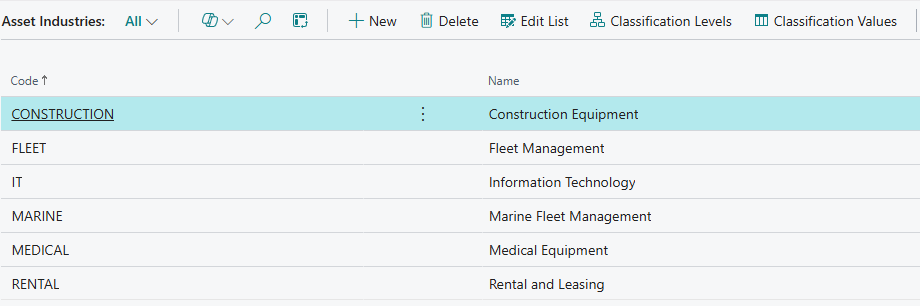
Industries provide the highest level of organization in Asset Pro. Each industry represents a distinct business area with its own:
-
Classification structure (Type → Category → Model)
-
Custom terminology (Vessels, Devices, Equipment)
-
Custom attributes (Cargo Capacity, RAM, Field Strength)
Examples:
-
FLEET (Fleet Management)
-
MEDICAL (Medical Equipment)
-
IT (IT Assets)
-
MANUF (Manufacturing Equipment)
-
CONST (Construction Equipment)
Why Industries?:
-
Separate classification hierarchies for different business areas
-
Industry-specific terminology
-
Industry-specific custom fields
-
Support multiple business units in one system
One Asset → One Industry (assets cannot span industries)
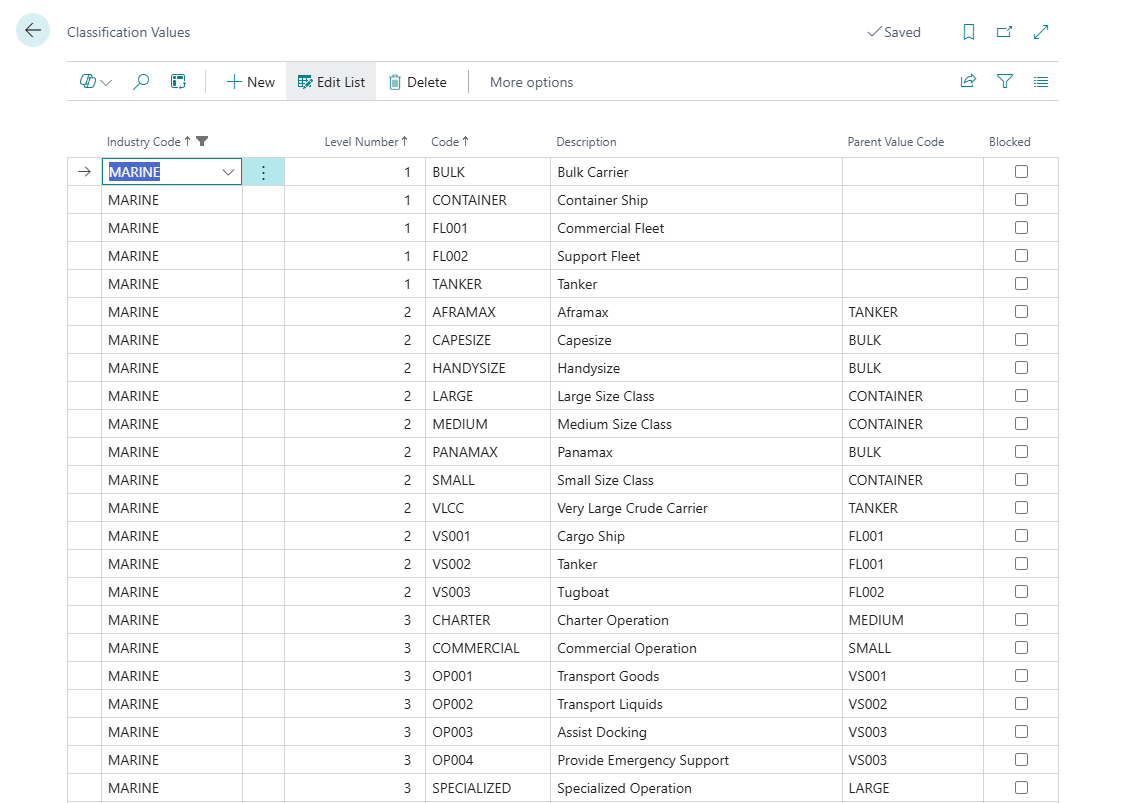
What is Classification?
Classification = Hierarchical categorization (What IS the asset?)
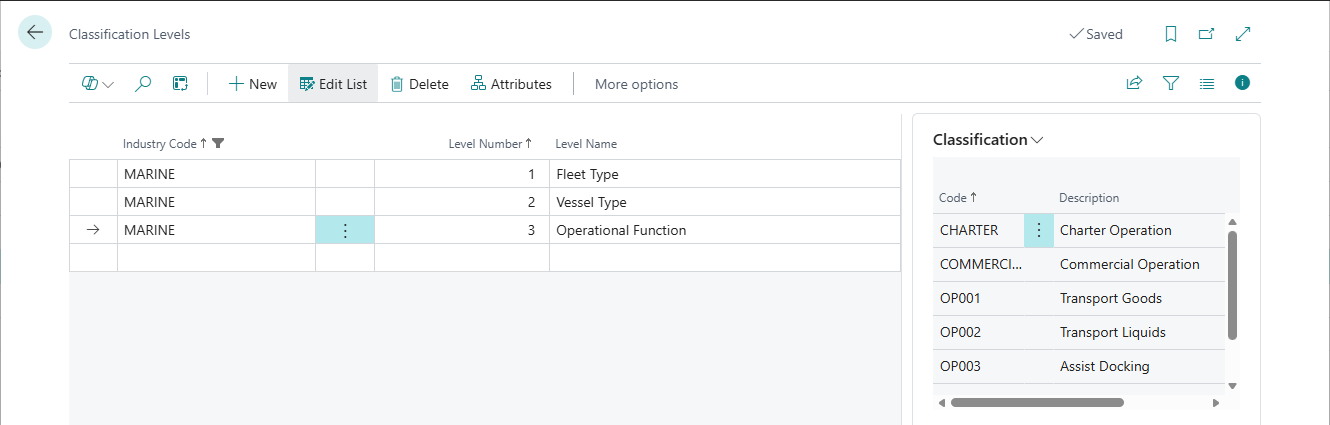
Classification provides structured categorization using hierarchical levels:
Classification Structure:
Industry: FLEET ├─ Level 1: Fleet Type │ ├─ COMMERCIAL (Commercial Vessels) │ ├─ FISHING (Fishing Vessels) │ └─ PASSENGER (Passenger Vessels) ├─ Level 2: Vessel Category │ ├─ CARGO (Cargo Ships) → parent: COMMERCIAL │ ├─ TANKER (Tankers) → parent: COMMERCIAL │ └─ FERRY (Ferries) → parent: PASSENGER └─ Level 3: Vessel Model ├─ PANAMAX (Panamax Bulk Carrier) → parent: CARGO └─ VLCC (Very Large Crude Carrier) → parent: TANKER
Key Features:
-
Hierarchical: Parent-child relationships between levels
-
Flexible: 2-50 levels per industry
-
Custom terminology: Name levels to match your business
-
Filterable: Filter assets by any level
Classification vs. Parent-Child:
-
Classification = What IS it (organizational category)
-
Parent-Child = What's INSIDE it (physical composition)
What are Attributes?
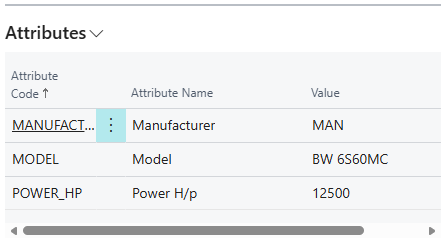
Attributes = Custom fields specific to industry or classification
Attributes provide industry-specific data fields without code modifications:
Example - Fleet Industry Attributes:
-
Cargo Capacity (Decimal): 50000.00 TEU
-
IMO Number (Text): IMO 1234567
-
Flag Country (Text): Panama
-
Vessel Condition (Option): Excellent, Good, Fair, Poor
-
Last Survey Date (Date): 2024-01-15
-
Crew Size (Integer): 25
Supported Data Types:
-
Text (codes, names, descriptions)
-
Integer (counts, years, whole numbers)
-
Decimal (measurements, capacities)
-
Date (dates, expirations)
-
Boolean (yes/no, enabled/disabled)
-
Option (predefined choices: Excellent, Good, Fair, Poor)
Attribute Levels:
-
Level 0 (Industry): Applies to ALL assets in industry
-
Level 1-N (Classification): Applies only to assets at specific classification level
Enable/Disable: Controlled by "Enable Attributes" toggle in Asset Setup
Key Workflows
Creating an Asset
Basic Workflow:
-
Navigate to Asset List
-
Click New
-
Fill in required fields:
-
Description: Human-readable name
-
Industry Code: Select industry (FLEET, IT, etc.)
-
Classification values: Select Type, Category, Model
-
Current Holder: Select Location/Customer/Vendor
-
-
Fill optional fields:
-
Manufacturer, Model, Serial No.
-
Custom attributes (if enabled)
-
Notes, dimensions, specifications
-
-
Click OK to save
Result: Asset created with auto-generated number (e.g., ASSET-0001)
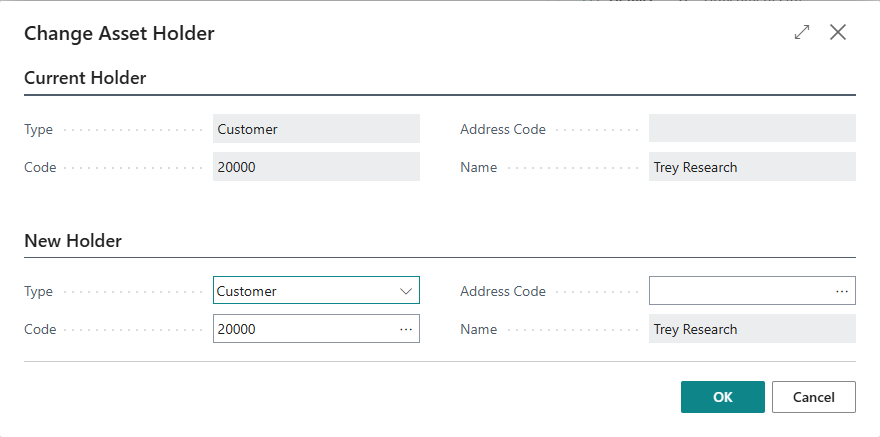
Changing Asset Holder
4 Methods Available:
1. Asset Journal (Batch processing)
-
Move multiple assets at once
-
Quick corrections
-
Posting date validation
-
See: Asset Journal
2. Asset Transfer Orders (Formal workflow)
-
Open → Released → Posted workflow
-
Shipment and receipt steps
-
Permanent archive
-
See: Asset Transfer Orders
3. Document Integration (Automatic)
-
Purchase documents: Vendor → Location
-
Sales documents: Location → Customer
-
Transfer documents: Location → Location
-
See: Document Integration
4. Manual Holder Change (Optional - if not blocked)
-
Direct edit on Asset Card
-
Auto-registered with "MAN-" prefix
-
Requires "Block Manual Holder Change" = unchecked in Setup
Viewing Holder History
Every holder change creates Holder Entries:
To View:
-
Open Asset Card
-
Navigate → Holder Entries
-
See complete custody history
Holder Entry Types:
-
Transfer Out: Asset left holder
-
Transfer In: Asset arrived at holder
Always in pairs: Every transfer creates both OUT (from old holder) and IN (to new holder)
Entry Fields:
-
Entry No. (unique identifier)
-
Asset No.
-
Entry Type (Transfer Out / Transfer In)
-
Holder Type & Code
-
Posting Date
-
Document No. (reference to journal/transfer/document)
-
Transaction No. (groups related transfers)
Point-in-Time Queries: "Who had Asset-0001 on 2024-01-15?" → Query holder entries

Three-Layer Architecture
Asset Pro uses three distinct structural layers:
Layer 1: Classification Hierarchy (What IS it?)
Purpose: Organizational categorization
Structure: Industry → Level 1 → Level 2 → Level 3
Example:
Fleet Management → Commercial Vessels → Cargo Ship → Panamax Bulk Carrier
Use: Filter, group, and organize assets by business taxonomy
Layer 2: Physical Hierarchy (What's INSIDE it?)
Purpose: Physical composition and assembly
Structure: Parent → Child → Grandchild
Example:
Vessel "ATLANTIC STAR" ├─ Main Engine "ENG-001" │ └─ Turbocharger "TURBO-001" └─ Auxiliary Engine "ENG-002"
Features:
-
Attach/detach events tracked
-
Relationship Entries (audit trail)
-
Automatic transfer propagation (children follow parent)
-
Cannot directly transfer child (must transfer parent)
Use: Track what components are installed in what assets
Layer 3: Components (What PARTS does it use?)
Purpose: Link assets to standard BC Items
Structure: Asset → Item (standard BC Item table)
Example:
Vessel "ATLANTIC STAR" ├─ Installed: Oil Filter (ITEM: FILTER-001) on 2024-01-10 ├─ Installed: Fuel Injector (ITEM: INJECT-200) on 2024-01-12 └─ Removed: Old Filter (ITEM: FILTER-001) on 2024-03-10
Features:
-
Component Ledger (installation/removal history)
-
Item Journal integration (automatic component entries)
-
Links to inventory management
Use: Track parts consumed/installed in assets
See: Component Management
Data Integrity Features
Posting Date Validation
Rule: Cannot backdate transfers before asset's last holder entry
Why: Ensures chronological integrity of custody audit trail
Example:
-
Last holder entry: 2024-03-15
-
Try to transfer with posting date: 2024-03-10
-
Result: Error - "Cannot backdate before last entry"
Applies To:
-
Asset Journal
-
Asset Transfer Orders
-
Manual holder changes
-
Document integration
Hierarchy Integrity
Circular Reference Prevention:
-
Cannot create: Asset A → parent: Asset B → parent: Asset A
-
System detects and blocks circular relationships
Maximum Depth:
-
100 levels maximum
-
Prevents infinite recursion
Subasset Protection:
-
Cannot transfer child directly
-
Must transfer parent (children follow automatically)
-
Maintains family integrity
Holder Validation
Before Transfer:
-
Asset must be at expected "from" holder
-
Purchase receipts: Asset must be held by vendor
-
Sales shipments: Asset must be at location
-
Prevents transferring asset you don't have
Key Terminology Quick Reference
| Term
|
Definition
| | --- | --- | |
Asset
|
Physical item being tracked
| |
Holder
|
Current custodian (Location, Customer, Vendor)
| |
Industry
|
Top-level organizational container
| |
Classification
|
Hierarchical categorization (Type → Category → Model)
| |
Attribute
|
Custom field specific to industry/classification
| |
Parent-Child
|
Physical relationship (Engine inside Ship)
| |
Component
|
Standard BC Item installed in asset
| |
Holder Entry
|
Audit record of custody change
| |
Transfer Order
|
Formal document for asset movement
| |
Asset Journal
|
Batch tool for manual holder changes
| |
Classification Level
|
One level in hierarchy (e.g., "Fleet Type")
| |
Classification Value
|
Specific option (e.g., "Commercial Vessels")
| |
Posting Date
|
Effective date of holder change
| |
Transaction No.
|
Groups related transfers together
|
Common Patterns
Pattern 1: New Asset Received from Vendor
Scenario: Purchased new equipment, receiving from vendor
Steps:
-
Asset already exists in system (created beforehand)
-
Asset holder = Vendor
-
Create purchase receipt with asset line
-
Post receipt
-
Result: Asset holder automatically changes: Vendor → Location
See: Purchase Document Integration
Pattern 2: Asset Sold/Rented to Customer
Scenario: Selling/renting equipment to customer
Steps:
-
Asset at Location
-
Create sales order with asset line
-
Post shipment
-
Result: Asset holder automatically changes: Location → Customer
See: Sales Document Integration
Pattern 3: Internal Move Between Locations
Scenario: Moving asset from MAIN to WAREHOUSE
Method A - Asset Journal (Quick):
-
Open Asset Journal
-
Add line: Asset-0001, From: MAIN, To: WAREHOUSE
-
Post journal
-
Result: Holder changed with MAN- document
Method B - Transfer Order (Formal):
-
Create transfer order: MAIN → WAREHOUSE
-
Add asset line
-
Release transfer order
-
Post shipment (asset leaves MAIN)
-
Post receipt (asset arrives WAREHOUSE)
-
Result: Formal archived transfer document
See: Asset Journal | Transfer Orders
Pattern 4: Asset to Vendor for Repair
Scenario: Sending equipment to repair vendor
Steps:
-
Asset at Location
-
Create purchase return order with asset line
-
Post return shipment
-
Result: Asset holder: Location → Vendor (at repair shop)
When Repaired:
-
Create purchase order (or receipt) for same asset
-
Post receipt
-
Result: Asset holder: Vendor → Location (returned from repair)
See: Purchase Document Integration
Best Practices
Asset Numbering
-
Use AI Name Suggester for professional, consistent names
-
Include key identifiers (model, serial, year) in description
-
Leverage auto-numbering for unique IDs
Holder Management
-
Always know where assets are (Current Holder must be accurate)
-
Use appropriate transfer method for situation
-
Review Holder Entries regularly for audit purposes
Classification
-
Design classification hierarchy before creating many assets
-
Use AI Setup Wizard for automatic structure generation
-
Keep classification levels consistent within industry
Attributes
-
Only enable attributes if you'll use them
-
Define attributes at correct level (industry vs. classification)
-
Use Option type for predefined choices (better than Text)
Documentation
-
Use Document No. in holder entries for traceability
-
Link asset references to purchase/sales documents
-
Maintain notes on Asset Card for important information
Don't try to learn everything at once. Start with creating a few test assets, move them between locations using Asset Journal, and view the Holder Entries. Once comfortable with basic operations, explore advanced features like parent-child relationships and document integration.