AI Setup Wizard
Simply describe your business in natural language, and AI automatically generates a complete industry configuration including classification levels, values, and custom attributes.
What is the Setup Wizard?
The Setup Wizard is an AI-powered, 5-step guided configuration process that:
-
Analyzes your business description using Azure OpenAI
-
Generates industry structure automatically (classification levels and values)
-
Creates custom attributes tailored to your asset types
-
Configures number series for assets and transfers
-
Sets up journal batches for immediate use
Time to complete: 5-10 minutes
AI Technology: Azure OpenAI
When to Use the Setup Wizard
✅ Use the Setup Wizard when:
-
Setting up Asset Pro for the first time
-
Adding a new industry to an existing configuration
-
Exploring Asset Pro with automatically generated demo structure
-
You want AI to suggest optimal classification hierarchies
⚠️ Skip the Wizard if:
-
You prefer manual configuration (see Setup & Configuration)
-
You already have a detailed industry structure planned
-
You need to import configuration from another system
Accessing the Setup Wizard
From Assisted Setup
-
Choose the 🔎 icon, enter Assisted Setup, and choose the related link
-
Find Asset Pro AI Setup Wizard in the list
-
Click Start Setup
From Search
-
Choose the 🔎 icon
-
Enter Asset Pro AI Setup Wizard
-
Choose the related link
-
The wizard opens automatically
From Asset Role Center
-
Click Setup & Configuration on top of the page
-
Click Asset Setup Wizard
Setup Wizard Walkthrough
The wizard consists of 5 steps:
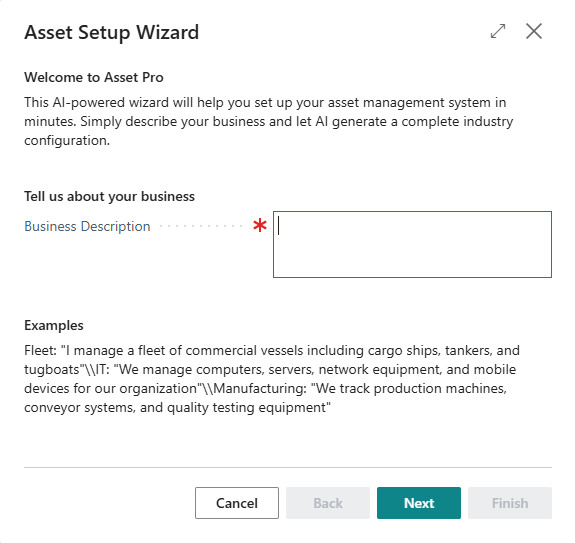
Step 1: Welcome & Business Description
Purpose: Tell AI about your business and asset types
What You'll See
-
Welcome message
-
Large text field for business description
-
Examples of good descriptions
What to Do
Enter a detailed business description that includes:
-
What industry you're in
-
What types of assets you manage
-
How you categorize your assets (if known)
-
Any specific terminology you use
Examples of Good Descriptions:
Fleet Management:
I manage a fleet of commercial vessels including container ships, bulk carriers, and tankers. We categorize vessels by type, size class, and operational category. We need to track cargo capacity, IMO numbers, flag country, and vessel condition.
IT Asset Management:
We manage IT equipment for our organization including desktop computers, laptops, servers, network switches, and mobile devices. We organize equipment by department, device type, and model. We need to track specifications, warranty dates, and assigned users.
Manufacturing Equipment:
We track production machines, conveyor systems, quality testing equipment, and automated assembly lines across 3 facilities. We classify equipment by production line, machine type, and manufacturer. We need to track maintenance schedules, operating hours, and calibration dates.
Medical Equipment:
We manage diagnostic equipment for a hospital including MRI machines, CT scanners, X-ray equipment, and ultrasound devices. We organize by department (Radiology, Cardiology, etc.) and equipment category. We need to track field strength, maintenance contracts, and certification dates.
Tips for Better AI Results
Be Specific:
-
❌ "I have assets"
-
✅ "I manage a fleet of 50 commercial cargo vessels"
Mention Terminology:
-
❌ "Different types of ships"
-
✅ "Vessels categorized by: Commercial, Fishing, Passenger"
Include Custom Data Needs:
-
❌ "Track basic information"
-
✅ "Track cargo capacity, IMO numbers, flag country, last survey date"
Use Industry Terms:
-
If you use specific terms (TEU, MTBF, field strength, etc.), include them
-
AI will recognize industry-standard terminology
Required Field
Business Description is mandatory. You cannot proceed without entering text.
Step 2: AI Generation
Purpose: AI analyzes your description and generates configuration
What You'll See
-
Status message showing AI progress
-
"Generating Your Configuration..." header
-
Progress indicator
Status Messages
You'll see these status updates in sequence:
-
"Connecting to AI service..."
-
"Generating industry structure..."
-
"Configuration generated successfully!"
Processing Time: 10-30 seconds depending on complexity
What AI is Doing
Behind the scenes, AI is:
-
Analyzing your business description
-
Identifying your industry type and asset categories
-
Generating classification hierarchy (2-4 levels)
-
Creating classification values with parent-child relationships
-
Defining custom attributes relevant to your industry
-
Formatting everything into a structured JSON configuration
AI Generation Logic
Industry Code: 4-6 uppercase letters (e.g., FLEET, MEDICAL, MANUF)
Industry Name: Descriptive name (e.g., "Fleet Management", "Medical Equipment")
Classification Levels: 2-4 hierarchical levels (e.g., Type → Category → Model)
Classification Values: 5-15 values with proper parent-child links
Attributes: 5-10 custom fields with appropriate data types
Supported Data Types:
-
Text (for codes, names, descriptions)
-
Integer (for counts, years, quantities)
-
Decimal (for measurements, capacities)
-
Date (for dates, expirations)
-
Boolean (for yes/no flags)
-
Option (for predefined choices)
If Generation Fails
Error: "Failed to generate configuration"
Possible Causes:
-
Azure OpenAI service temporarily unavailable
-
Description too vague or too short
-
Network connectivity issue
-
API rate limit reached
Solutions:
-
Click Back to return to Step 1
-
Make your description more detailed and specific
-
Try again with different wording
-
Wait a few minutes if rate limit reached
-
Check internet connectivity
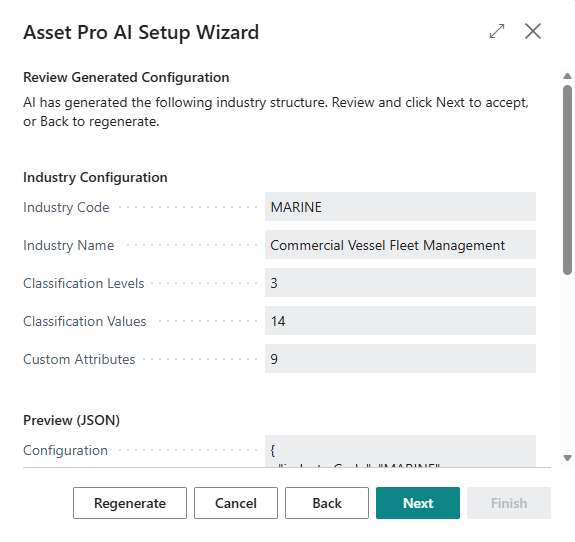
Step 3: Review Generated Configuration
Purpose: Review AI-generated structure before applying
What You'll See
-
Industry Code and Name
-
Count of classification levels created
-
Count of classification values created
-
Count of custom attributes created
-
JSON preview (first 500 characters)
Review Fields
Industry Code
-
Short identifier (e.g., FLEET, MEDICAL)
-
Read-only - AI generated
-
Must be unique across all industries
Industry Name
-
Descriptive name (e.g., "Fleet Management")
-
Read-only - AI generated
-
Used in forms and reports
Classification Levels
-
Number of hierarchical levels (typically 2-4)
-
Example structure: "Fleet Type" → "Vessel Category" → "Vessel Model"
Classification Values
-
Total values across all levels (typically 5-15)
-
Example values: "Commercial", "Cargo Ship", "Panamax Bulk Carrier"
Custom Attributes
-
Number of industry-specific fields (typically 5-10)
-
Example attributes: "Cargo Capacity", "IMO Number", "Flag Country"
Configuration Preview (JSON)
-
First 500 characters of the generated configuration
-
Shows raw structure for technical review
-
Full configuration applied in Step 4
Example Generated Configuration
Fleet Management Industry:
Industry Code: FLEET Industry Name: Fleet Management
Classification Levels (3): ├─ Level 1: Fleet Type ├─ Level 2: Vessel Category └─ Level 3: Vessel Model
Classification Values (8): Level 1: ├─ COMMERCIAL (Commercial Vessels) ├─ FISHING (Fishing Vessels) └─ PASSENGER (Passenger Vessels)
Level 2: ├─ CARGO (Cargo Ships) → parent: COMMERCIAL ├─ TANKER (Tankers) → parent: COMMERCIAL ├─ TRAWLER (Trawlers) → parent: FISHING └─ FERRY (Ferries) → parent: PASSENGER
Level 3: ├─ PANAMAX (Panamax Bulk Carrier) → parent: CARGO
Custom Attributes (6): ├─ CARGO-CAP (Cargo Capacity) - Decimal ├─ IMO-NUM (IMO Number) - Text ├─ FLAG-COUNTRY (Flag Country) - Text ├─ VESSEL-COND (Vessel Condition) - Option: Excellent,Good,Fair,Poor ├─ LAST-SURVEY (Last Survey Date) - Date └─ CREW-SIZE (Crew Size) - Integer
Your Options at This Step
✅ Accept Configuration:
-
Click Next to proceed to number series configuration
-
Configuration will be created in Step 4
🔄 Regenerate:
-
Click Regenerate to generate a new configuration
-
Returns to Step 2 with the same business description
-
AI generates different classification structure
-
Useful if first result doesn't match your needs
⬅️ Modify Description:
-
Click Back to return to Step 1
-
Edit your business description
-
Provide more detail or clarify terminology
-
Run generation again with improved description
❌ Cancel:
-
Click Cancel to exit wizard
-
No changes made to system
-
Can restart wizard anytime
Decision Guide
When to Accept:
-
Structure matches your business model
-
Level names make sense
-
Classification values are relevant
-
Attributes are useful
-
You can always refine later
When to Regenerate:
-
Level names are generic or unclear
-
Missing important classifications
-
Too many or too few levels
-
Want to see alternative structure
-
Try regenerating 2-3 times for variety
When to Go Back:
-
Description was too vague
-
Forgot to mention important asset types
-
Need to add industry-specific terminology
-
Want to specify exact structure
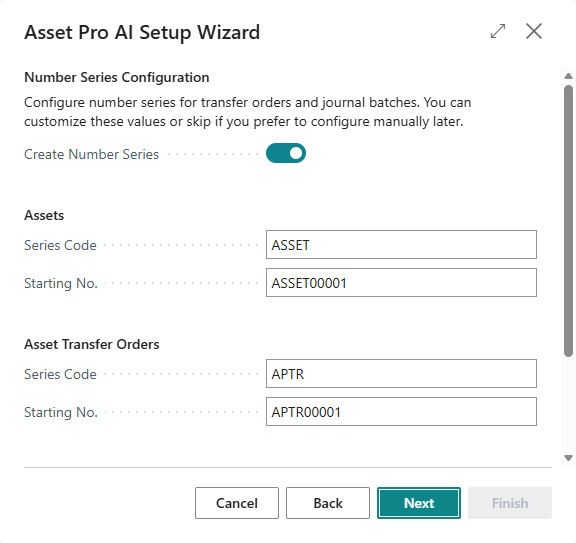
Step 4: Number Series Configuration
Purpose: Configure number series for assets and transfers (optional)
What You'll See
-
Toggle for automatic creation
-
Configuration sections for each number series type
-
Default values pre-filled
Number Series Sections
1. Assets
-
Series Code: ASSET (default)
-
Starting No.: ASSET00001 (default)
-
Used for all asset records
2. Asset Transfer Orders
-
Series Code: APTR (default)
-
Starting No.: APTR00001 (default)
-
Used for open transfer orders
3. Posted Asset Transfers
-
Series Code: PAPTR (default)
-
Starting No.: PAPTR00001 (default)
-
Used for archived posted transfers
Create Number Series Toggle
☑️ Enabled (Default):
-
Wizard automatically creates all number series
-
Number series configured in Asset Setup
-
Ready to use immediately
-
Recommended for first-time setup
☐ Disabled:
-
Skip automatic creation
-
Configure number series manually later
-
Use if you have existing number series standards
-
See Setup - Number Series for manual configuration
Customizing Number Series
You can customize any of the default values:
Series Code:
-
Short identifier (max 20 characters)
-
Examples: ASSET, EQUIP, AST, MYASSET
-
Must be unique across all number series
-
UPPERCASE recommended
Starting No.:
-
First number to assign (max 20 characters)
-
Format examples:
-
ASSET00001 (6-digit numeric)
-
AT-2024-001 (year-based)
-
EQUIP-00001 (prefix with numeric)
-
A00001 (1-letter prefix)
-
-
Wizard automatically calculates ending number
-
ASSET00001 → ASSET99999
-
AT-2024-001 → AT-2024-999
-
Description:
-
Auto-generated (not editable in wizard)
-
Can be changed later in No. Series
Create Default Journal Batches Toggle
☑️ Enabled (Default):
-
Creates "DEFAULT" batch for Asset Journal
-
Creates "DEFAULT" batch for Component Journal
-
Ready to post journal entries immediately
-
Recommended for all users
☐ Disabled:
-
Skip batch creation
-
Create batches manually when needed
Validation Rules
When Create Number Series is enabled:
-
✅ All Series Codes must be filled
-
✅ All Starting Numbers must be filled
-
✅ All Series Codes must be different
-
❌ Cannot proceed if validation fails
When to Customize
Use Defaults If:
-
First-time setup
-
No existing numbering conventions
-
Want to get started quickly
-
Can always change later
Customize If:
-
Organization has number series standards
-
Want year-based numbering (2024-0001)
-
Need specific prefixes for departments
-
Integrating with existing systems
Examples of Customization
Year-Based Numbering:
Series Code: ASSET2024 Starting No.: AST-2024-0001
Department-Specific:
Series Code: FLEET-ASSET Starting No.: FLT-00001
Short Codes:
Series Code: A Starting No.: A00001
Multi-Facility:
Series Code: EAST-ASSET Starting No.: EAST-00001
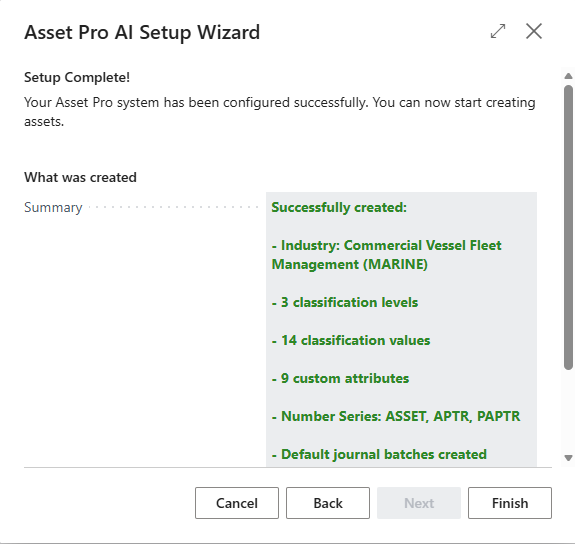
Step 5: Completion
Purpose: Confirm successful setup and show next steps
What You'll See
-
"Setup Complete!" message
-
Summary of what was created
-
Next steps guidance
Completion Summary
What Was Created:
Successfully created:
- Industry: Fleet Management (FLEET)
- 3 classification levels
- 8 classification values
- 6 custom attributes
- Number Series: ASSET, APTR, PAPTR
- Default journal batches created
The summary shows exactly what was added to your system during the wizard.
What Happened Behind the Scenes
1. Industry Created
-
Industry record inserted
-
Code and name from AI generation
2. Classification Levels Created
-
Level records created (2-4 levels)
-
Level names from AI generation
-
Sequential level numbers (1, 2, 3, 4)
3. Classification Values Created
-
Value records inserted (5-15 values)
-
Parent-child relationships linked
-
Codes and descriptions from AI
4. Attribute Definitions Created
-
Attribute records created (5-10 attributes)
-
Data types configured
-
Level 0 (applies to all assets in industry)
-
Option strings populated for Option type
5. Asset Setup Updated
-
Default Industry Code set to created industry
-
Block Manual Holder Change = TRUE (best practice)
-
Enable Attributes = TRUE
6. Number Series Created (if enabled)
-
No. Series headers created
-
No. Series Lines created with calculated ending numbers
-
Asset Setup updated with series codes
7. Journal Batches Created (if enabled)
-
Asset Journal Batch "DEFAULT"
-
Component Journal Batch "DEFAULT"
Next Steps
The wizard suggests immediate next steps:
1. Review Industry Configuration
-
Open Asset Industries page
-
Select your created industry
-
Review classification levels and values
-
Make any necessary adjustments
2. Customize Attributes (Optional)
-
Open Attribute Definitions page
-
Review AI-generated attributes
-
Add additional attributes if needed
-
Modify data types or mandatory flags
-
Add level-specific attributes
3. Create Your First Asset
-
Open Assets page
-
Click New
-
Asset No. auto-assigned from number series
-
Classification lookup shows your structure
-
Custom attributes available for data entry
What You Can Do Now
Immediate Actions:
-
✅ Create assets using new industry
-
✅ Set up holder tracking
-
✅ Post asset transfers
-
✅ Use component journal
-
✅ Configure additional industries (run wizard again)
Configuration Refinement:
-
✅ Add more classification values
-
✅ Add deeper levels if needed
-
✅ Create level-specific attributes
-
✅ Adjust number series formats
-
✅ Create additional journal batches
System Administration:
-
✅ Review Asset Setup settings
-
✅ Configure permissions
-
✅ Set up additional number series
-
✅ Customize pages and reports
Congratulations! You've completed the Asset Pro AI Setup Wizard. Your system is now configured and ready for asset management.