Parent-Child Relationships
Parent-Child Relationships enable tracking physical asset hierarchies - assets inside other assets, components within assemblies, and nested structures.
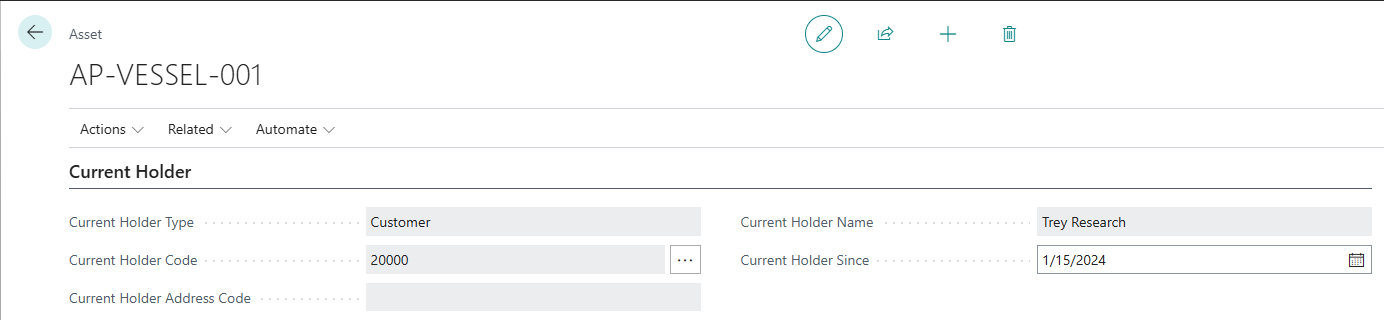
Understanding Parent-Child Relationships
What is a Parent-Child Relationship?
A Parent-Child Relationship represents physical containment:
-
Parent Asset = Container (ship, machine, building)
-
Child Asset = Item inside parent (engine, part, equipment)
Examples:
-
Ship (Parent) → Engine (Child) → Fuel Pump (Grandchild)
-
Server Rack (Parent) → Server (Child)
-
Building (Parent) → HVAC System (Child)
-
Vehicle (Parent) → GPS Tracker (Child)
Physical Containment: Child physically exists inside parent
Parent-Child vs. Classification
Common Confusion: Parent-Child ≠ Classification
| Concept
|
Purpose
|
Example
| | --- | --- | --- | |
Classification
|
Logical categorization
|
Ship is classified as "Cargo Vessel"
| |
Parent-Child
|
Physical containment
|
Engine physically inside Ship
|
Classification = "What type is it?"
Parent-Child = "What is it inside?"
Both Can Coexist:
-
Ship: Classification = Cargo Vessel / Panamax
-
Engine: Classification = Marine Engine / Diesel
-
Relationship: Engine (Child) inside Ship (Parent)
Key Concepts
Hierarchy Terminology
Parent Asset:
-
Asset that contains other assets
-
Example: Ship contains engine
-
Can have multiple children
-
Can itself be a child (e.g., Engine is parent to Fuel Pump, child to Ship)
Child Asset (Subasset):
-
Asset physically inside parent
-
Example: Engine inside ship
-
Has exactly one parent (cannot have multiple parents)
-
Can have its own children (grandchildren to original parent)
Root Asset:
-
Top-most parent in hierarchy
-
Has no parent itself
-
Example: Ship (if it's not inside anything else)
Standalone Asset:
-
Asset with no parent and no children
-
Independent item
-
Most assets start as standalone
Hierarchy Levels
Asset Pro tracks hierarchy depth:
Hierarchy Level 1:
-
Root assets (no parent)
-
Example: Ship SS-001
Hierarchy Level 2:
-
Children of root
-
Example: Engine inside Ship
Hierarchy Level 3:
-
Grandchildren
-
Example: Fuel Pump inside Engine
Hierarchy Level N:
-
Great-grandchildren and beyond
-
No depth limit
-
Example: Sensor inside Fuel Pump inside Engine inside Ship (Level 4)
Creating Parent-Child Relationships
Assign Parent on Child Asset
Step-by-Step:
-
Open Child Asset Card
- Example: Asset "ENG-001" (Engine)
-
Navigate to Physical Hierarchy Section
- Locate Parent Asset No. field
-
Assign Parent
-
Click Parent Asset No. field
-
Press Alt+↓ for lookup
-
Or type parent asset number
-
Example: "SS-001" (Ship)
-
-
System Validates
-
Checks parent exists
-
Verifies same holder
-
Ensures no circular reference
-
Validates classification hierarchy (if applicable)
-
-
Relationship Created
-
Parent Asset No. = SS-001
-
Hierarchy Level = 2 (child of root)
-
Root Asset No. = SS-001
-
Relationship Entry logged (Attach event)
-
-
Save
-
Close Asset Card
-
Relationship persists
-
Detaching Assets
What is Detaching?
Detaching = Removing parent-child relationship
Result: Child becomes standalone asset (or can be attached elsewhere)
When to Detach:
-
Component removed from assembly
-
Permanently separate assets
-
Reorganize hierarchy
-
Transfer child to different location
-
Asset decommissioned
Effect:
-
Parent Asset No. = blank
-
Hierarchy Level = 1
-
Root Asset No. = blank
-
Relationship Entry created (Detach event)
Detaching from Asset Card
Method 1: Clear Parent Field
-
Open Child Asset Card
-
Navigate to Parent Asset No. field
-
Clear field (delete value)
-
Save
-
Result: Detached, Relationship Entry logged
Method 2: Detach Action
-
Open Child Asset Card
-
Click Actions → Detach from Parent
-
Confirmation message
-
Result: Detached, Relationship Entry logged

Detaching from Asset List
Bulk Detach:
-
Open Asset List
-
Select multiple child assets (Ctrl+Click)
-
Click Actions → Detach from Parent
-
All selected assets detached
-
Count of detached assets shown
Use Case: Decommissioning parent asset, freeing all children
Relationship History
Every attach and detach creates a Relationship Entry.
What is Relationship Entry?
Relationship Entry = Permanent audit log of parent-child changes
Entry Types:
-
Attach: Child attached to parent
-
Detach: Child freed from parent
Cannot Be Deleted: Audit trail

Relationship Entry Fields
Entry No. (Integer)
-
Unique identifier
-
Auto-assigned
Entry Type (Enum)
- Attach or Detach
Asset No. (Code, 20 characters)
- Child asset being attached/detached
Parent Asset No. (Code, 20 characters)
- Parent asset involved
Posting Date (Date)
- When relationship change occurred
Holder Type/Code at Entry (Holder info)
-
Child's holder at time of attach/detach
-
Historical snapshot
Reason Code (Code, 10 characters)
-
Why relationship changed
-
Example: INSTALL, REMOVE, DECOMMISSION
Description (Text, 100 characters)
-
Auto-generated or manual description
-
Example: "Attached to parent SS-001"
Transaction No. (Integer)
- Groups related entries (future use)
User ID (Code, 50 characters)
- Who created entry
Viewing Relationship History
From Asset Card:
-
Open Asset Card
-
Click Actions → Relationship History
-
Relationship Entries page opens
-
Filtered to this asset
-
Shows all attach/detach events
Example History:
Entry Date Type Parent Asset Description 1 2024-01-15 Attach SS-001 Attached to parent SS-001 2 2024-03-20 Detach SS-001 Detached from parent SS-001 3 2024-04-10 Attach SS-002 Attached to parent SS-002
Interpretation: Engine moved from Ship SS-001 to Ship SS-002
Validation Rules
Asset Pro enforces strict parent-child rules:
Rule 1: Cannot Be Own Parent
Rule: Asset No. ≠ Parent Asset No.
Error: "Cannot assign asset as its own parent"
Why: Prevents logical error
Rule 2: No Circular References
Rule: Cannot create circular hierarchies
Examples of Invalid:
-
A → B → A (parent becomes grandchild)
-
A → B → C → A (circular chain)
Validation: System walks hierarchy to detect circles
Error: "Circular reference detected"
[Screenshot Placeholder: Circular reference error]
Rule 3: Same Holder Required
Rule: Child and parent must have same current holder
Why: Child physically inside parent - cannot be at different location
Example Invalid:
-
Parent: Location WAREHOUSE
-
Child: Customer C-001
-
Error: "Cannot assign asset ENG-100 to parent SS-001. Parent is at Location WAREHOUSE, but child is at Customer C-001."
Solution:
-
Transfer child to parent's location first
-
Then assign parent relationship
Rule 4: Same Industry Required
Rule: Child and parent must be in same industry
Why: Maintains classification consistency
Example Invalid:
-
Parent: Industry = FLEET
-
Child: Industry = IT
-
Error: Industry mismatch
Solution: Keep assets in same industry within hierarchy
Rule 5: Cannot Delete Asset with Children
Rule: Parent with children cannot be deleted
Why: Would orphan children
Workaround:
-
Detach all children first
-
Then delete parent (if other conditions met)
Or: Block asset instead of deleting
Rule 6: Cannot Transfer Child Separately
Current Rule: Child with parent cannot be transferred independently
Why: Child moves with parent physically
Workaround:
-
Detach child from parent
-
Transfer child to new holder
-
Transfer parent to new holder (if needed)
-
Re-attach child to parent (if same holder)
Future Enhancement: Automatic child transfer with parent
Viewing Hierarchies
Asset Pro provides multiple ways to visualize hierarchies:
Asset Tree Page
Dedicated tree view for hierarchical visualization:
How to Access:
Method 1: From Role Center
-
Open Asset Manager Role Center
-
Navigate: Assets → Asset Tree
Method 2: From Asset Card
-
Open Parent Asset Card
-
Click Actions → Children Assets
-
Tree view of descendants
Method 3: Direct Search
-
Press Alt+Q
-
Enter "Asset Tree"
-
Opens tree view (all assets)
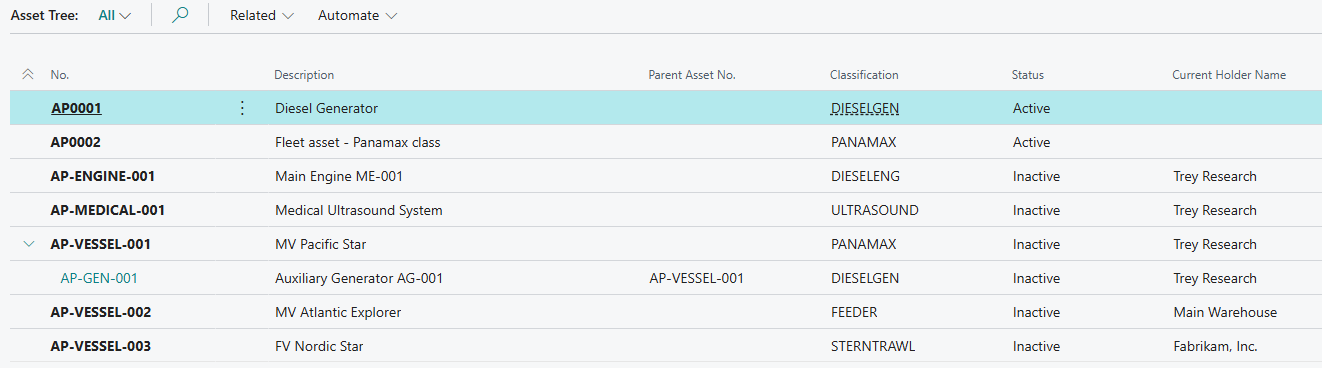
Asset Tree Features
Hierarchical Display:
-
Indentation shows hierarchy level
-
Parent rows expandable/collapsible
-
Visual hierarchy structure
Columns:
-
No.
-
Description
-
Hierarchy Level
-
Parent Asset No.
-
Current Holder
-
Status
Filtering:
-
Filter by Root Asset No. (show entire family)
-
Filter by Industry
-
Filter by Holder
Expanding/Collapsing:
-
Click + to expand children
-
Click - to collapse
-
See full hierarchy or just roots
Children Assets Action
From Parent Asset Card:
-
Open Parent Asset Card
-
Click Actions → Children Assets
-
Asset Tree opens
-
Filtered to descendants of this asset only
-
Shows children, grandchildren, etc.
Use Case: View all components within a specific parent
Example:
-
Open Ship SS-001 card
-
Click Children Assets
-
See all engines, pumps, sensors within that ship

Use Cases
Use Case 1: Tracking Ship Components
Scenario: Maritime company tracks vessels and engines
Hierarchy:
SS-ATLANTIC (Cargo Ship) - Root ├─ ENG-MAIN-001 (Main Engine) │ ├─ FP-001 (Fuel Pump) │ └─ FP-002 (Fuel Pump) ├─ ENG-AUX-001 (Auxiliary Engine) └─ GPS-001 (GPS System)
Benefits:
-
Track which engines in which ship
-
Component-level maintenance history
-
Replacement tracking
-
Spare parts planning
Use Case 2: Server Rack Equipment
Scenario: IT department tracks servers and network equipment
Hierarchy:
RACK-01 (Server Rack) ├─ SRV-WEB-01 (Web Server) ├─ SRV-WEB-02 (Web Server) ├─ SRV-DB-01 (Database Server) └─ SWITCH-01 (Network Switch)
Benefits:
-
Know which servers in which rack
-
Power usage tracking
-
Space utilization
-
Decommissioning planning
Use Case 3: Medical Equipment Components
Scenario: Hospital tracks MRI scanners and components
Hierarchy:
MRI-VIDA-01 (MRI Scanner) ├─ MAGNET-001 (Magnet Assembly) ├─ COIL-HEAD-001 (Head Coil) ├─ COIL-BODY-001 (Body Coil) └─ CONSOLE-001 (Control Console)
Benefits:
-
Component-level service tracking
-
Warranty management per component
-
Replacement part ordering
-
Compliance tracking
Use Case 4: Building Equipment
Scenario: Facilities management tracks building systems
Hierarchy:
BUILDING-A (Office Building) ├─ HVAC-001 (HVAC System) │ ├─ COMP-001 (Compressor) │ └─ FAN-001 (Air Handler) ├─ ELEVATOR-001 (Passenger Elevator) └─ GENERATOR-001 (Backup Generator)
Benefits:
-
Building-level asset grouping
-
System-level maintenance
-
Energy usage tracking
-
Capital planning
Advanced Scenarios
Reorganizing Hierarchies
Scenario: Move component from one parent to another
Example: Move Engine from Ship A to Ship B
Steps:
-
Ensure Same Holder:
-
Check Ship A holder: Location WAREHOUSE
-
Check Ship B holder: Location WAREHOUSE
-
Both at same location ✓
-
-
Detach from Ship A:
-
Open Engine card
-
Clear Parent Asset No. (was Ship A)
-
Save (logs Detach event)
-
-
Attach to Ship B:
-
Parent Asset No. = Ship B
-
Save (logs Attach event)
-
Result: Engine now child of Ship B
History: Relationship Entries show complete move history
Temporarily Detaching for Service
Scenario: Engine removed from Ship for overhaul, then reinstalled
Steps:
-
Initial State: Engine in Ship at Location WAREHOUSE
-
Remove for Service:
-
Detach Engine from Ship
-
Transfer Engine to Vendor V-001 (Repair Shop)
-
Transfer Ship to Customer C-001 (Ship operates without engine)
-
-
Service Complete:
-
Transfer Engine back to Location WAREHOUSE
-
Transfer Ship back to Location WAREHOUSE
-
-
Reinstall:
- Attach Engine to Ship (both at WAREHOUSE)
History:
-
Detach entry (step 2)
-
Holder entries for both assets (steps 2-3)
-
Attach entry (step 4)
-
Complete audit trail
Multi-Level Reassignment
Scenario: Moving entire subasset tree (parent with children) to new parent
Example: Move Engine (with its Pumps) from Ship A to Ship B
Current Process:
-
Note Engine's children (Pump 1, Pump 2)
-
Detach Pumps from Engine
-
Detach Engine from Ship A
-
Attach Engine to Ship B
-
Attach Pump 1 to Engine
-
Attach Pump 2 to Engine
Future Enhancement: Automatic child movement
Troubleshooting
Problem: Cannot Assign Parent - Different Holder
Cause: Child and parent at different locations
Solution:
-
Note parent holder
-
Transfer child to same holder
-
Assign parent relationship
Example:
-
Parent at Location WAREHOUSE
-
Child at Customer C-001
-
Transfer child to WAREHOUSE
-
Assign parent
Problem: Circular Reference Error
Cause: Trying to create circular hierarchy
Example: A → B, then trying to make B → A
Solution:
-
Review hierarchy
-
Cannot have circles
-
Choose linear parent-child path
Problem: Cannot Delete Asset - Has Children
Cause: Asset has child assets
Solution 1 (Detach first):
-
Detach all children
-
Delete asset
Solution 2 (Block instead):
-
Set Blocked = TRUE
-
Set Status = Decommissioned
-
Preserve history
Problem: Hierarchy Level Incorrect
Cause: Stale calculation (rare)
Solution:
-
Detach from parent
-
Re-attach to parent
-
Recalculates hierarchy level
Problem: Root Asset No. Blank on Child
Cause: Parent chain broken or circular
Investigation:
-
Check parent exists
-
Walk up parent chain manually
-
Look for circular reference
-
Fix broken link
Parent-Child relationships represent physical containment, not logical classification. Use hierarchies when tracking assets inside other assets (engines in ships, servers in racks). For logical organization (types and categories), use Classifications instead!